What it is
A CSV file of the calls you made, one row per call in dial order, with the result, the note, any callback or appointment, and everything RealDialer holds about each person: every phone number (primary first), emails, mailing and property addresses, company, tags, lead source and your custom fields. It is made for loading into your own CRM.
Where to find it
Reports > Export calls. The same Export CSV button sits on the session report at the end of every session.
Steps
- Open Reports and find Export calls.
- Pick a range, or Pick dates for your own.
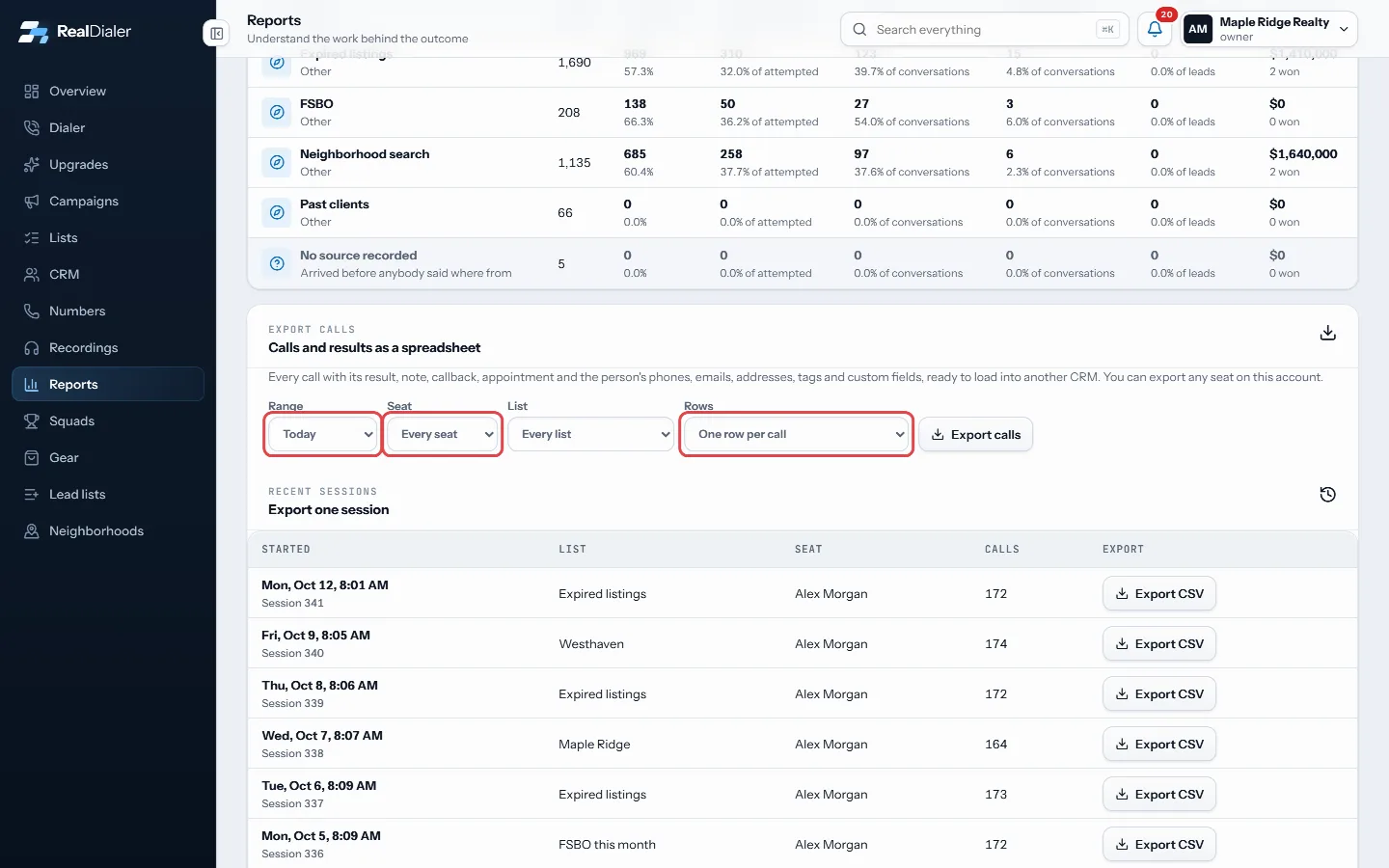
Range, seat, list and rows - Owners and managers can pick one seat. Anyone can pick one list.
- Choose One row per call or One row per person (latest result).
- Press Export calls. To get a single session, press Export CSV next to it under Recent sessions.
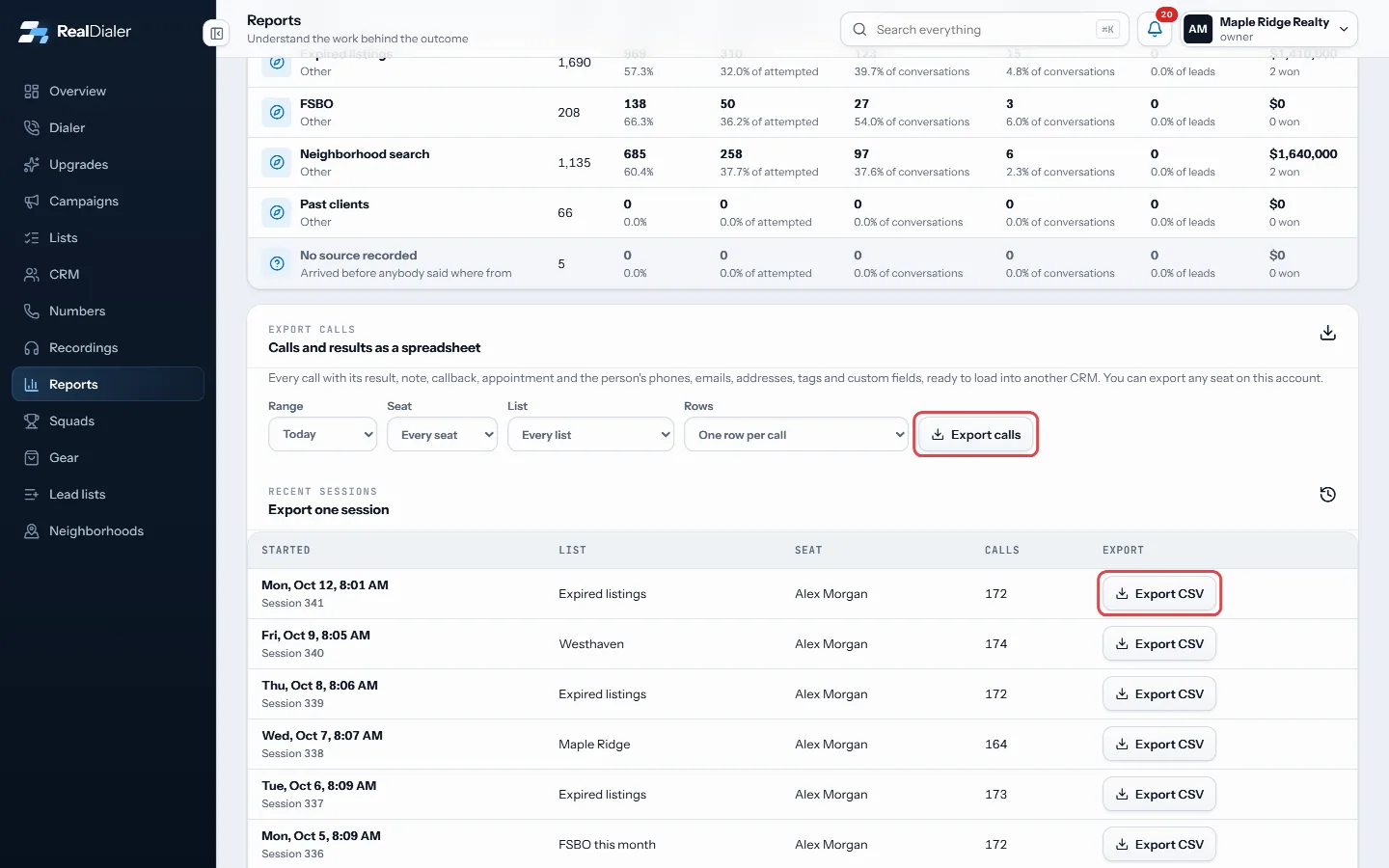
Export calls, or Export CSV for one session
Good to know
- A caller exports their own calls. Owners and managers can export any seat on the account.
- Times are in the time zone of the seat that dialed, named in the Time zone column. Call time UTC is there too for imports that want it.
- Attempt says whether a call was the first, the next number, a double dial, a redial or a direct call.
- People marked do not call are still in the file, because you called them. Do not call set on this call and Contact is do not call tell your CRM to stop.
- One file holds up to 50,000 calls. For more, pick a shorter range, one seat or one list.
- Cells that start like a spreadsheet formula get a leading apostrophe, so nothing in the file runs when you open it.
Was this guide helpful?
Thanks. It helps us make these better.
Next in Reports
Read the outcome funnelThe outcome funnel, Dials to closed, follows your calls from the first dial to a closed deal. It is measured from the calendar and the deal board, not only fromRead the Reports pageReports shows your calling effort for a chosen range, how calls turned into appointments and closings, which lead sources pay off, your best hours, and how everSee which lead sources pay offLead source intelligence shows, for each way people arrive in your account, how many were added, attempted, reached, turned into leads, appointments and listing
Still stuck? Write to support@realdialer.com, or open Support from inside RealDialer.