What it is
The Do Not Call page is where RealDialer keeps your calls clear of people who should not be called. It checks your lists against the National Do Not Call Registry on your own registry subscription, blocks the numbers on your own do-not-call lists, and shows you which area codes on your lists your subscription covers. Every check is logged with its date, so you have a record of how your lists were scrubbed.
Where to find it
Click your name at the top right and choose Do Not Call. It is also under Settings > Do not call.
Steps
- Open Do Not Call from the menu under your name. An amber Set up next to it means your registry subscription is not connected yet.
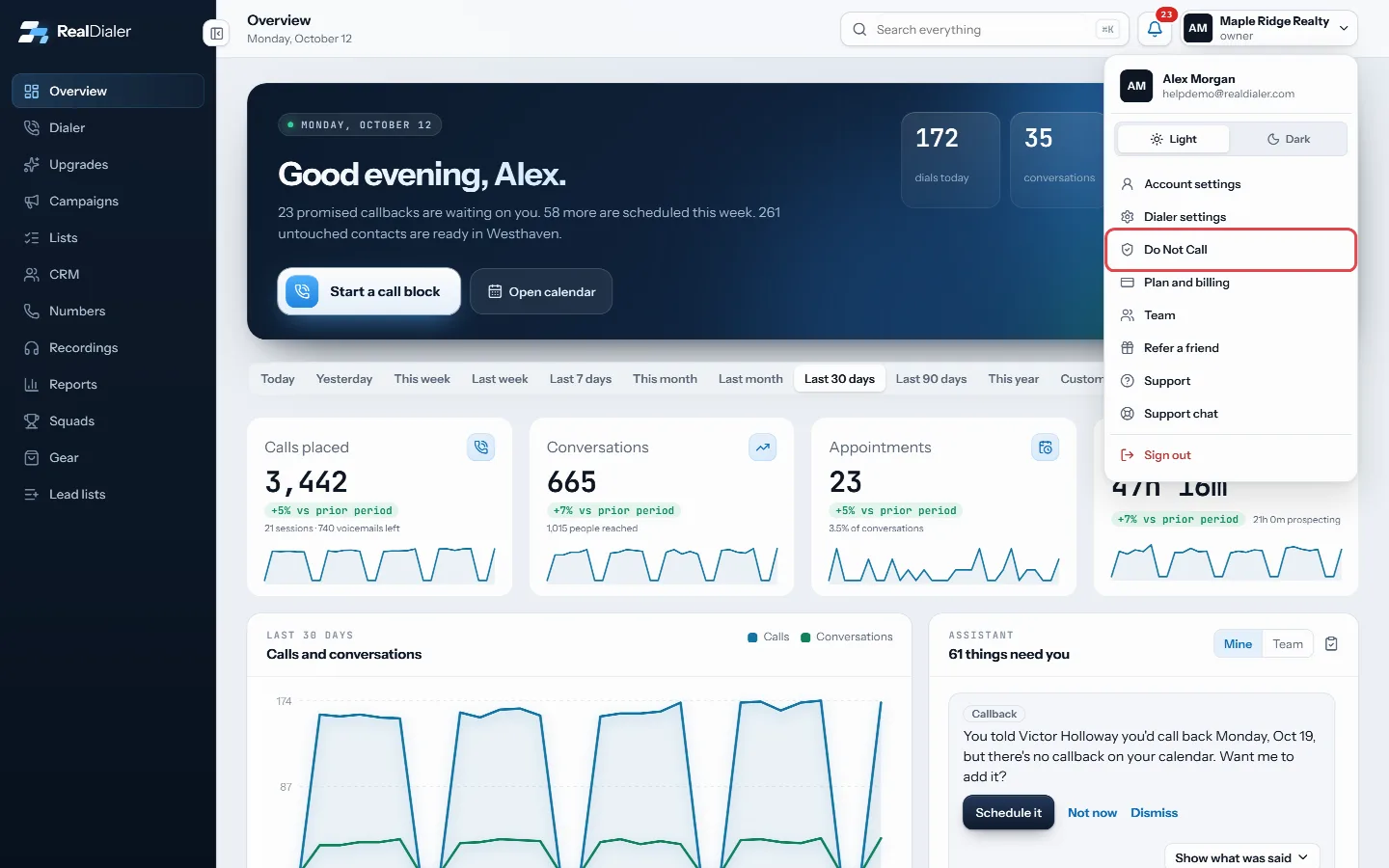
Click your name at the top right and choose Do Not Call - Open the National Do Not Call tab. If you have not connected your registry subscription, enter your organization name, SAN, Organization ID, area codes and expiration date, tick I authorize RealDialer, and save. If you do not have a registry account yet, follow Register with the National Do Not Call Registry first.
- Once your subscription is active, the tab shows each area code you subscribe to, when it was last refreshed, when the next refresh is due, and how many numbers on your lists are on the registry. RealDialer refreshes your area codes every month and scrubs your lists each time.
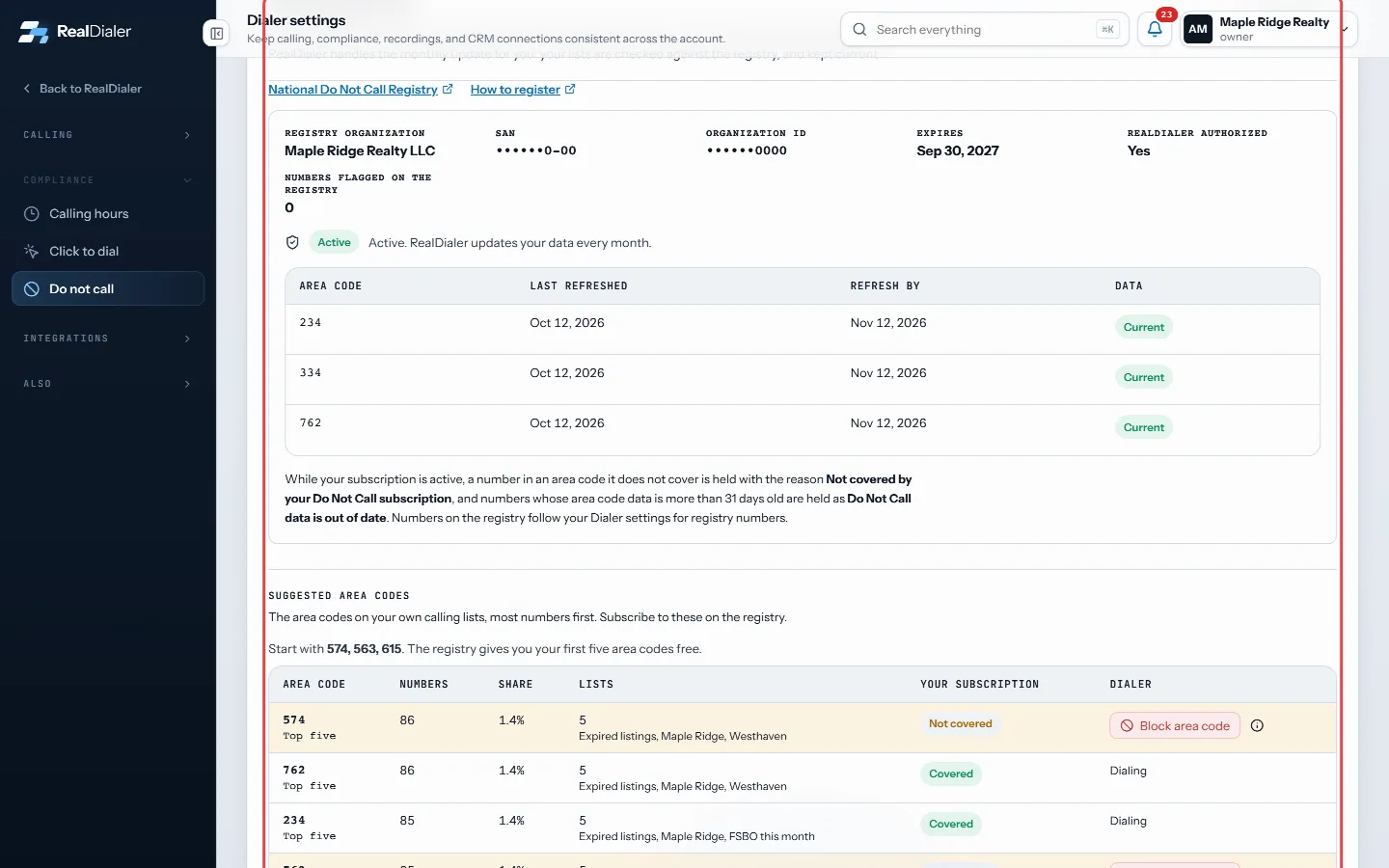
National Do Not Call: your registry subscription, area codes and when each was last refreshed - Scroll to Suggested area codes. It lists the area codes on your own calling lists, most numbers first, and marks each one Covered or Not covered by your subscription. The first five area codes on the registry are free, so start with the top ones.
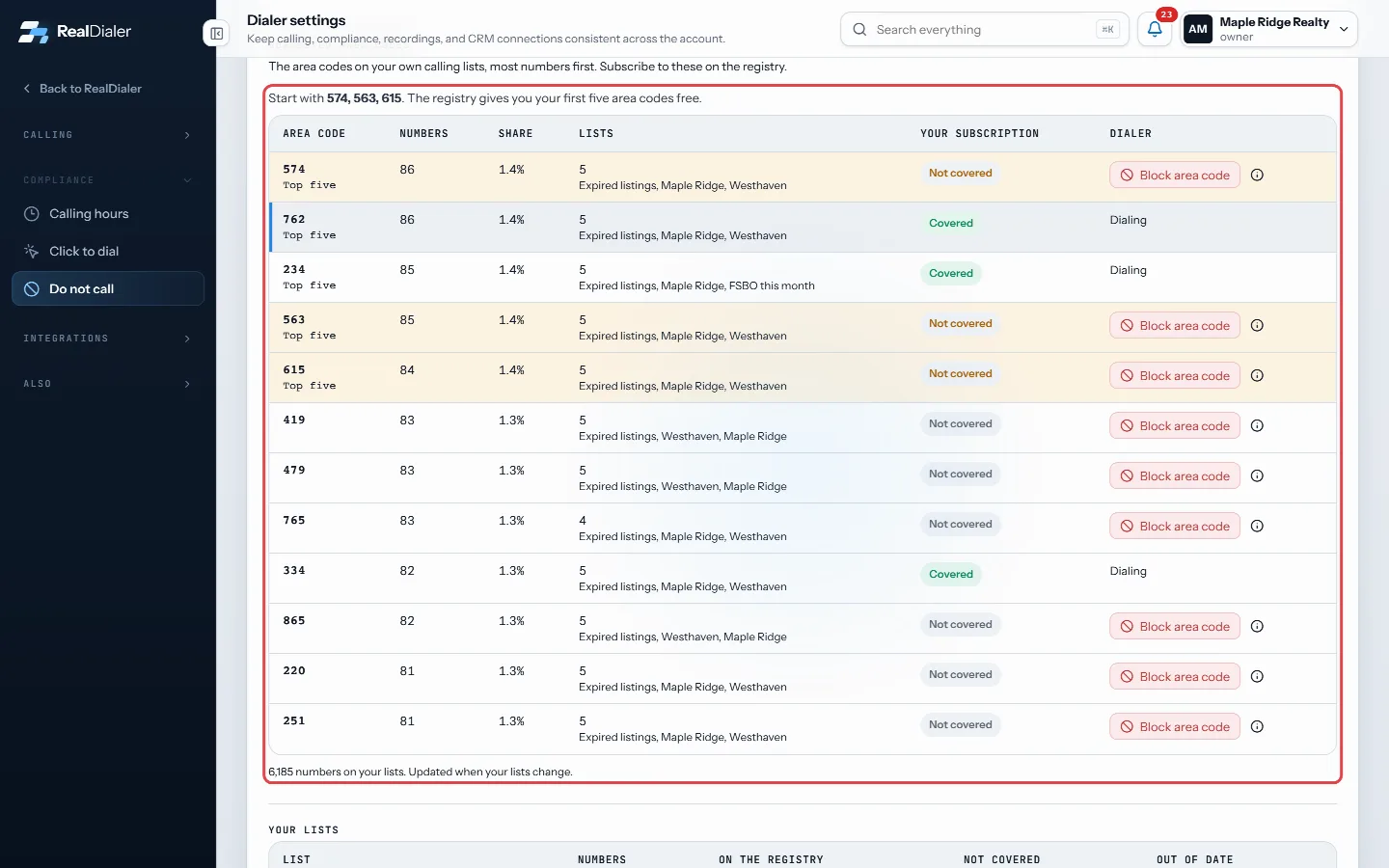
Suggested area codes: the area codes on your lists, marked Covered or Not covered - For an area code you do not cover and do not want to call, click Block area code. Hover the info icon next to it to see what it does: every number in that area code is blocked from your dialer for everyone on your account. To undo it, remove the area code under Territory you do not work on the My do-not-call list tab.
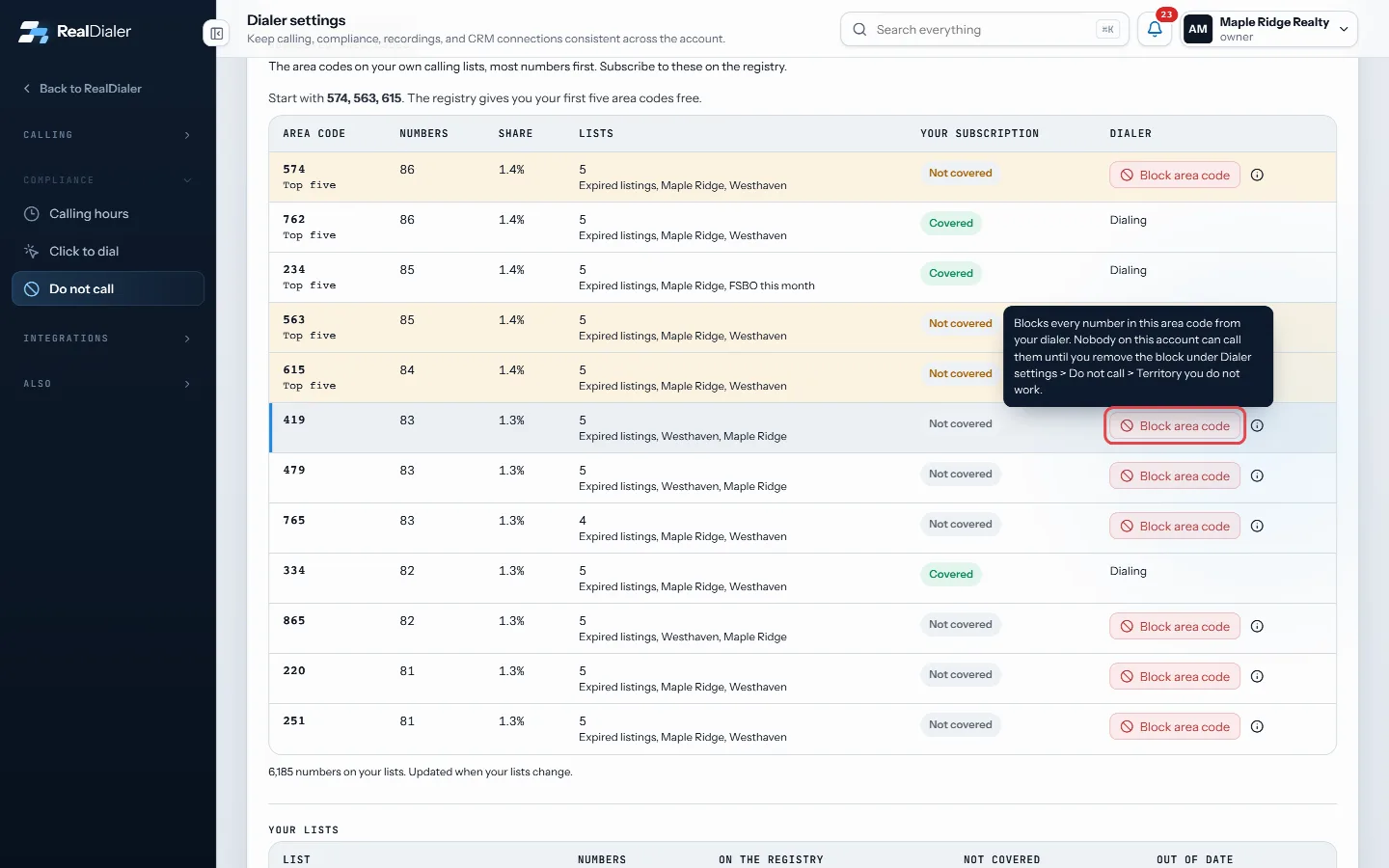
Block area code stops every number in that area code; hover the info icon to see what it does - Open Uploaded lists to add do-not-call files of your own, such as a brokerage list or a state list. Name the list, choose where it came from, pick the file and click Upload list. Every number on it is blocked for your account.
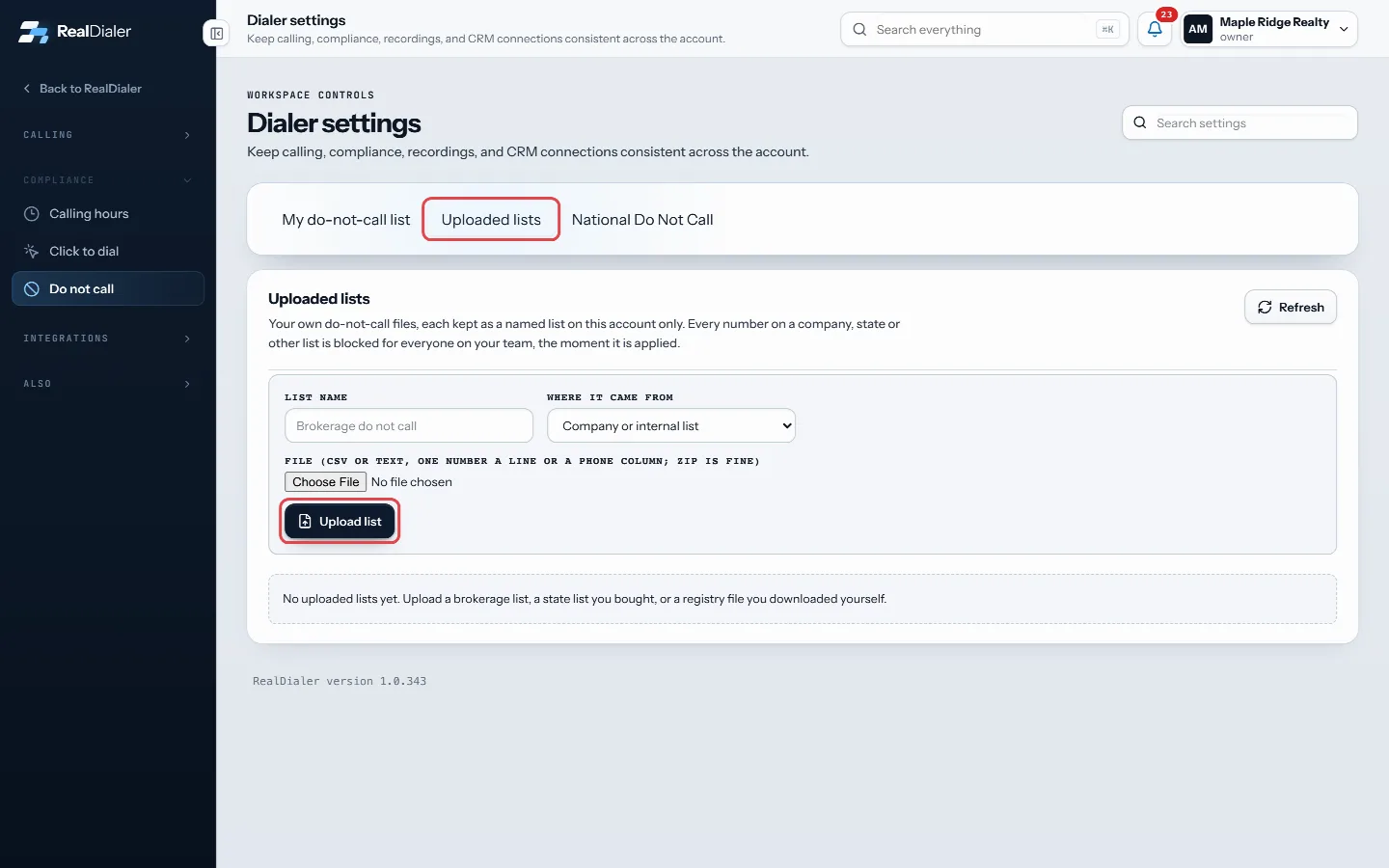
Uploaded lists: name the list, choose where it came from, pick the file and upload - Open My do-not-call list to add a single number by hand with Never call, import a file, export your list, or rule out an area code or a whole state under Territory you do not work.
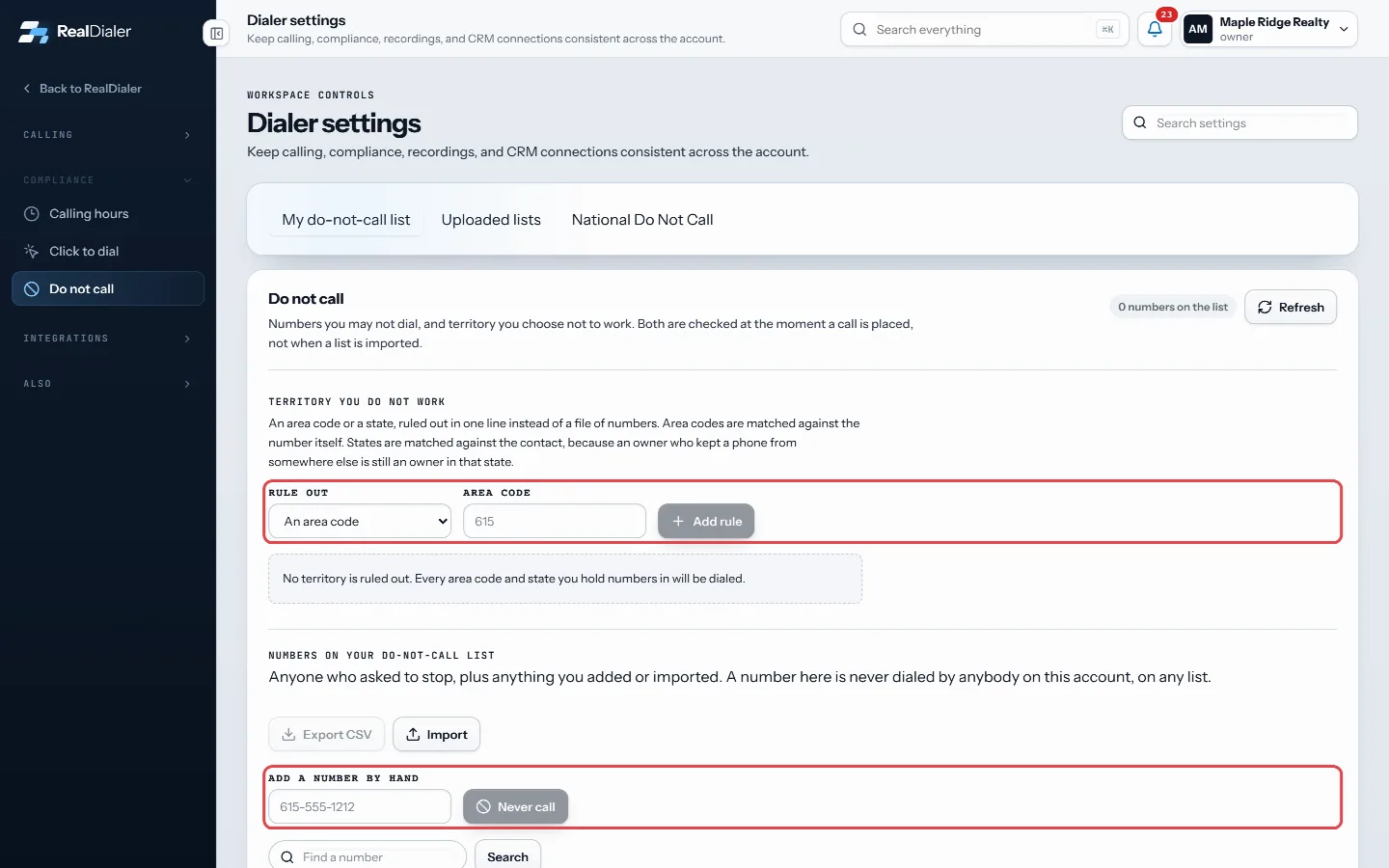
My do-not-call list: add a number by hand with Never call, or rule out an area code or state
Good to know
- With an active subscription, a number on the registry is not dialed. A number in an area code your subscription does not cover is held as “Not covered by your Do Not Call subscription”, and a number whose area code data is more than 31 days old is held as “Do Not Call data is out of date” until the next refresh.
- To call one person on the registry you have a relationship with or written permission from, open their contact record and choose I have permission to call this person. You pick the basis and date, add a note, check the numbers it covers, tick the certification and sign with your full name. It lifts only the registry holds for those numbers; your own lists, opt outs, uploaded lists, the litigator check and calling hours still apply.
- A permission expires 18 months after a transaction, 3 months after an inquiry, or 12 months after certifying a personal relationship; signed written permission lasts until revoked. A number on your do-not-call list, or an opt out, ends it immediately.
- Numbers are never deleted by a scrub. A flagged number stays on its contact with the reason, so you can still mail or visit that owner.
- RealDialer emails you each time your data is refreshed, and before a refresh or your registry subscription is due.
- Without a connected subscription, RealDialer dials as it always has, and your own do-not-call lists and the litigator check still apply on every call.
- Questions go to support@realdialer.com.
Was this guide helpful?
Thanks. It helps us make these better.
Next in Compliance
Add, import or export do not call numbersYour do not call list holds every number this account must never dial: anyone who asked to stop, plus anything you added or imported. A number on it is never diHow calling hours workEvery dial is checked against calling hours at the moment the call is placed. RealDialer looks at the contact's state on the contact's clock, and your state on How RealDialer keeps your Do Not Call data currentThe National Do Not Call Registry is run by the FTC. Sellers who make sales calls subscribe to it for the area codes they call, and must check their lists again
Still stuck? Write to support@realdialer.com, or open Support from inside RealDialer.