What it is
The Recordings page lists your recorded calls with the contact, the list, the agent, the date and the recording status. You can play each one in the browser, read its transcript, and open the contact.
Where to find it
Recordings in the left menu > Call recordings.
Steps
- Click Recordings in the left menu. It opens on Call recordings.
- Type in Search recordings to find a contact, phone number, list or agent.
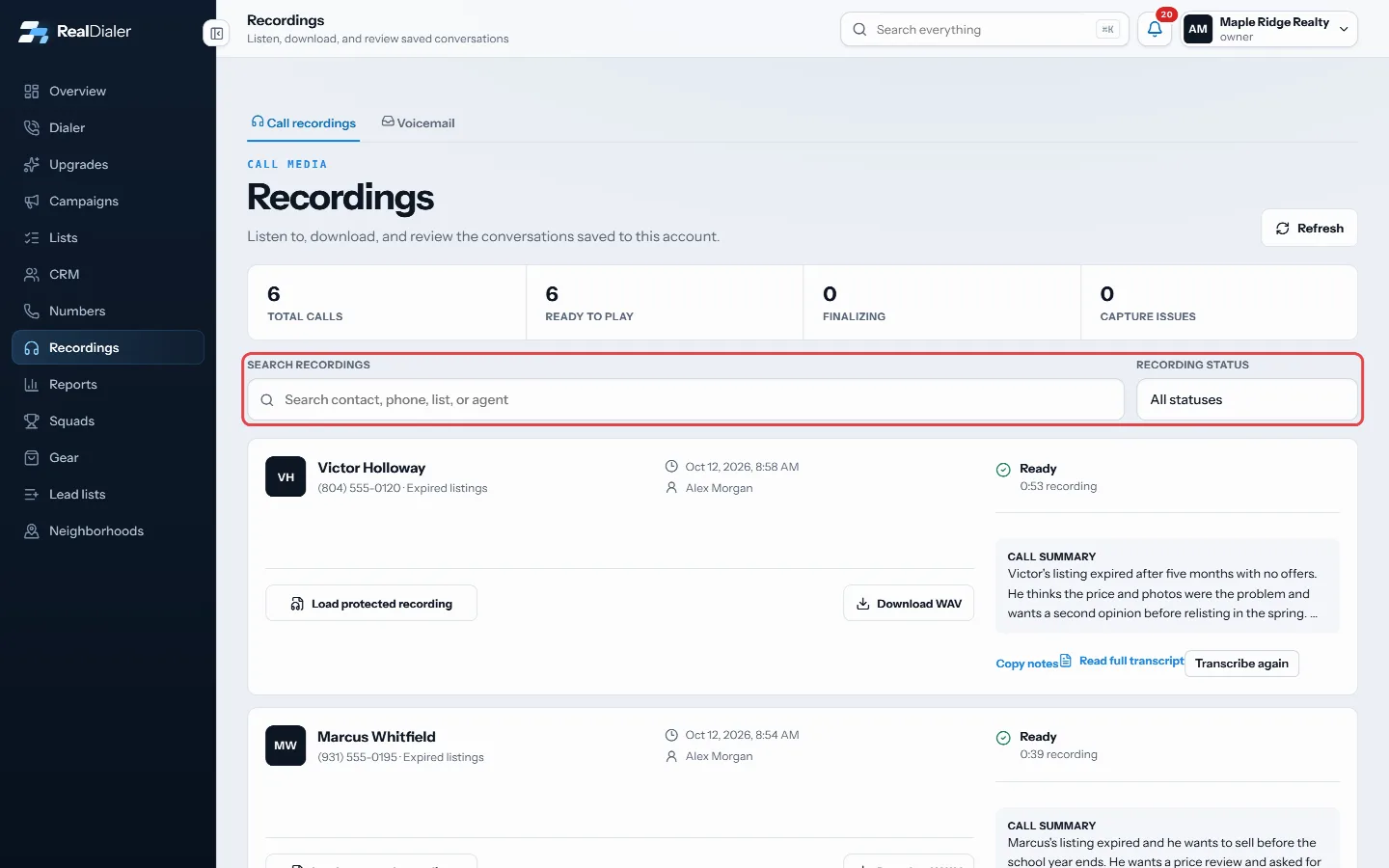
Search recordings and filter by status - Use Recording status to show only Ready, Finalizing, Capture failed, Expired or Not recorded calls.
- On a ready call, click Load protected recording, then press play.
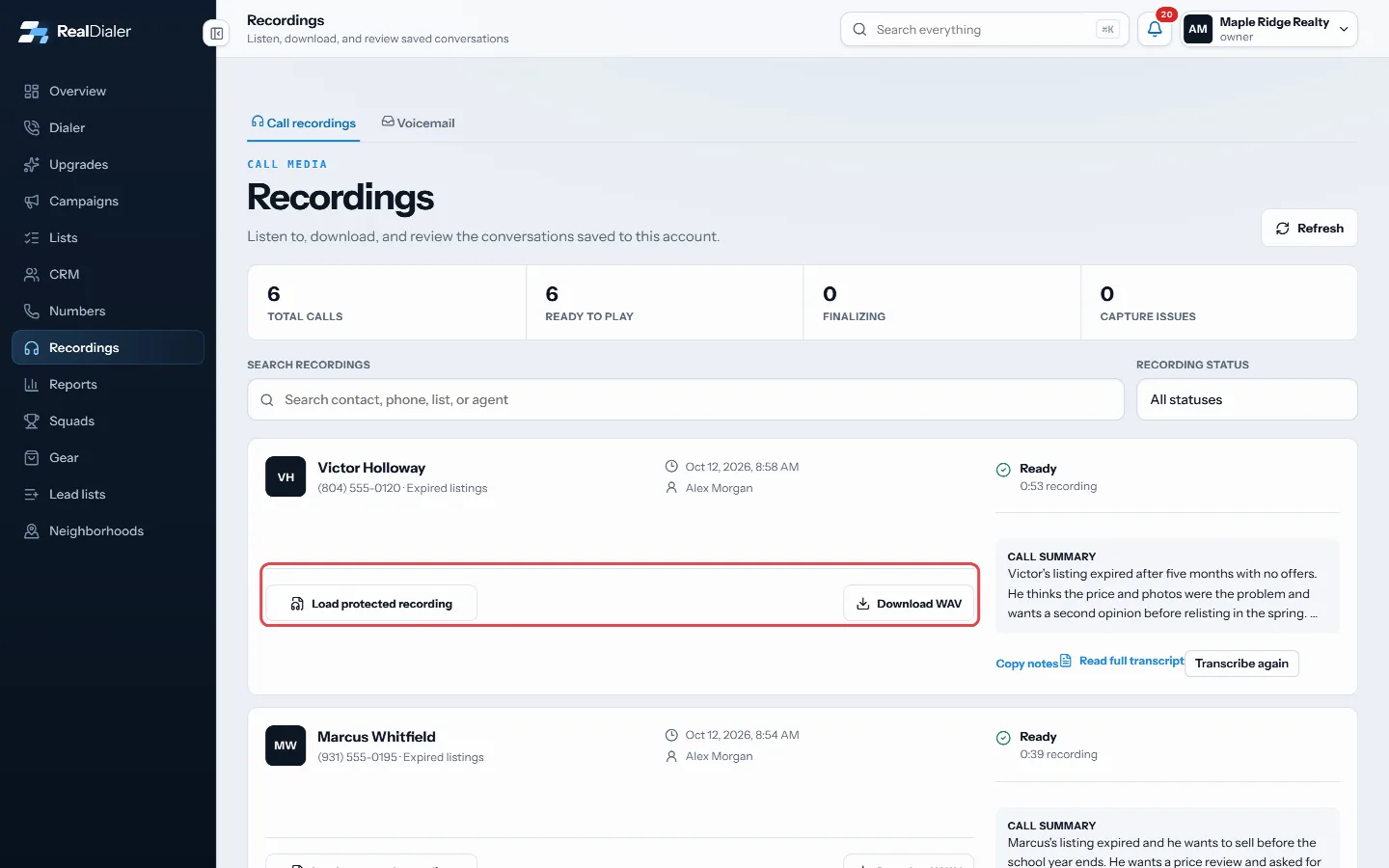
Load the protected recording, then play - Click the contact’s name to open their record.
- Click Load older at the bottom to see earlier calls.
Good to know
- The page shows the recordings from your own calls.
- The counts at the top show total calls, ready to play, finalizing, and capture issues.
- A new recording shows as Finalizing for a short time after the call, then becomes Ready.
- Click Refresh to check for recordings that just finished.
- The Voicemail tab next to Call recordings holds messages people left on your voicemail boxes.
Was this guide helpful?
Thanks. It helps us make these better.
Next in Recordings
How long recordings are keptCall audio is kept for a set number of days, then deleted. How long depends on your plan, or two years with the Call Recording upgrade. Transcripts, AI summarieRead call transcripts and summariesEvery recorded call gets a standard transcript after hangup, at no charge. With the RealDialer AI upgrade, calls get a more accurate transcript and an AI call sWhy a call was not recordedRealDialer only records calls when recording is turned on and both your state and the contact's state allow one-party recording, or, if your account owner turne
Still stuck? Write to support@realdialer.com, or open Support from inside RealDialer.