What it is
Every person on a RealDialer account has one of three roles. There is no permission matrix to configure. The role decides what they can see and change.
Where to find it
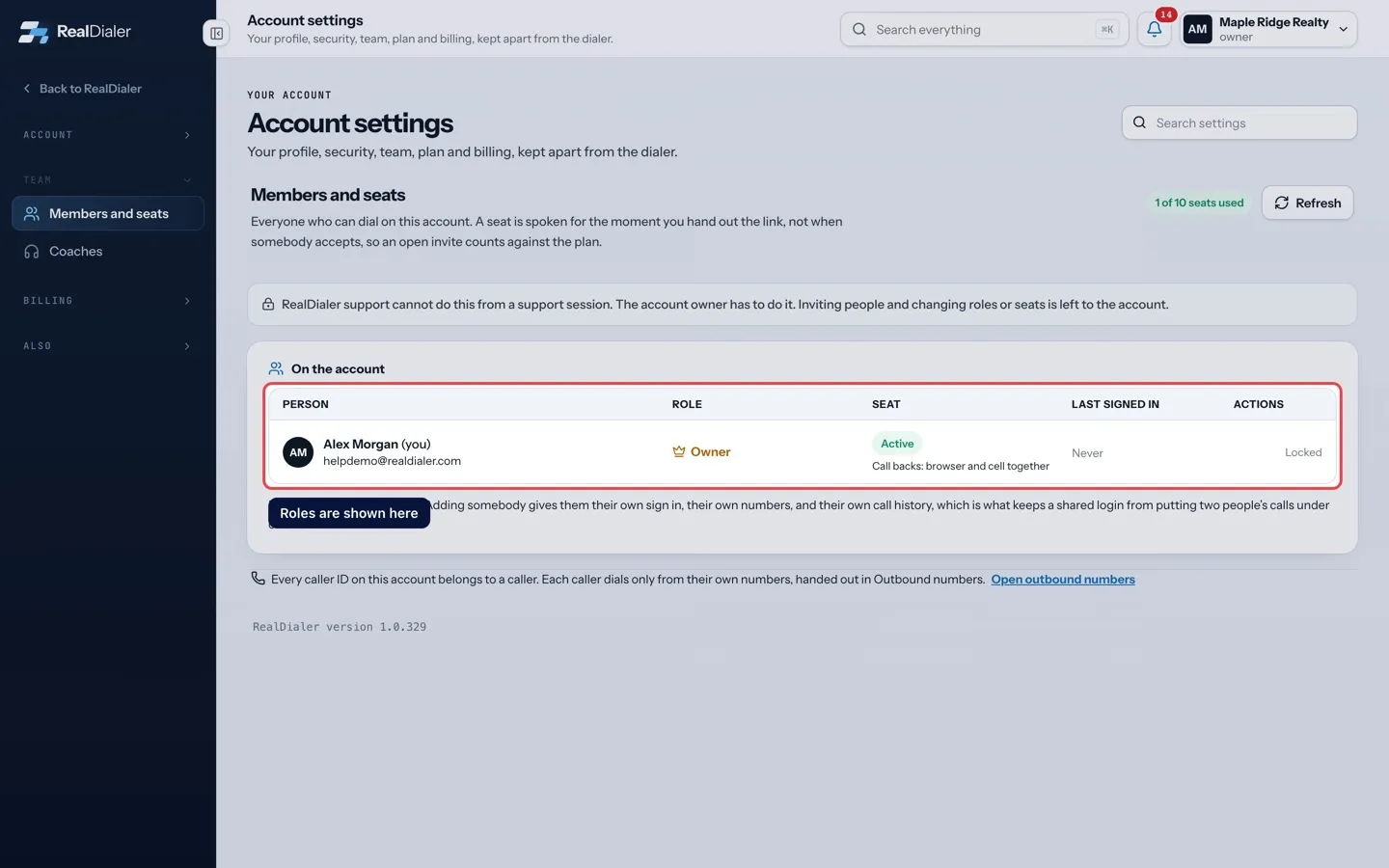
Settings > Team > Members and seats > On the account. The Role column shows each person’s role.
Steps
- Open Members and seats.
- Find the person under On the account.
- If you are the owner, pick Manager or Caller in their Role menu. The change saves right away.
Good to know
- Owner: everything a manager can do, plus billing, the plan, and closing the account. There is one owner, and the owner row cannot be changed here.
- Manager: runs the floor. Sees every seat, coaches any call, builds lists and scripts, manages numbers, team, compliance and integrations, and changes how the account dials. Cannot spend money or close the account.
- Caller: dials, and sees their own calls and recordings. Nothing account wide.
- Only the owner can change anybody’s role or add a manager. Managers can add callers.
- Nobody can change their own seat. Your row shows Locked.
- Some older screens say admin. An admin is the same as a manager.
Was this guide helpful?
Thanks. It helps us make these better.
Next in Team
Add a teammateEveryone who dials on your account gets their own sign in, their own numbers and their own call history. You add a person by creating an invite link and giving Coach access upgrade and revoking a coachCoach access is the upgrade that lets a coach onto your calls. It costs $2.99 a month per agent on your plan, billed with your plan. Coaches themselves pay nothHow seats workA seat is one person who can dial on your account. Your plan pays for a set number of seats. The count at the top of Members and seats shows how many are used,
Still stuck? Write to support@realdialer.com, or open Support from inside RealDialer.