What it is
If your computer has no camera, or it is just easier on your phone, you can scan a QR code and take the three identity photos on your phone. They appear on your computer as each one arrives, and you finish the form there.
Where to find it
Settings > Account > Identity verification > Use your phone’s camera
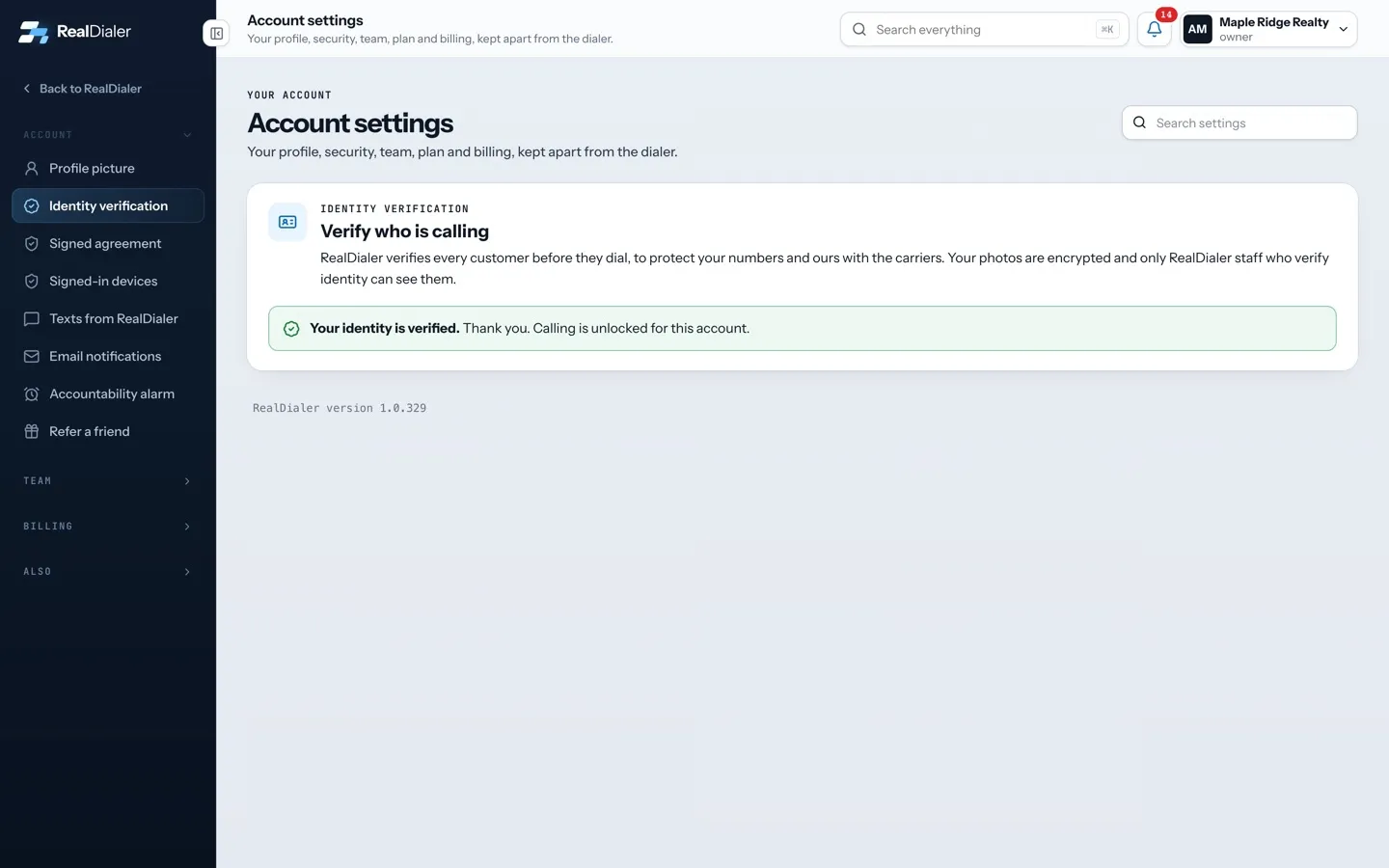
Steps
- Open Identity verification on your computer.
- Press Show QR code for my phone.
- Point your phone camera at the code and tap the link that appears.
- On your phone, take the three photos: the front of your ID, the back, and you holding your ID.
- Watch your computer. The page says Waiting for photos from your phone… and updates as each photo lands.
- When it says Your photos are in. Finish the form below., fill in your legal name, ID type and alternate phone on the computer.
- Press Submit for review.
Good to know
- Keep the identity page open on your computer while you use your phone. The code refreshes itself while the page is open, so it does not run out while you are getting ready.
- The phone link can only add these photos. It cannot open anything else in your account.
- If the code cannot be made, the page tells you to upload from your computer instead.
- You can also type the link shown under the code into your phone’s browser if scanning does not work.
Was this guide helpful?
Thanks. It helps us make these better.
Next in Account settings
Turn on the accountability alarmThe accountability alarm is an alarm clock for your calling. You pick when you want to be dialing or doing follow ups. If that time comes and you have not startVerify your identity to start callingRealDialer verifies every customer before they dial, to protect your numbers and ours with the carriers. You upload three photos and your legal name, RealDialerWhy a nudge was sent or held backRecent nudges is the history of your accountability alarm. Each line shows the alarm, when it ran, and whether it was Sent, Held back, Could not send or still S
Still stuck? Write to support@realdialer.com, or open Support from inside RealDialer.