What it is
An alarm is a time you plan to be working. When the grace period after that time runs out and you have not started, you get a nudge. There are three types of alarm, and each one checks something different.
Where to find it
Settings > Account > Accountability alarm > Schedule
Steps
- Press Add an alarm.
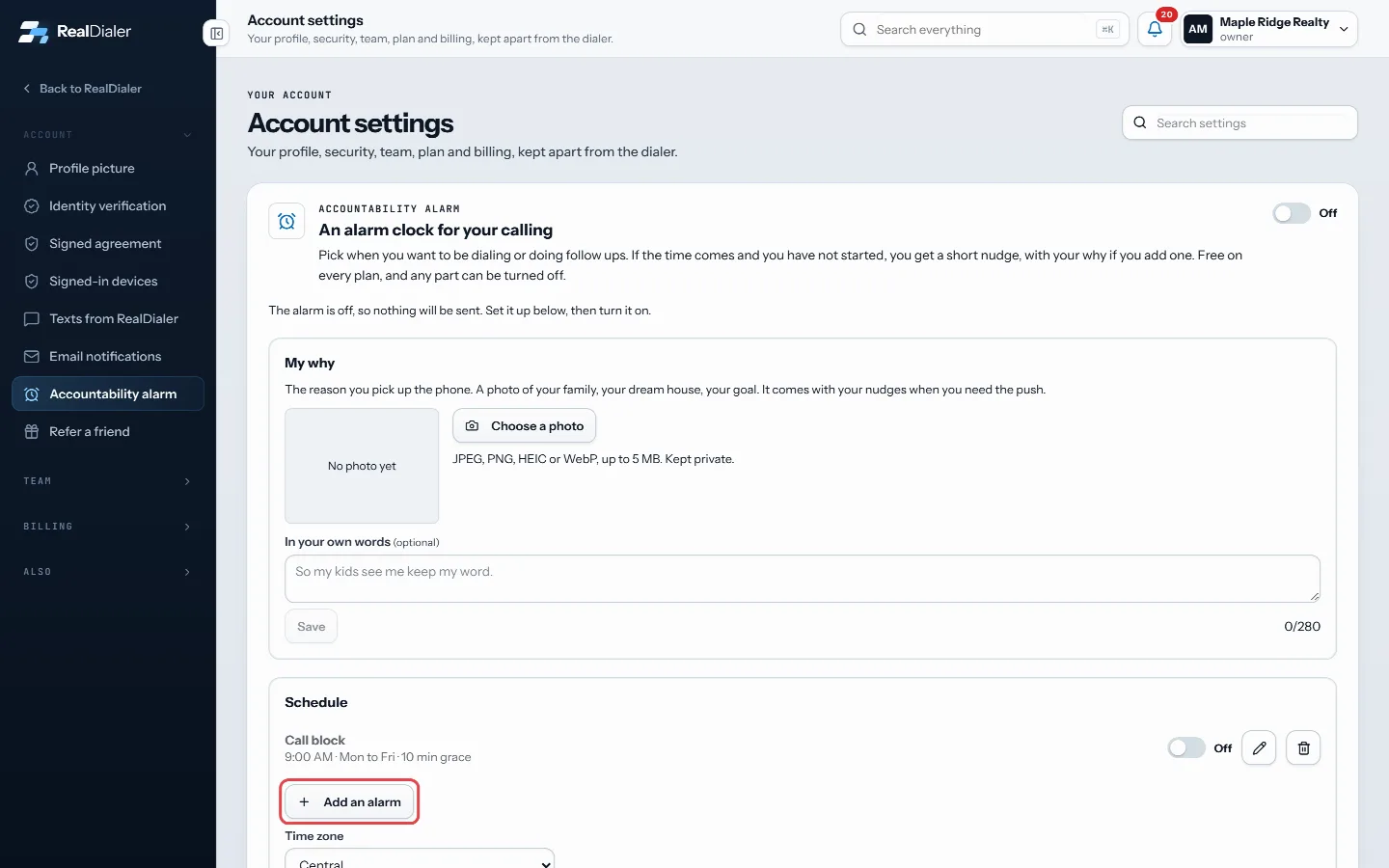
Under Schedule, press Add an alarm - Pick a Type: Call block, Follow ups or Custom. For Custom, add a Label such as “Write two handwritten notes”.
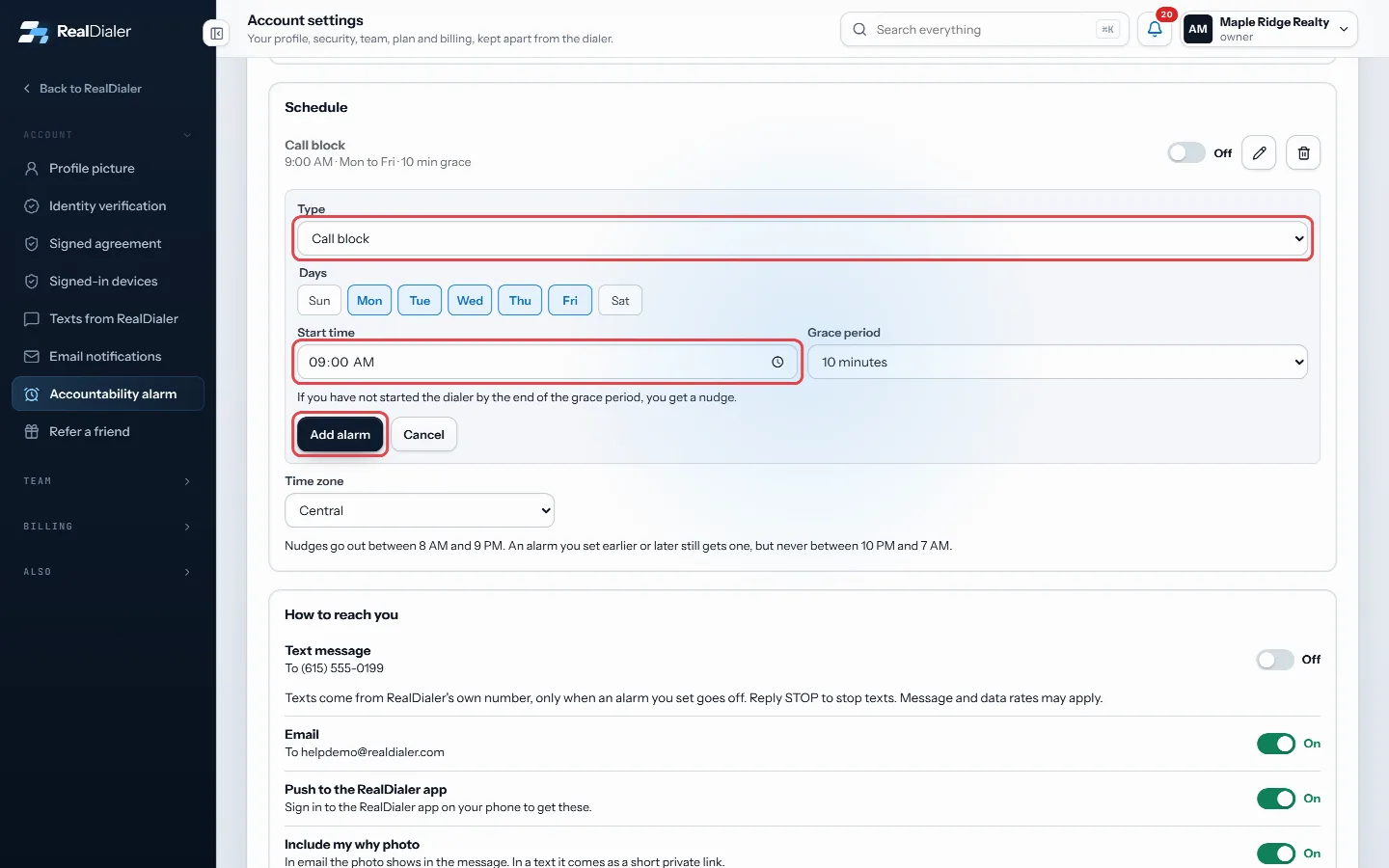
Pick the type, days, start time and grace period, then press Add alarm - Tap the Days you want, for example Mon to Fri.
- Set the Start time.
- Choose a Grace period, from None up to 60 minutes.
- Press Add alarm.
- To change one later, press the pencil next to it, edit, and press Save alarm. Press the trash can to delete it, or use its switch to turn just that alarm off.
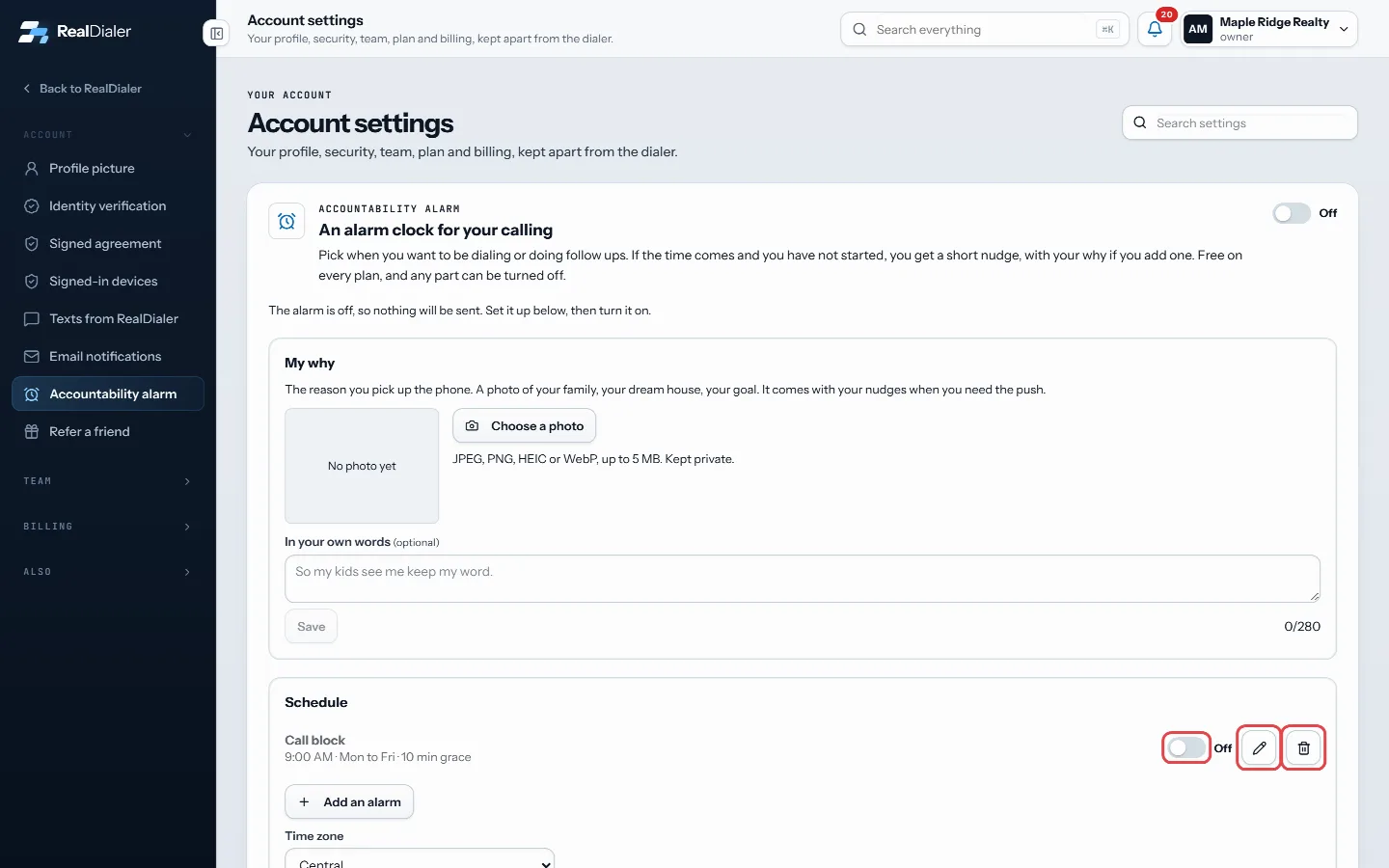
Each alarm has its own switch, a pencil to edit and a trash can to delete - Set your Time zone below the list so alarms go off at the right local time.
Good to know
- Call block nudges you if you have not started the dialer by the end of the grace period.
- Follow ups nudges you if you have not done a task, logged a call, sent a message or written a note by then.
- Custom is a plain reminder at the end of the grace period. Nothing is checked first.
- You can have up to 12 alarms.
- Nudges go out between 8 AM and 9 PM. An alarm set earlier or later still gets one, but never between 10 PM and 7 AM.
- The top switch of the page must be on for any alarm to send.
Was this guide helpful?
Thanks. It helps us make these better.
Next in Account settings
Add your why to the accountability alarmYour why is the reason you pick up the phone. It can be a photo, like your family, your dream house or a goal, and a short line in your own words. It comes withCheck your ID review or resubmitAfter you submit your ID, the Identity verification page shows where the review stands. If something was unclear, RealDialer sends it back with a note so you caChoose how accountability nudges reach youNudges can reach you by text message, by email, and by push to the RealDialer app on your phone. You switch each one on or off, choose whether your why photo co
Still stuck? Write to support@realdialer.com, or open Support from inside RealDialer.