What it is
After you submit your ID, the Identity verification page shows where the review stands. If something was unclear, RealDialer sends it back with a note so you can fix it and submit again.
Where to find it
Settings > Account > Identity verification. The status line sits at the top of the page.
Steps
- Open Identity verification and read the status at the top.
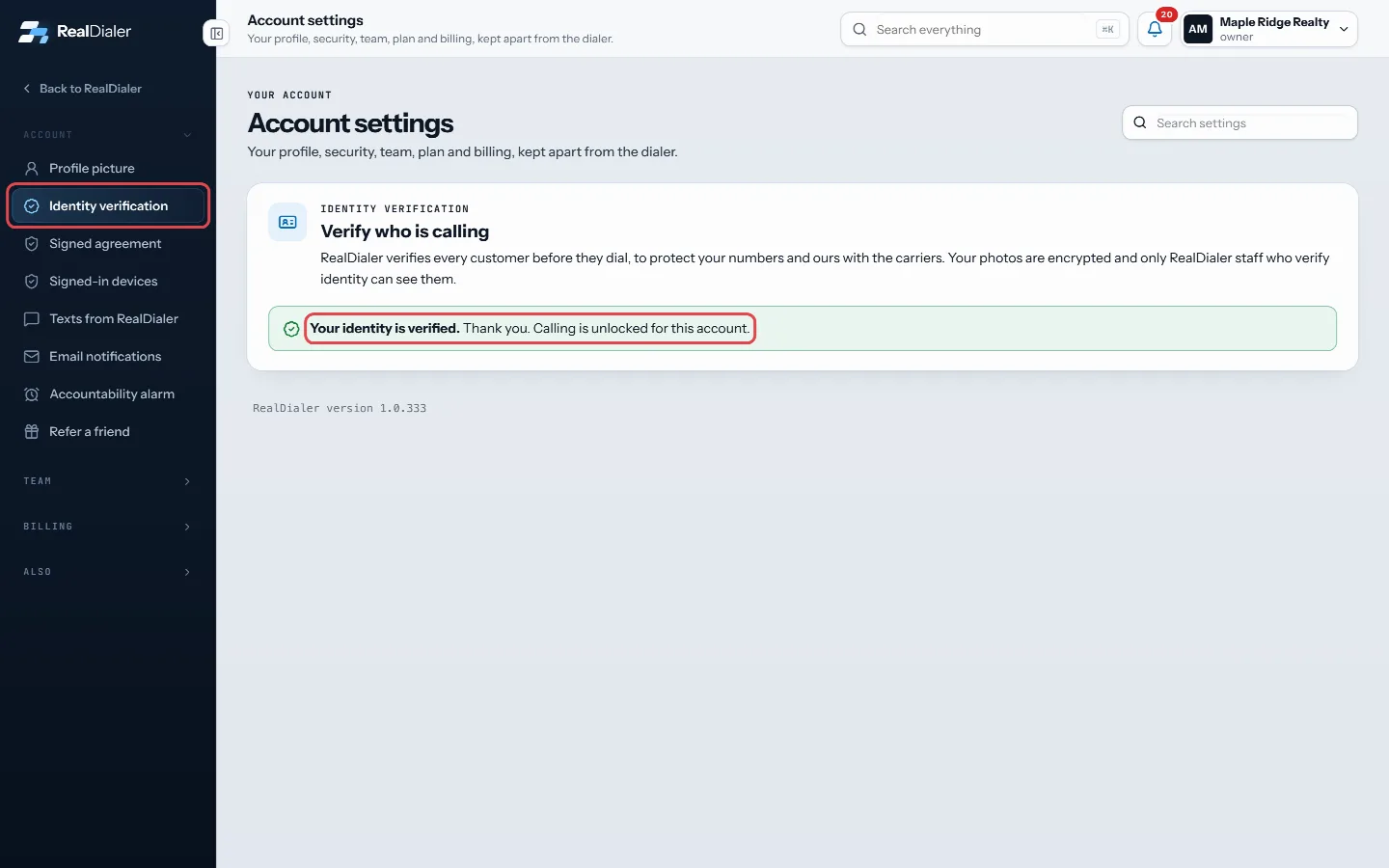
Open Identity verification and read the status at the top - If it says Your ID was not approved, read the Note from RealDialer under it.
- Press the photo box that needs fixing and choose Replace photo, or update the name, ID type or phone.
- Press Submit for review again.
- If you already submitted and want to change something while it is waiting, replace the photo and press Resubmit for review.
Good to know
- Your ID is being reviewed means it is in the queue. You can start calling as soon as it is approved, usually the same business day.
- Your identity is verified means you can start calling. The banner at the top of the page goes away.
- The submit button stays off until all three photos are uploaded, your full name has at least a first and last name, an ID type is chosen, and the alternate phone has 10 digits.
- RealDialer will reach out if anything is unclear. You can also write to support@realdialer.com.
Was this guide helpful?
Thanks. It helps us make these better.
Next in Account settings
Choose how accountability nudges reach youNudges can reach you by text message, by email, and by push to the RealDialer app on your phone. You switch each one on or off, choose whether your why photo coChoose what RealDialer texts youRealDialer may text account notices, like an outage, a billing problem or a change to your account, to the mobile number on your profile. Product news and offerDownload your signed agreementWhen you first signed in, you signed the RealDialer Customer Agreement and Privacy Policy electronically. This page shows who signed, when, for which account, a
Still stuck? Write to support@realdialer.com, or open Support from inside RealDialer.