What it is
When you first signed in, you signed the RealDialer Customer Agreement and Privacy Policy electronically. This page shows who signed, when, for which account, and the version of each document. You can download the signed PDF at any time.
Where to find it
Settings > Account > Signed agreement
Steps
- Open Settings, then choose Signed agreement under Account.
- Check the details: Signed by, Signed, Account, and the version of each document.
- Press Download signed PDF.
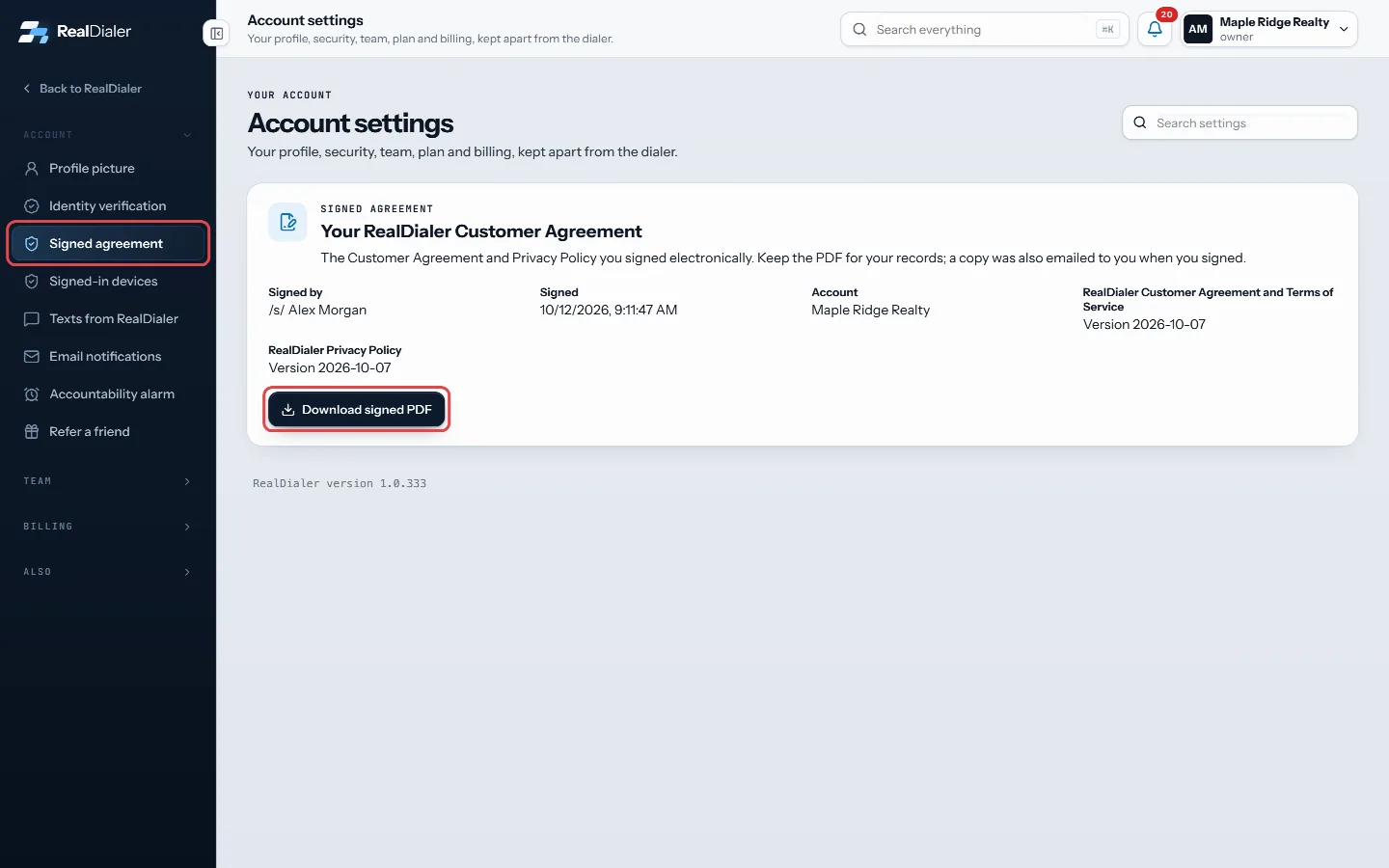
Open Signed agreement and press Download signed PDF - Wait for Preparing your PDF… to finish. The file saves as RealDialer-Customer-Agreement-signed.pdf.
Good to know
- A copy was also emailed to you the moment you signed.
- If the page says You have not signed the Customer Agreement yet, you will be asked to read and sign it before you can use the app.
- When the terms change, RealDialer asks you to read and accept the new version. The page then shows the new version number.
- If the download fails, try again. If it keeps failing, contact support@realdialer.com.
Was this guide helpful?
Thanks. It helps us make these better.
Next in Account settings
See and sign out signed-in devicesThis page lists the browsers and apps that are signed in to your RealDialer account, with when each was last active. You can sign any of them out, or all of theSkip today or snooze the accountability alarmTaking a day off or going on vacation? Instead of turning the alarm off and setting it up again later, you can skip today or snooze it for a week. Your alarms aTake your ID photos on your phoneIf your computer has no camera, or it is just easier on your phone, you can scan a QR code and take the three identity photos on your phone. They appear on your
Still stuck? Write to support@realdialer.com, or open Support from inside RealDialer.