What it is
Campaign types are the labels every campaign is filed under, and the lines your traction report is broken into. Every account starts with ten: Circle Prospecting, Expireds, Cancelled, FSBO, Sphere, Past Clients, Just Listed, Just Sold, Absentee Owner and General. You can add your own, such as Probate.
Where to find it
Campaigns > Campaign types.
Steps
- On the Campaigns page, click Campaign types.
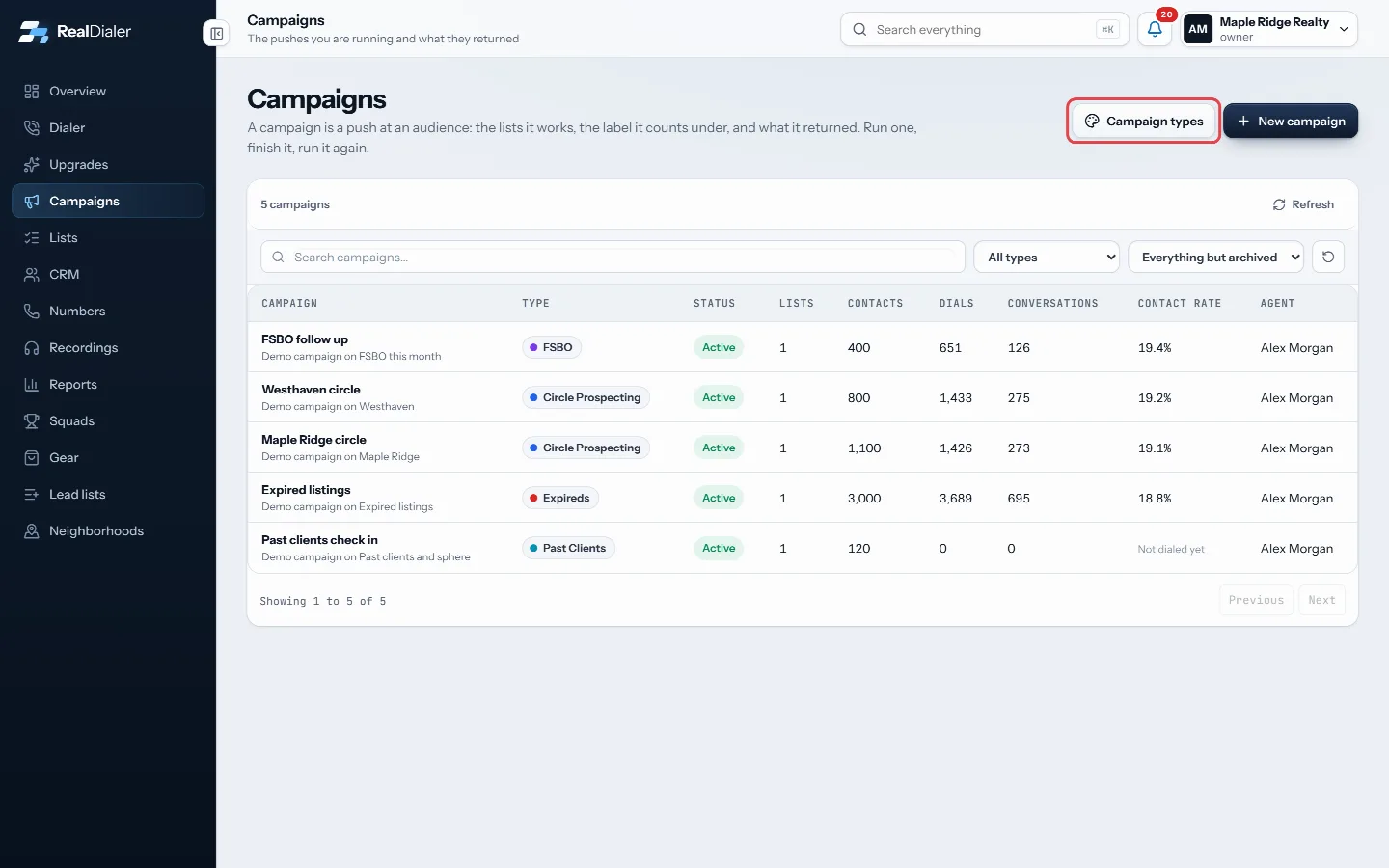
Click Campaign types - To add one, type a name under Add a type, pick a colour, and click Add type.
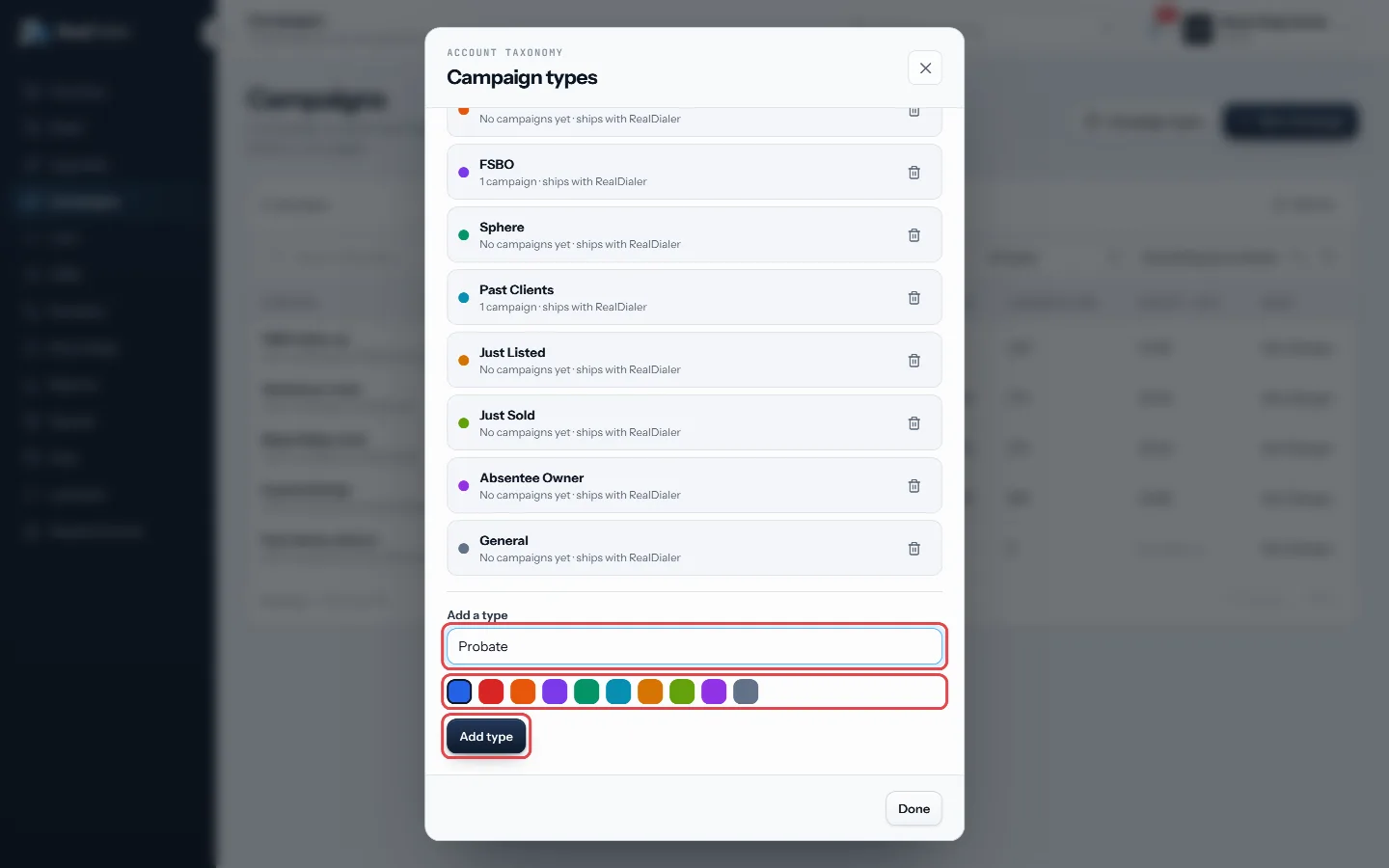
Type a name, pick a colour, click Add type - To retire one, click the trash icon next to it.
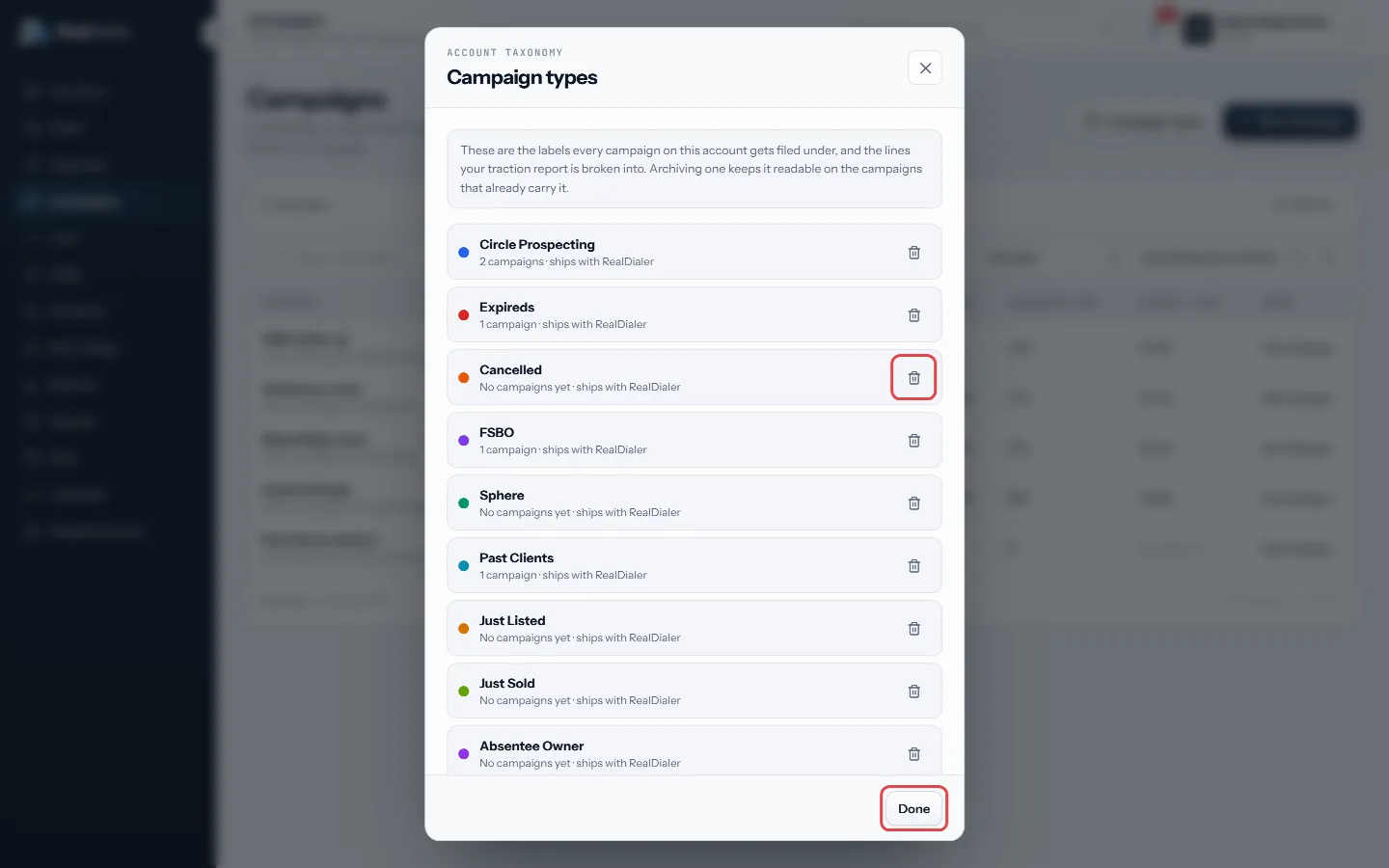
The trash icon retires a type; Done closes - Click Done.
Good to know
- Only account owners and managers can add or archive types. Everyone can pick a type for a campaign.
- Archiving a type keeps it readable on the campaigns that already carry it. It just stops being offered for new work.
- Each type shows how many campaigns use it.
- You can also reach this screen from the New campaign wizard with Add or rename campaign types.
- A type is one label per campaign. For free form filing such as a city or price band, use groups instead.
Was this guide helpful?
Thanks. It helps us make these better.
Next in Campaigns
Add or remove lists in a campaignA campaign works the lists you put in it. Adding a list copies nothing and moves nothing, and the same list can be in more than one campaign at the same time.Build a follow up from a finished campaignBuild a follow up keeps the people worth working from a campaign as a new list, picked by the last result each person gave on that campaign. You can also put thContinue a pass or start a new passEvery time you work through a campaign's lists is a pass. When you start a session you choose to keep going on the open pass, or to start a fresh pass from the
Still stuck? Write to support@realdialer.com, or open Support from inside RealDialer.