What it is
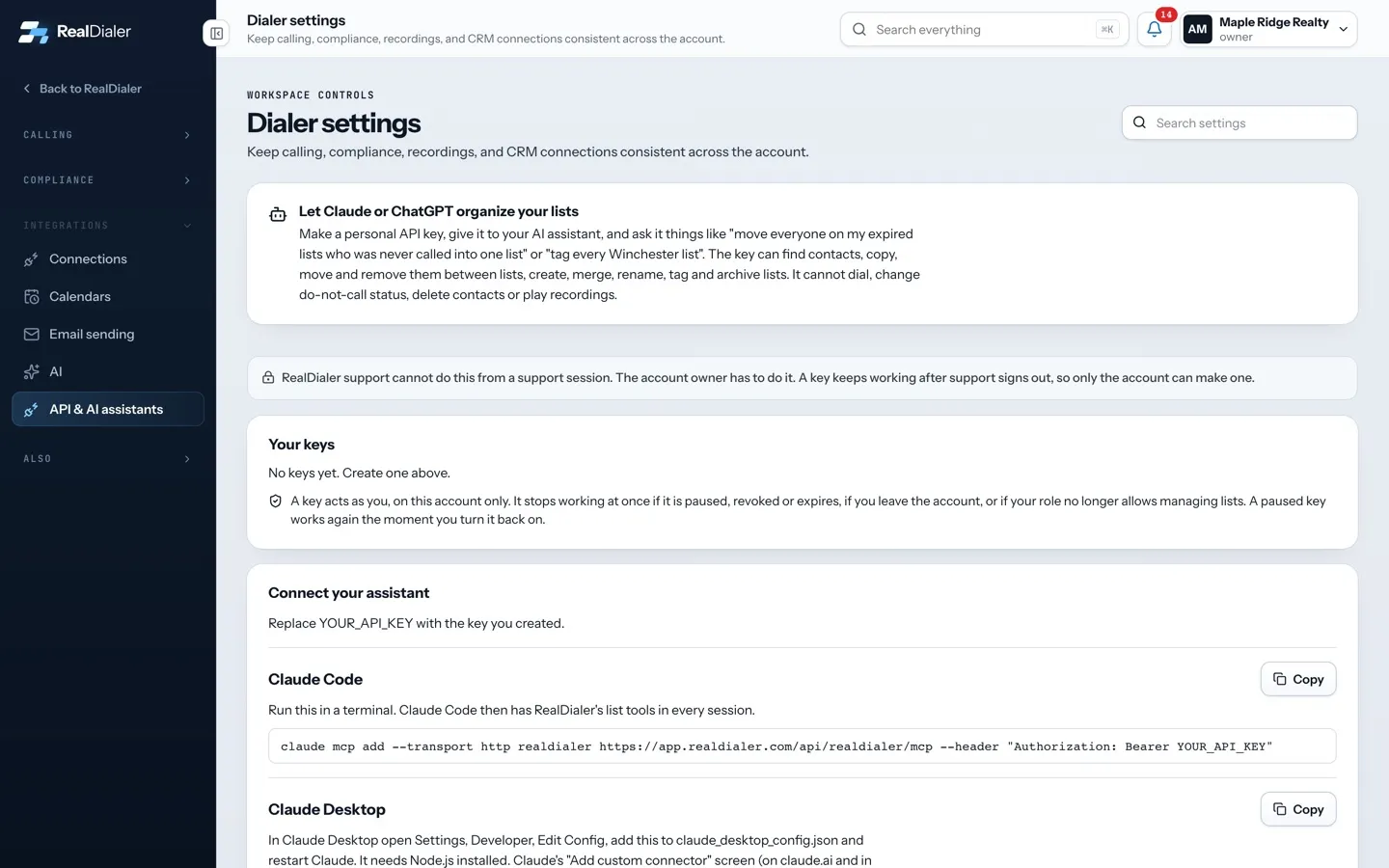
A personal API key lets an AI assistant, Zapier or your own tool work your account’s lists. The key acts as you, on this account only. It can find contacts, copy, move and remove them between lists, and create, merge, rename, tag and archive lists. It cannot dial, change do not call status, delete contacts or play recordings.
Where to find it
Settings > Integrations > API & AI assistants
Steps
- Under Create a key, give it a name, such as “Claude on my laptop”.
- Choose when it Expires: Never expires, 30 days, 90 days or 1 year.
- Turn Allow changes to lists on, or leave it off for a read only key.
- Press Create key.
- Copy the key from Your new key: copy it now and store it somewhere safe, such as a password manager. Press I saved it.
Good to know
- RealDialer shows the full key only once. Anyone holding it can change your lists.
- To pause a key, turn off its switch under Your keys. It works again the moment you turn it back on.
- To end a key for good, press Revoke and confirm.
- A key stops working at once if it is paused, revoked or expires, if you leave the account, or if your role no longer allows managing lists.
- Only an owner or manager can make keys. Callers see a note asking them to ask one.
- You can have up to 10 active keys.
Was this guide helpful?
Thanks. It helps us make these better.
Next in Integrations
Pause, test or disconnect a connectionEach connected platform has its own card on the Connections page. From the card you can pause the connection, check the key still works, see the last lead sent Send events with outbound webhooksAn outbound webhook sends RealDialer events to a web address you choose, such as a Zapier catch hook or your own server. Every delivery is signed so the receiveSend leads to CloseDaily CRMIf you use CloseDaily CRM, you can connect it so every lead, appointment and listing you mark on a call lands in CloseDaily on its own. Any other contact can be
Still stuck? Write to support@realdialer.com, or open Support from inside RealDialer.