What it is
Connect the calendar you already use so RealDialer knows when you are busy and does not book over it. Appointments you set in RealDialer are written to the calendar you choose. RealDialer only reads that an hour is taken, never a title, location or guest list.
Where to find it
Settings > Integrations > Calendars
Steps
- Open Settings, then choose Calendars under Integrations.
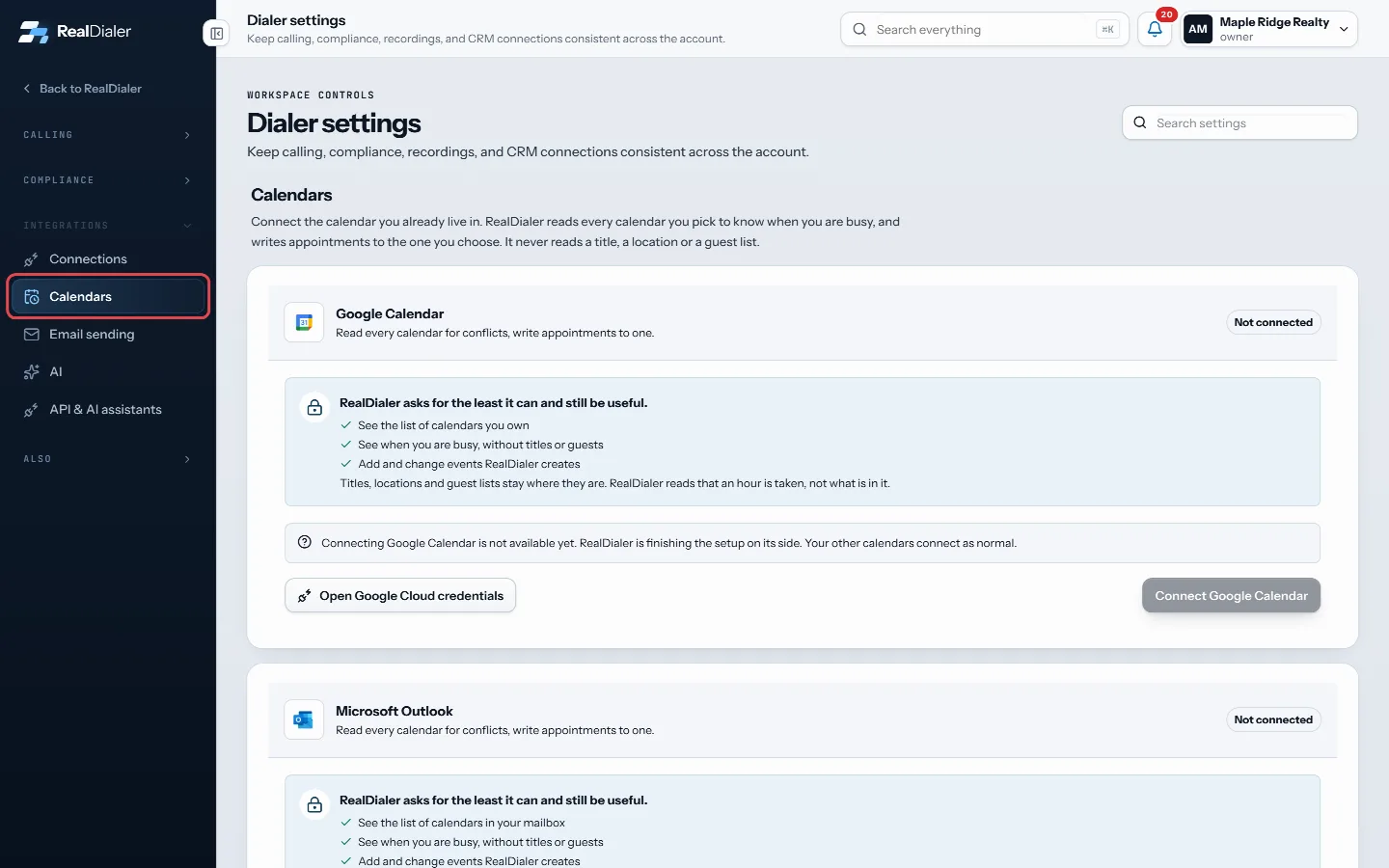
Open Settings, then Calendars under Integrations - Pick your provider: Google Calendar, Microsoft Outlook, Apple iCloud, Fastmail, Other calendar server, or Calendar link.
- For Google or Outlook, press Connect Google Calendar or Connect Microsoft Outlook and sign in on the provider’s screen.
- For iCloud or Fastmail, make an app specific password at the provider (the card links to the right page), type your email and that password, and press Connect Apple iCloud or Connect Fastmail.
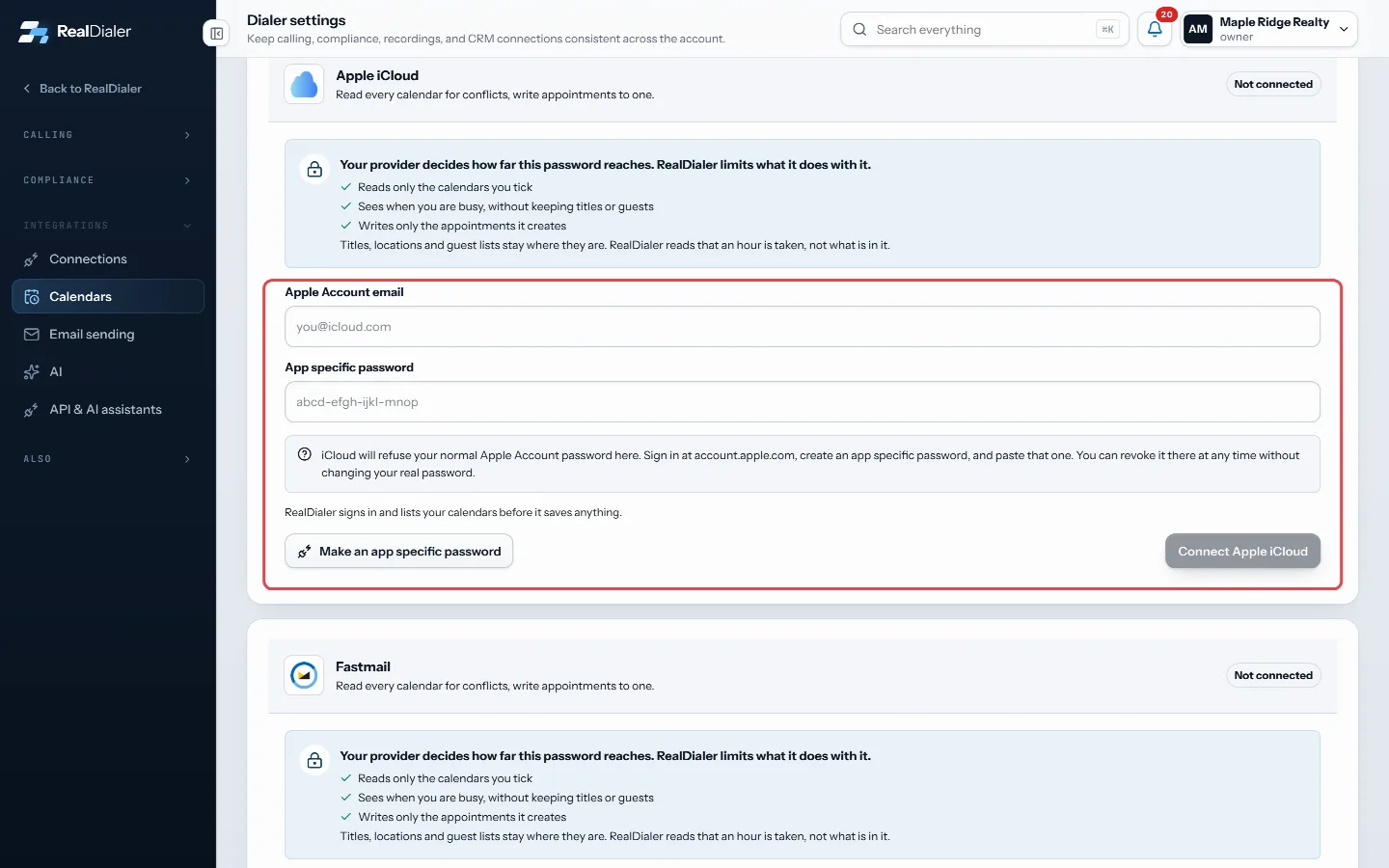
For iCloud or Fastmail, type your email and the app specific password, then press Connect - For another server, type the CalDAV Server address, user name and password.
- For a read only calendar, paste its secret address ending in .ics under Calendar link.
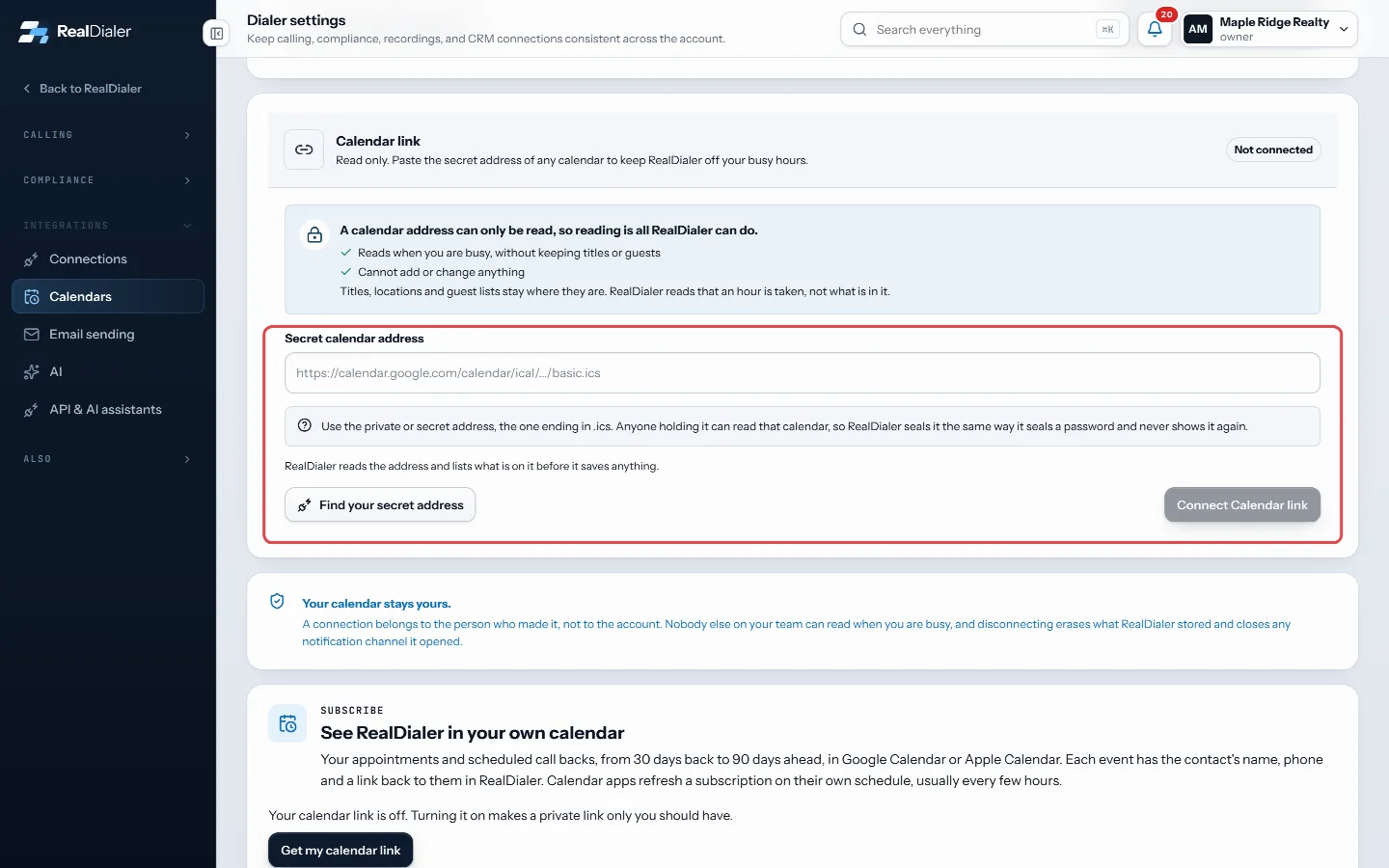
For a read only calendar, paste its .ics address under Calendar link - After it connects, tick Check for conflicts on each calendar you want read, and choose one under Write appointments to.
Good to know
- A calendar link can only be read, so appointments are not written back to it.
- Rows marked Live update the moment something changes. Polled rows are read again each time RealDialer works out free hours, so nothing is missed.
- A connection belongs to you, not the account. Teammates cannot see when you are busy.
- If a Connect button is greyed out, that provider is not available on your account yet. Use another option above.
- Disconnect stops conflict checks and new appointments. Nothing on your calendar is deleted.
Was this guide helpful?
Thanks. It helps us make these better.
Next in Integrations
Connect your own AI keySome RealDialer writing features, such as the written summary on a CMA, run on your own AI provider account, so nothing is metered or capped by RealDialer. You Create and manage personal API keysA personal API key lets an AI assistant, Zapier or your own tool work your account's lists. The key acts as you, on this account only. It can find contacts, copPause, test or disconnect a connectionEach connected platform has its own card on the Connections page. From the card you can pause the connection, check the key still works, see the last lead sent
Still stuck? Write to support@realdialer.com, or open Support from inside RealDialer.