What it is
Some RealDialer writing features, such as the written summary on a CMA, run on your own AI provider account, so nothing is metered or capped by RealDialer. You paste an Anthropic or OpenAI API key, RealDialer checks it with the provider, and stores an encrypted copy. Until a key is connected, those AI features stay switched off. Nothing else in RealDialer is affected.
Where to find it
Settings > Integrations > AI
Steps
- Get an API key from your Anthropic or OpenAI account.
- Open Settings, then choose AI under Integrations.
- On the Your key card, choose the Provider and paste your key.
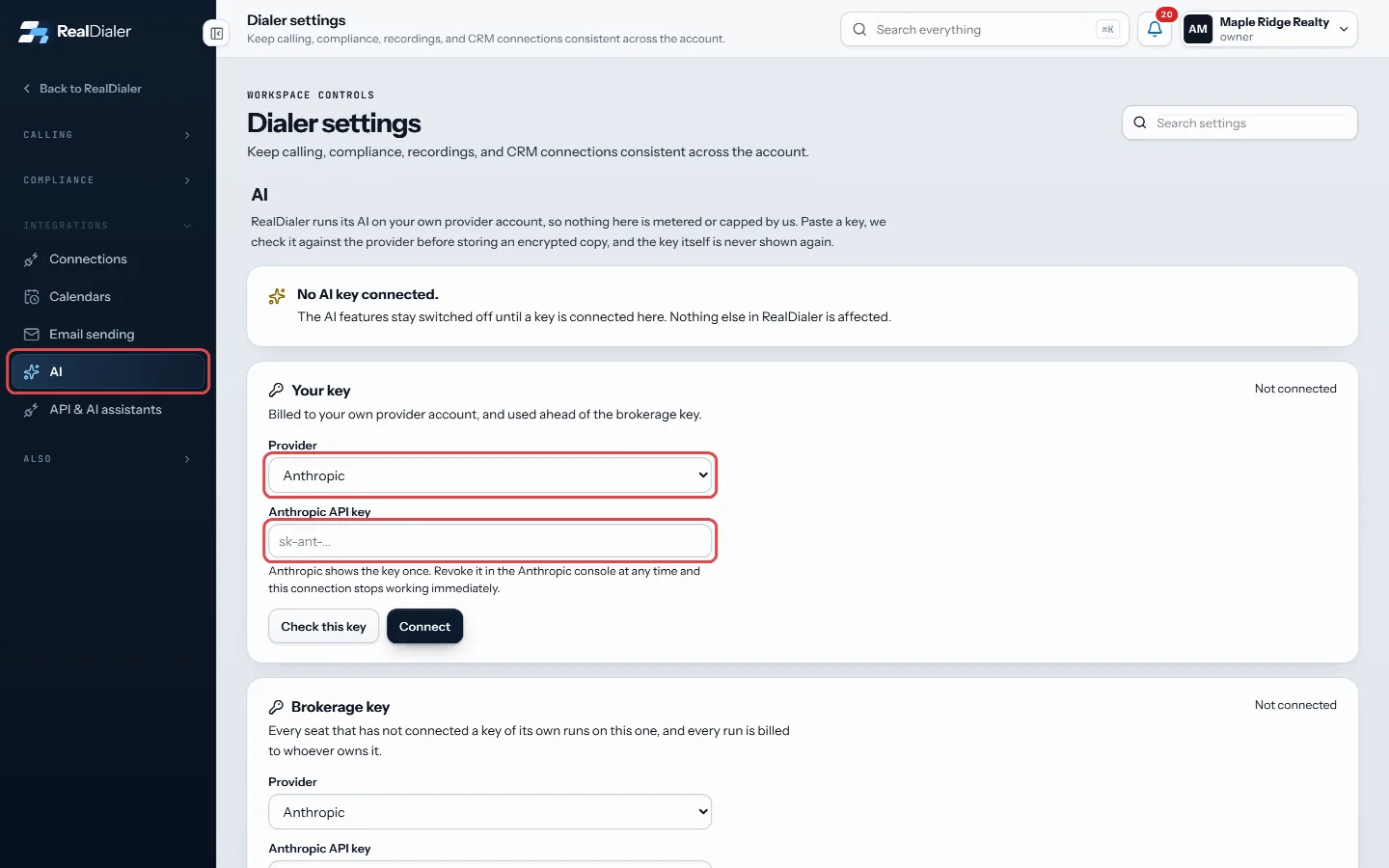
Open AI, choose the Provider and paste your key - Press Check this key. It tells you the key works and how many models are available.
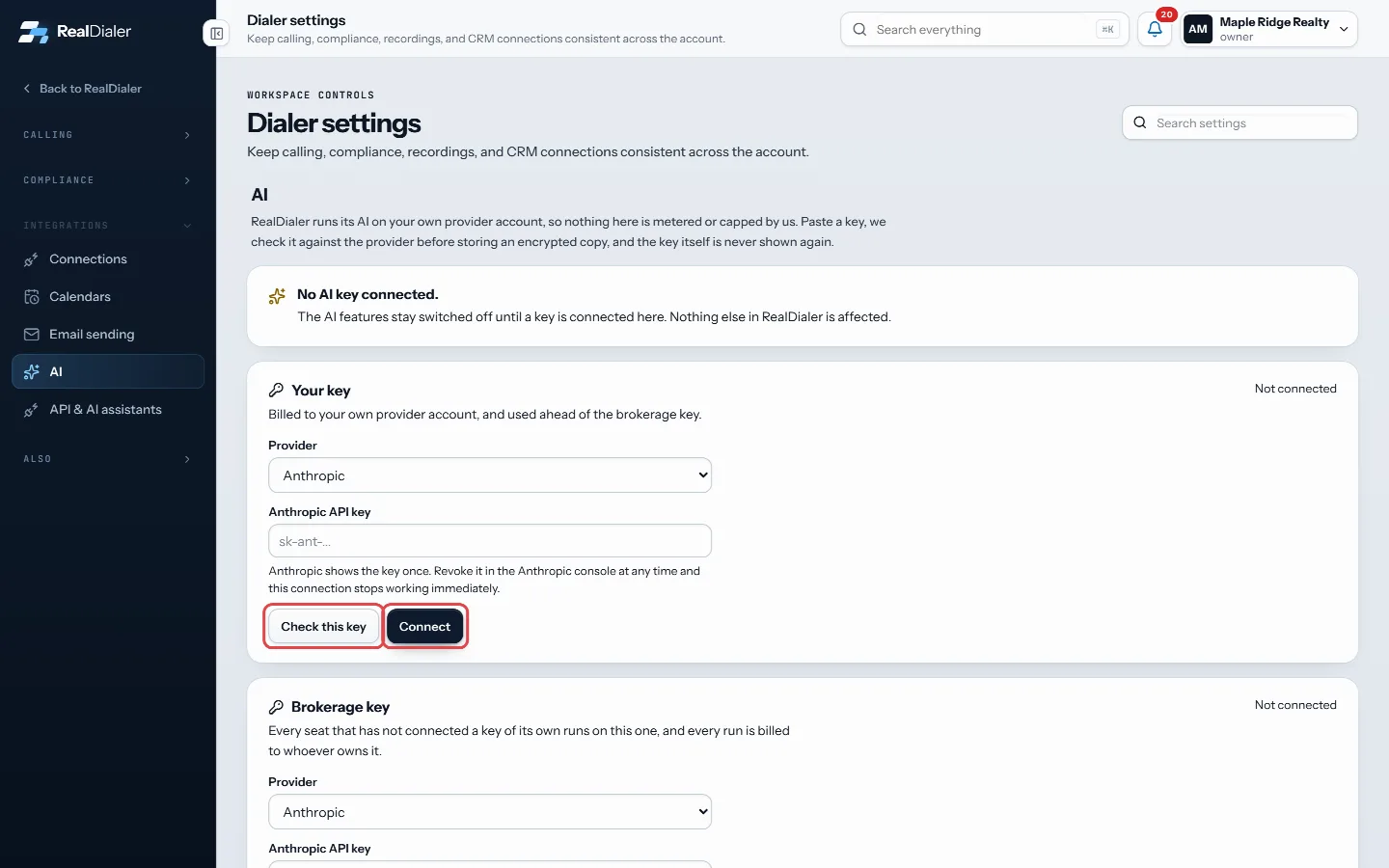
Press Check this key, pick a model, then press Connect - Pick a model. Cheaper ones cost you less per run.
- Press Connect. The banner at the top then reads Running on your key.
Good to know
- There are two keys. Your key is billed to you and is used first. The Brokerage key is used by every seat that has not connected its own.
- Only an owner or manager can set the brokerage key. Callers see it read only.
- The key is never shown again after it is saved, only its last four characters. To change it, press Replace key and paste the whole key.
- Disconnect drops the key from RealDialer. It stays valid at the provider until you delete it there.
- This is separate from the RealDialer AI upgrade on the Upgrades page.
Was this guide helpful?
Thanks. It helps us make these better.
Next in Integrations
Create and manage personal API keysA personal API key lets an AI assistant, Zapier or your own tool work your account's lists. The key acts as you, on this account only. It can find contacts, copPause, test or disconnect a connectionEach connected platform has its own card on the Connections page. From the card you can pause the connection, check the key still works, see the last lead sent Send events with outbound webhooksAn outbound webhook sends RealDialer events to a web address you choose, such as a Zapier catch hook or your own server. Every delivery is signed so the receive
Still stuck? Write to support@realdialer.com, or open Support from inside RealDialer.