What it is
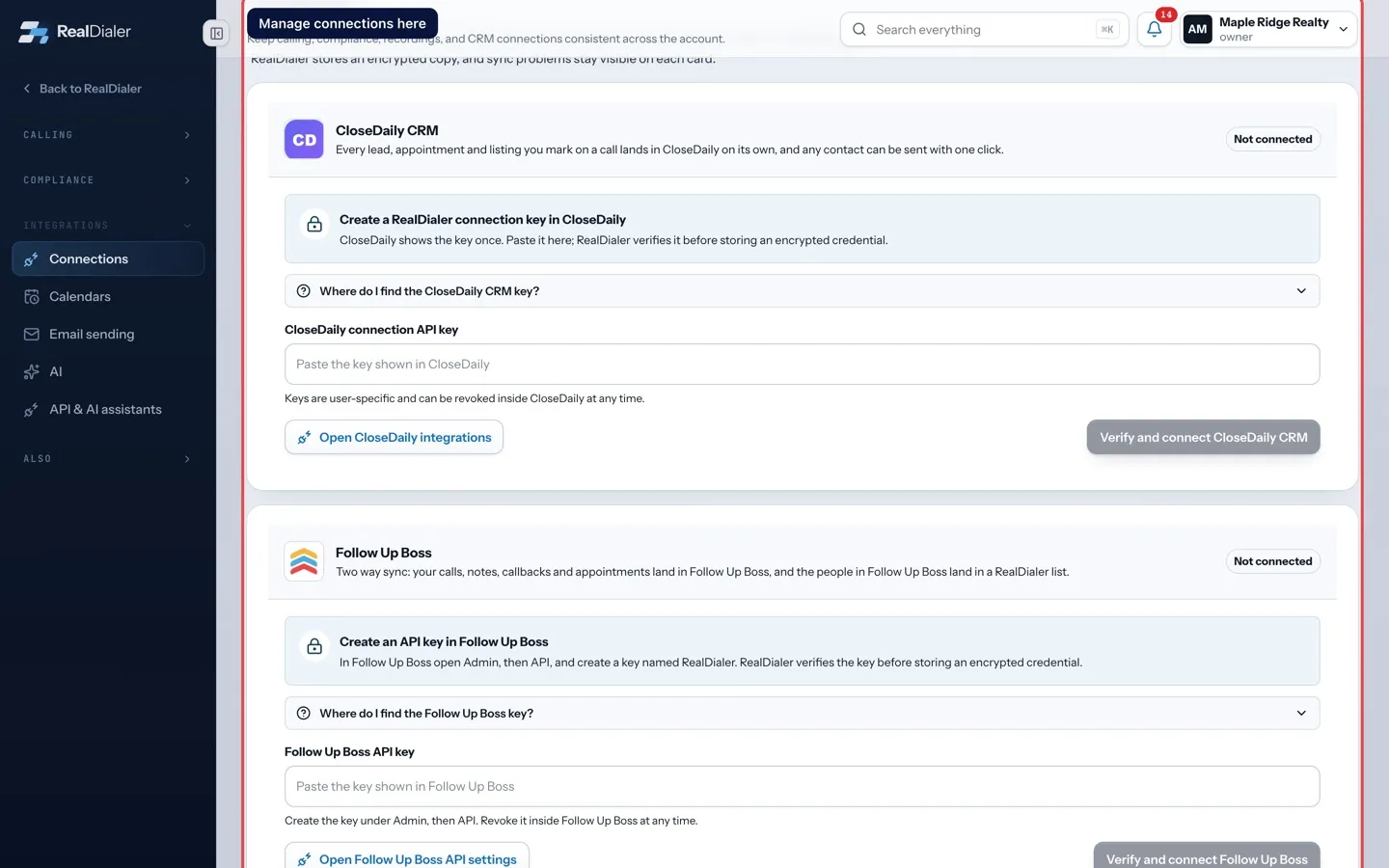
Each connected platform has its own card on the Connections page. From the card you can pause the connection, check the key still works, see the last lead sent and any sync error, or disconnect it.
Where to find it
Settings > Integrations > Connections
Steps
- Find the card for the connection.
- To pause it, turn off the switch at the top right of the card. Your key and settings are kept.
- To turn it back on, turn the switch on again.
- To check the key, press Test key.
- To remove it, press Disconnect followed by the platform name.
Good to know
- While paused, nothing is sent to or pulled from that platform. For Tracerfy, skip traces use RealDialer credits instead.
- Each card shows Last lead sent and, if something went wrong, a Last sync error line.
- Disconnecting drops the key in RealDialer. To fully revoke it, also delete the key in the other platform.
- An outage on a connected platform cannot take the dialer down. Failed lead pushes are recorded and can be retried.
- Connections belong to the person who made them.
Was this guide helpful?
Thanks. It helps us make these better.
Next in Integrations
Send events with outbound webhooksAn outbound webhook sends RealDialer events to a web address you choose, such as a Zapier catch hook or your own server. Every delivery is signed so the receiveSend leads to CloseDaily CRMIf you use CloseDaily CRM, you can connect it so every lead, appointment and listing you mark on a call lands in CloseDaily on its own. Any other contact can beSkip trace credits and your own Tracerfy keySkip tracing finds phone numbers for your contacts. By default it uses RealDialer skip trace credits. If you have your own Tracerfy account, you can connect it
Still stuck? Write to support@realdialer.com, or open Support from inside RealDialer.