What it is
Below the stat cards, the Overview has panels that tell you who is waiting on you and where to put your next call block.
Where to find it
Overview > scroll below the four stat cards.
Steps
- Check Tasks and callbacks first. It lists your open tasks of every type and your scheduled callbacks, overdue first, then the soonest due, then tasks with no due date. Press Call to call the contact with RealDialer, Open to bring up the contact, or Done to finish it. See all tasks opens the Tasks room.
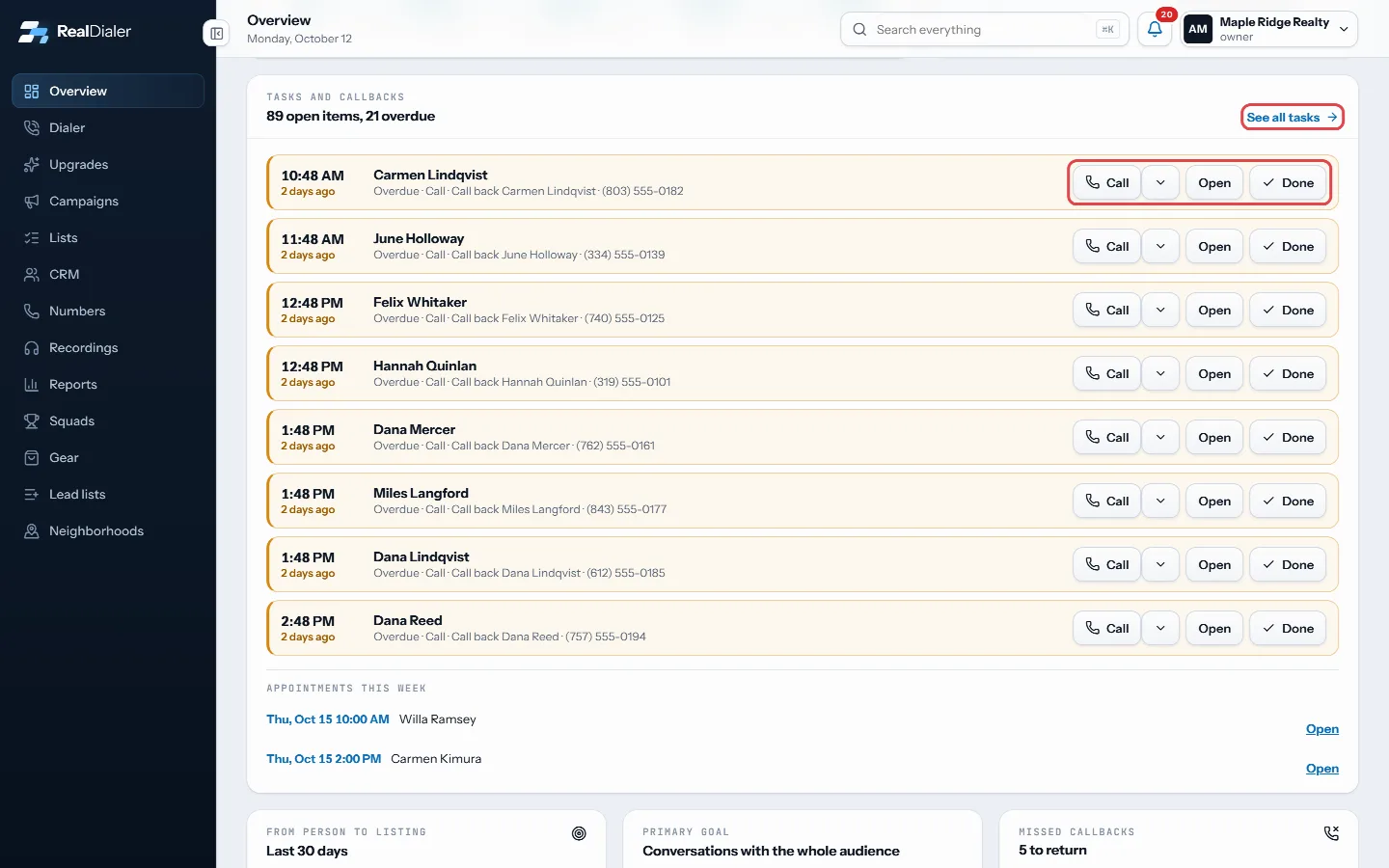
Tasks and callbacks: Call, Open or Done on each item, overdue first. - Look at Missed callbacks for anyone who called one of your numbers in the last week and was not answered. Click Open or Call to return one call, or press Call my missed calls to dial them all in one session.
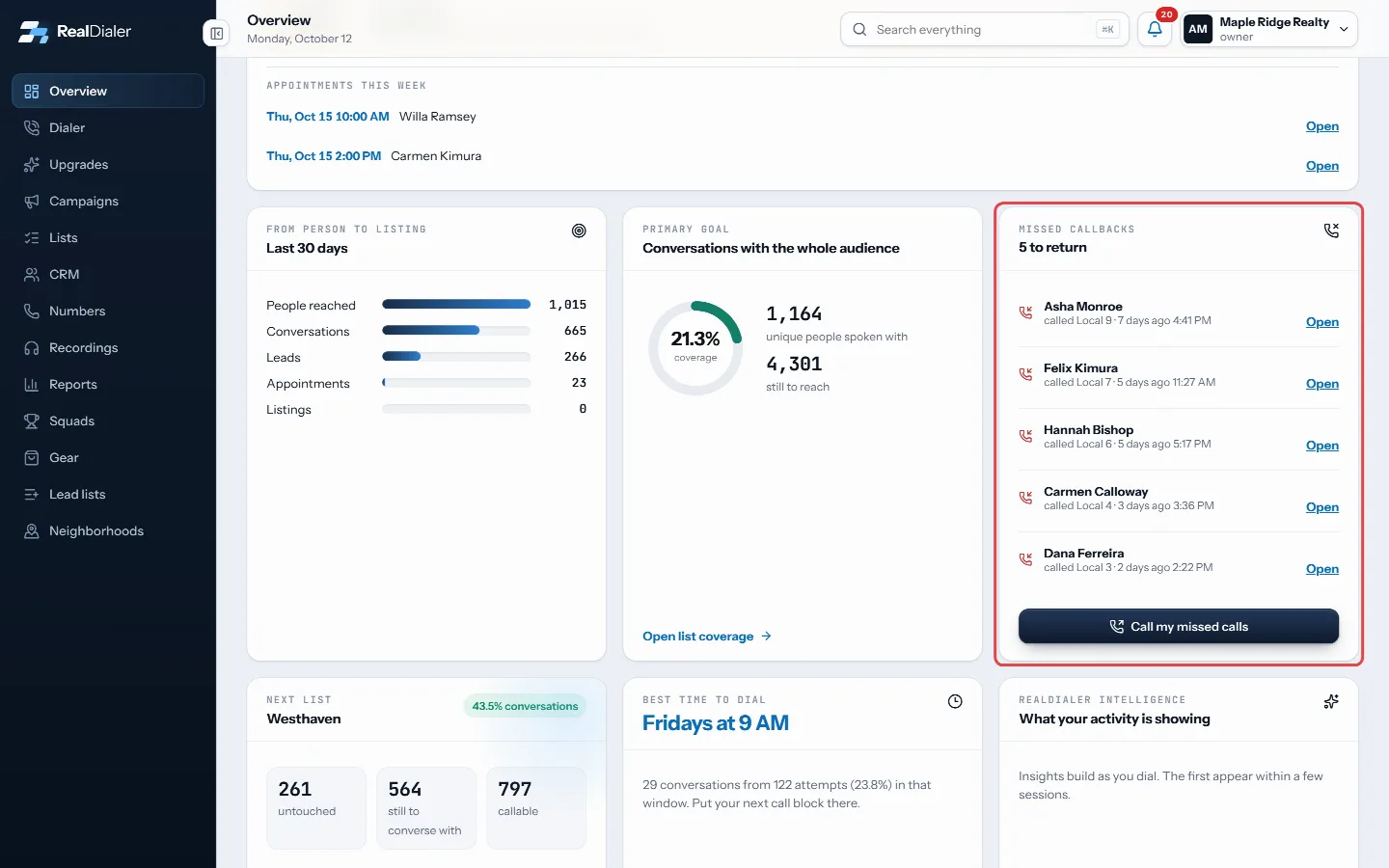
Missed callbacks lists who called and was not answered in the last week. - Read the funnel, titled From person to listing, for your range: people reached, conversations, leads, appointments and listings.
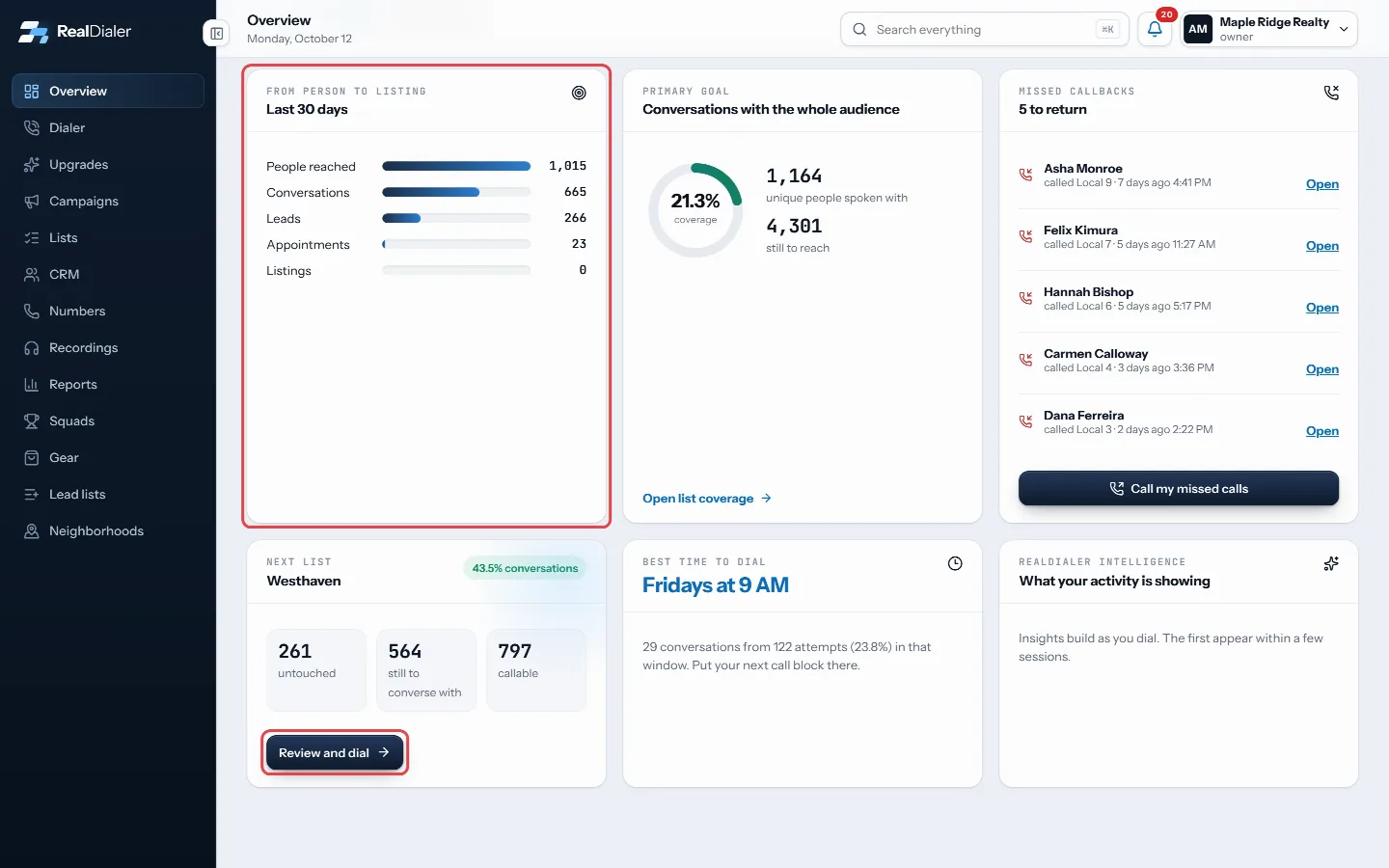
From person to listing shows the funnel; Next list with Review and dial starts on the list with the most people left. - Use Next list and Review and dial to start on the list that still has the most people to reach.
Good to know
- A Call, Follow up or Call back task with a due time is a scheduled callback too, so it shows once here, on the calendar and in your callback reminders.
- Call only shows when the contact has a number you are allowed to call.
- Appointments this week appears under the list when you have any booked.
- The coverage ring, Conversations with the whole audience, is the share of people on your active lists you have actually spoken with. It counts your whole account, all time, not just the date range.
- Best time to dial shows the weekday and hour where you get the most conversations. It appears after 8 attempts and 2 conversations in the same weekday and hour window.
- The live cards refresh every 30 seconds, so a call you just missed shows up without reloading the page.
- RealDialer intelligence shows short notes about your activity. They start to appear after a few sessions.
Was this guide helpful?
Thanks. It helps us make these better.
Next in Getting started
Use light or dark modeRealDialer can show in a light theme or a dark theme. Pick whichever is easier on your eyes during a long call block.Use the Start calling setup checklistA new account opens on a Start calling screen instead of the dashboard. It lists the three things that stand between you and your first call, and checks each onWhat the Overview page showsThe Overview is the page you land on after you sign in. It shows how today is going, who you promised to call, how your chosen date range compares with the days
Still stuck? Write to support@realdialer.com, or open Support from inside RealDialer.