What it is
If you belong to more than one RealDialer workspace, for example your own account and a team you call for, you can move between them without signing out. Each workspace keeps its own calls, contacts, recordings and reports.
Where to find it
Your name in the top right > Switch workspace
Steps
- Click your name or photo in the top right corner.
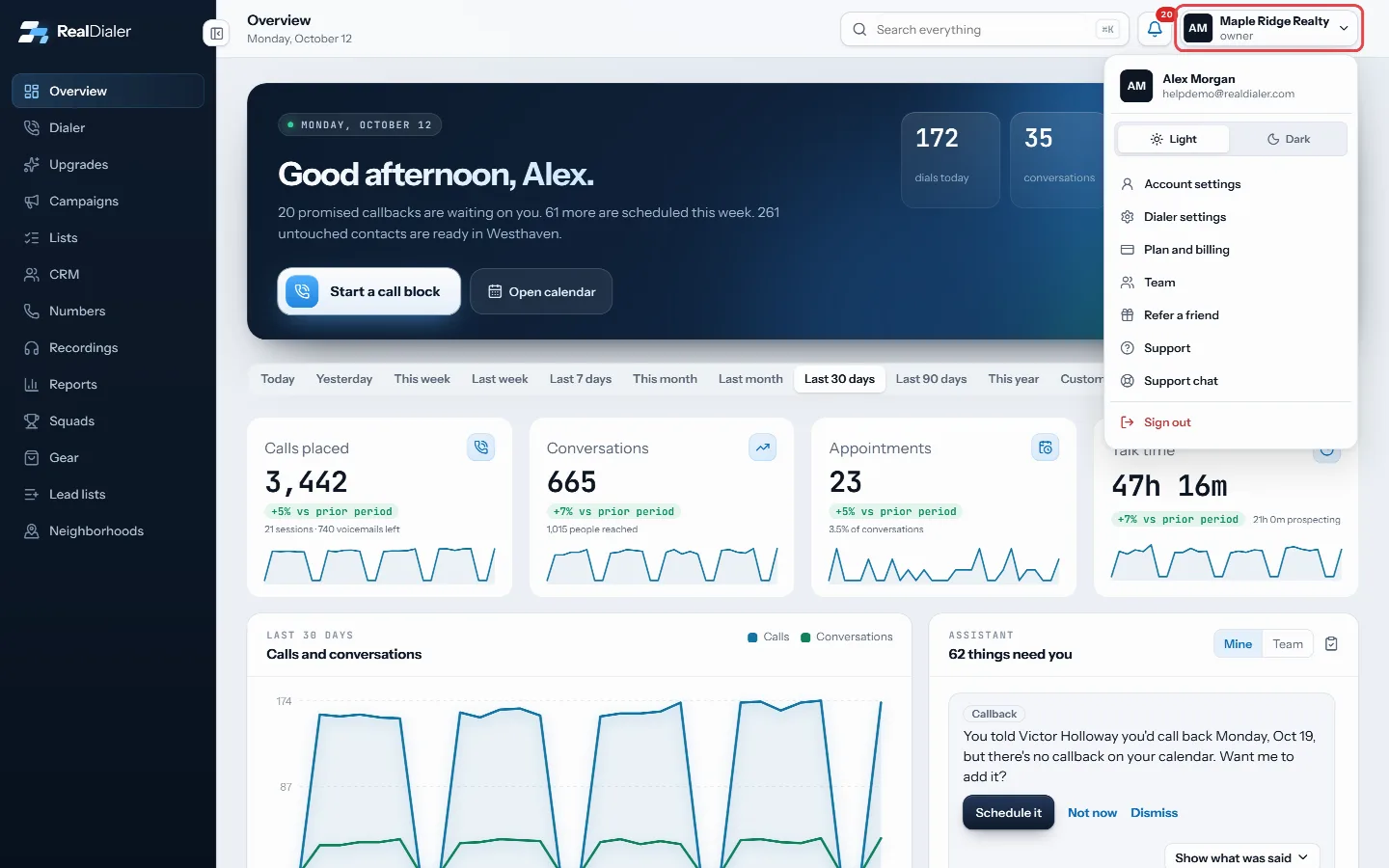
Click your name or photo in the top right. Switch workspace shows in the menu when you belong to more than one. - Under Switch workspace, click the workspace you want.
- The app reloads into that workspace. A check mark shows which one you are in.
Good to know
- Switch workspace only shows when you belong to more than one workspace. With one workspace there is nothing to switch.
- When you sign in, you always choose a workspace first, even if you only have one.
- Your role can be different in each workspace. You might be the owner of one and an agent in another.
- Support requests belong to the workspace you made them in. Switch workspaces to see requests from another one.
- If switching fails, a message shows in the menu. Refresh the page and try again.
Was this guide helpful?
Thanks. It helps us make these better.
Next in Getting started
Tasks, callbacks, funnel and next list on the OverviewBelow the stat cards, the Overview has panels that tell you who is waiting on you and where to put your next call block.Use light or dark modeRealDialer can show in a light theme or a dark theme. Pick whichever is easier on your eyes during a long call block.Use the Start calling setup checklistA new account opens on a Start calling screen instead of the dashboard. It lists the three things that stand between you and your first call, and checks each on
Still stuck? Write to support@realdialer.com, or open Support from inside RealDialer.