What it is
The date range on the Overview decides which days the four stat cards, the activity chart and the funnel cover. Every card compares your range with the same number of days right before it, so you can see whether you are trending up or down.
Where to find it
Overview > the row of range buttons under the top band.
Steps
- Open Overview.
- Click a preset: Today, Yesterday, This week, Last week, Last 7 days, This month, Last month, Last 30 days, Last 90 days or This year. On a phone, pick it from the Date range menu instead.
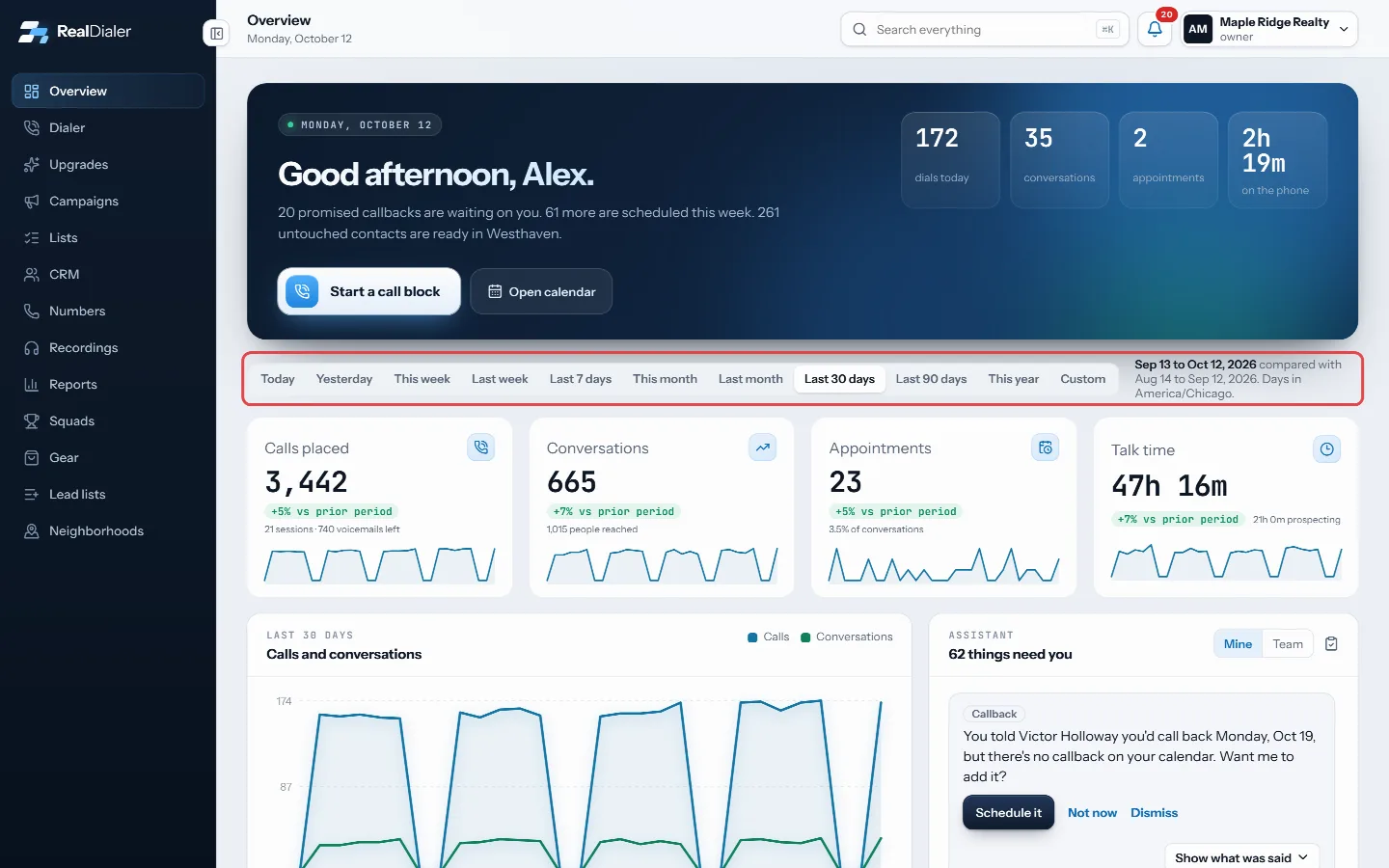
Click a preset in the range row under the top band. - For your own dates, click Custom, choose a From and To date, then press Apply range.
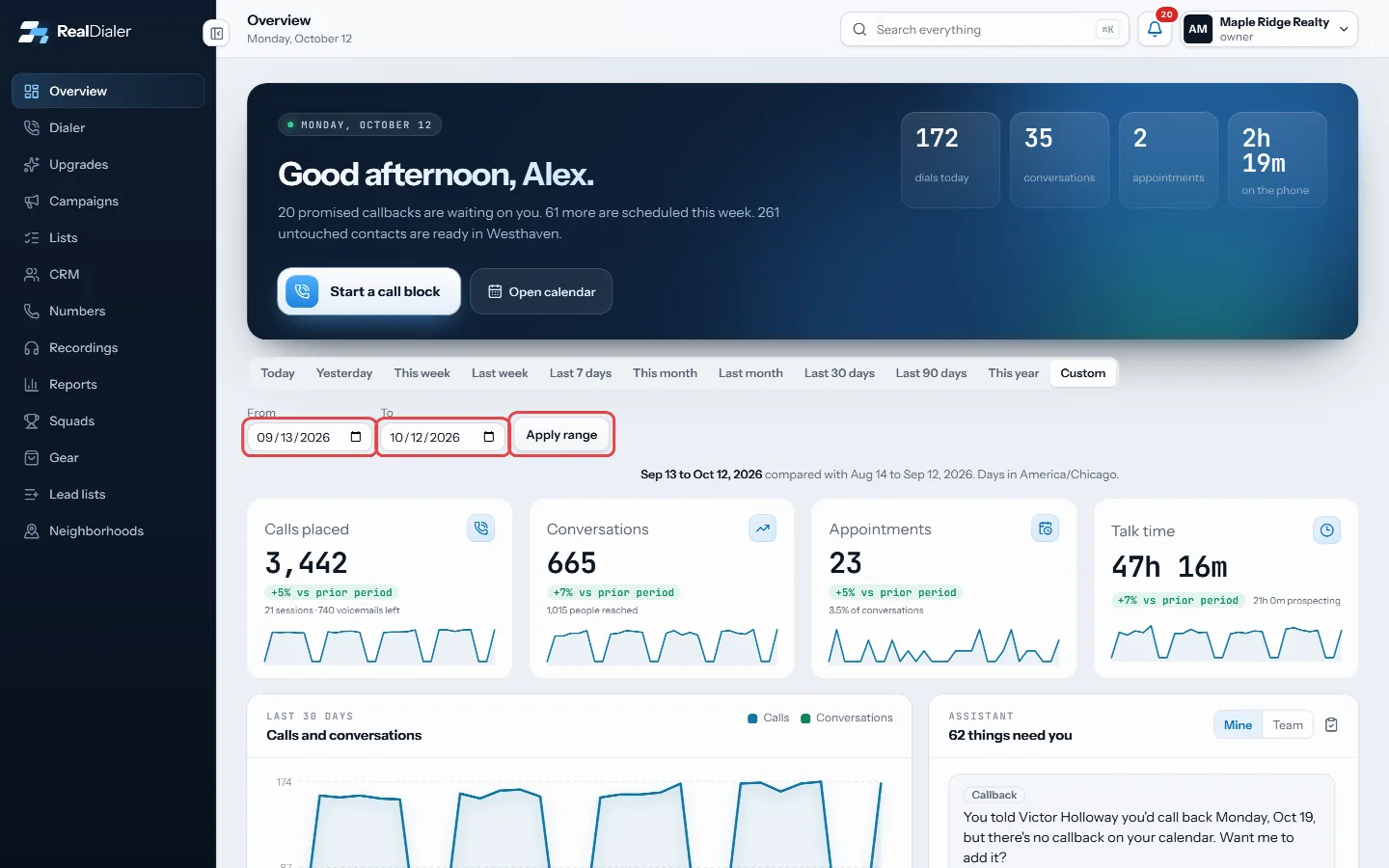
Click Custom, choose a From and To date, then press Apply range. - Read the line under the buttons. It names the exact days shown and the days they are compared with.
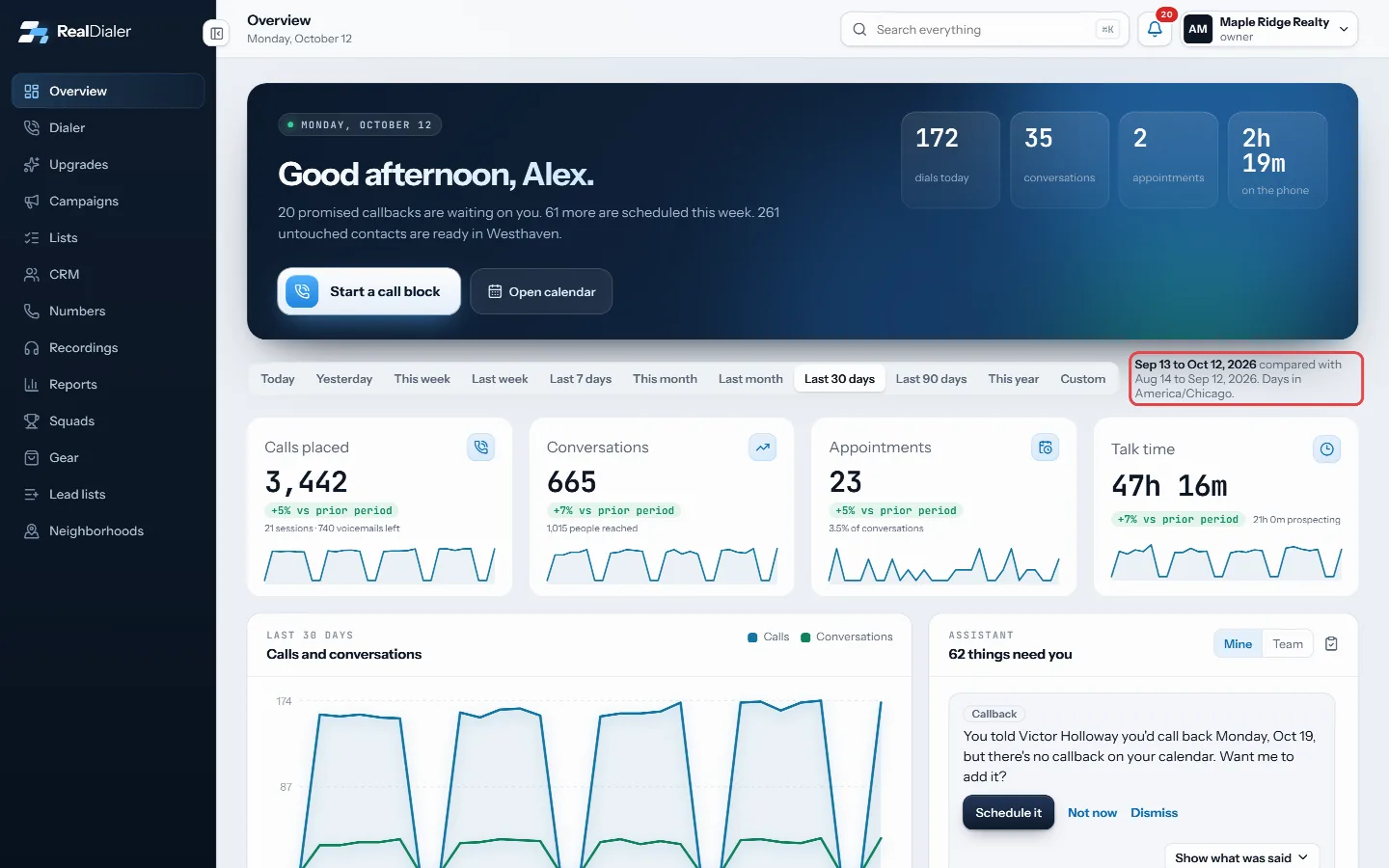
The line beside the buttons names the days shown and the days they are compared with.
Good to know
- The default is Last 30 days.
- A custom range can cover at most 366 days, and it cannot start in the future.
- Days are counted in the time zone shown under the range buttons.
- The range is saved in the page address, so a reload or a shared link keeps it.
- When the earlier period has no calls, a card says No prior data instead of showing a made up percent.
Was this guide helpful?
Thanks. It helps us make these better.
Next in Getting started
Find your way around the appThe left menu takes you to every main part of RealDialer: Overview, Dialer, Upgrades, Campaigns, Lists, CRM, Numbers, Recordings, Reports and Gear. Some accountMake your first callsOnce your leads, numbers and first campaign are in place, you make calls from the Dialer. The Dialer walks you through four short steps, then connects your audiPick a headset and desk gearThe Gear page lists the headsets and desk equipment the RealDialer team dials on, with the reason each one is on the list. Nothing there is required. A laptop m
Still stuck? Write to support@realdialer.com, or open Support from inside RealDialer.