What it is
If you closed the Start calling checklist and want it back, you can reopen it from the Support page. It returns as your Overview screen with your progress intact.
Where to find it
Your name in the top right > Support > Reopen setup
Steps
- Click your name in the top right and choose Support.
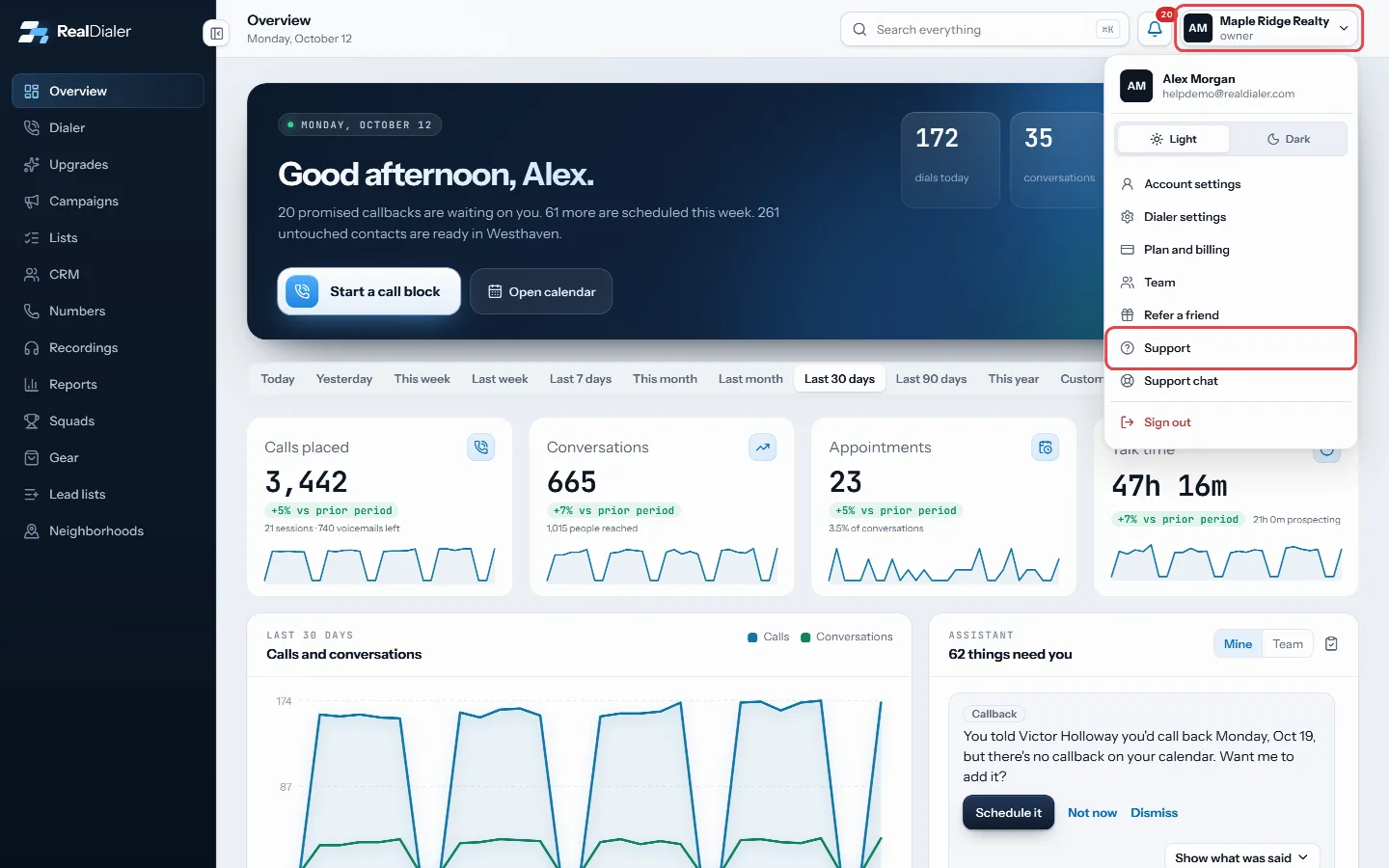
Click your name in the top right and choose Support. - Near the top of the page, find the note that says the start calling checklist is closed.
- Press Reopen setup. You are taken to Overview with the checklist showing.
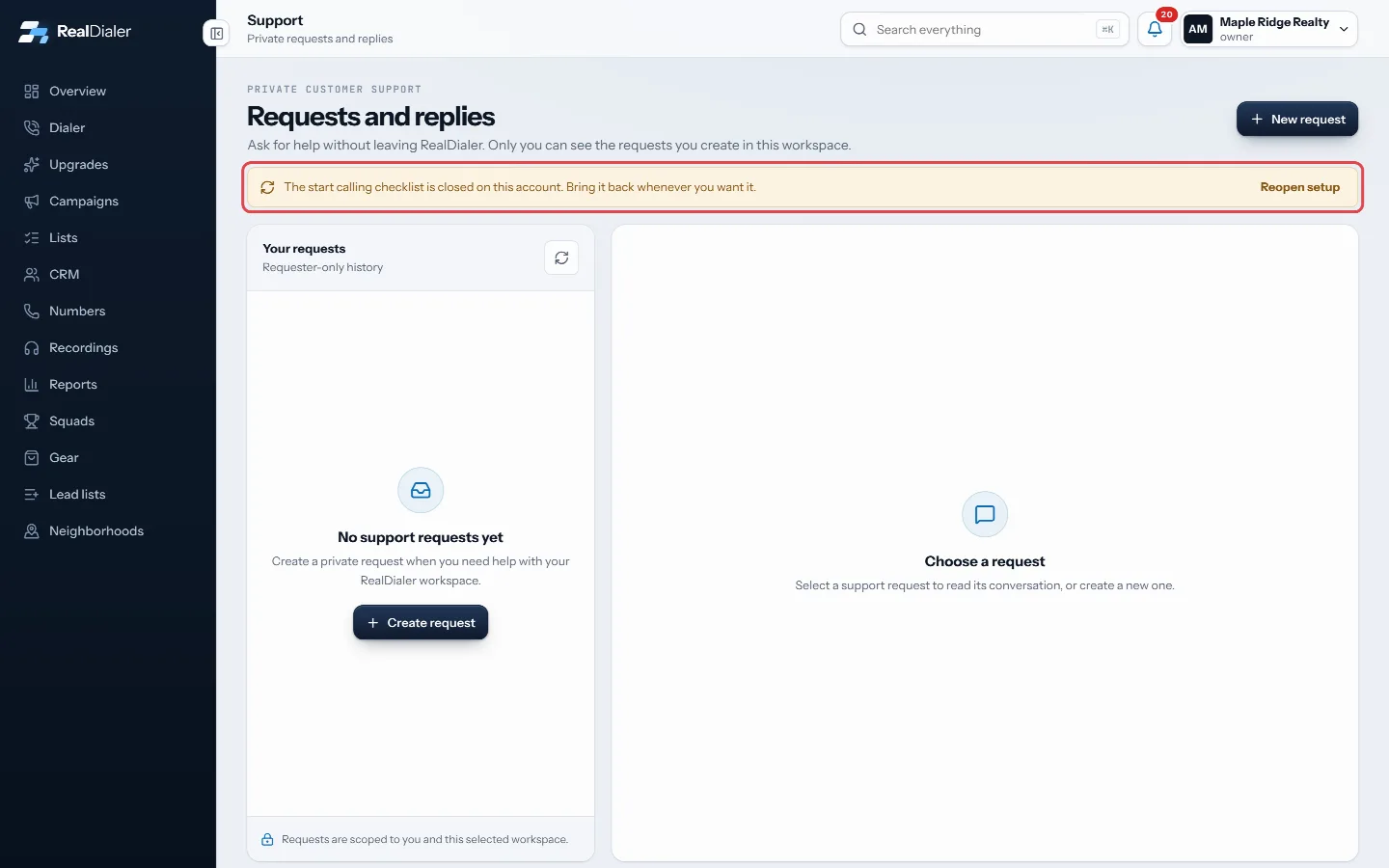
Press Reopen setup on the note near the top of the page.
Good to know
- The Reopen setup note only shows when the checklist was closed by hand.
- If your account has already made its first real call, the checklist steps aside again by itself, because the dashboard has something to show. Reopening only helps before that first call.
- Each step is checked off from what is really in your account (leads, numbers, campaigns), so nothing is lost by closing and reopening it.
Was this guide helpful?
Thanks. It helps us make these better.
Next in Getting started
Change the Overview date rangeThe date range on the Overview decides which days the four stat cards, the activity chart and the funnel cover. Every card compares your range with the same numFind your way around the appThe left menu takes you to every main part of RealDialer: Overview, Dialer, Upgrades, Campaigns, Lists, CRM, Numbers, Recordings, Reports and Gear. Some accountMake your first callsOnce your leads, numbers and first campaign are in place, you make calls from the Dialer. The Dialer walks you through four short steps, then connects your audi
Still stuck? Write to support@realdialer.com, or open Support from inside RealDialer.