What it is
The Overview is the page you land on after you sign in. It shows how today is going, who you promised to call, how your chosen date range compares with the days before it, and what to call next. The activity numbers are your own calls.
Brand new accounts see a Start calling setup screen here first. It steps aside on its own after your first real outbound call, or you can close it with Close setup and use the dashboard.
Where to find it
Overview in the left menu.
Steps
- Click Overview in the left menu.
- Read the top band for today so far: dials today, conversations, appointments, and time on the phone.
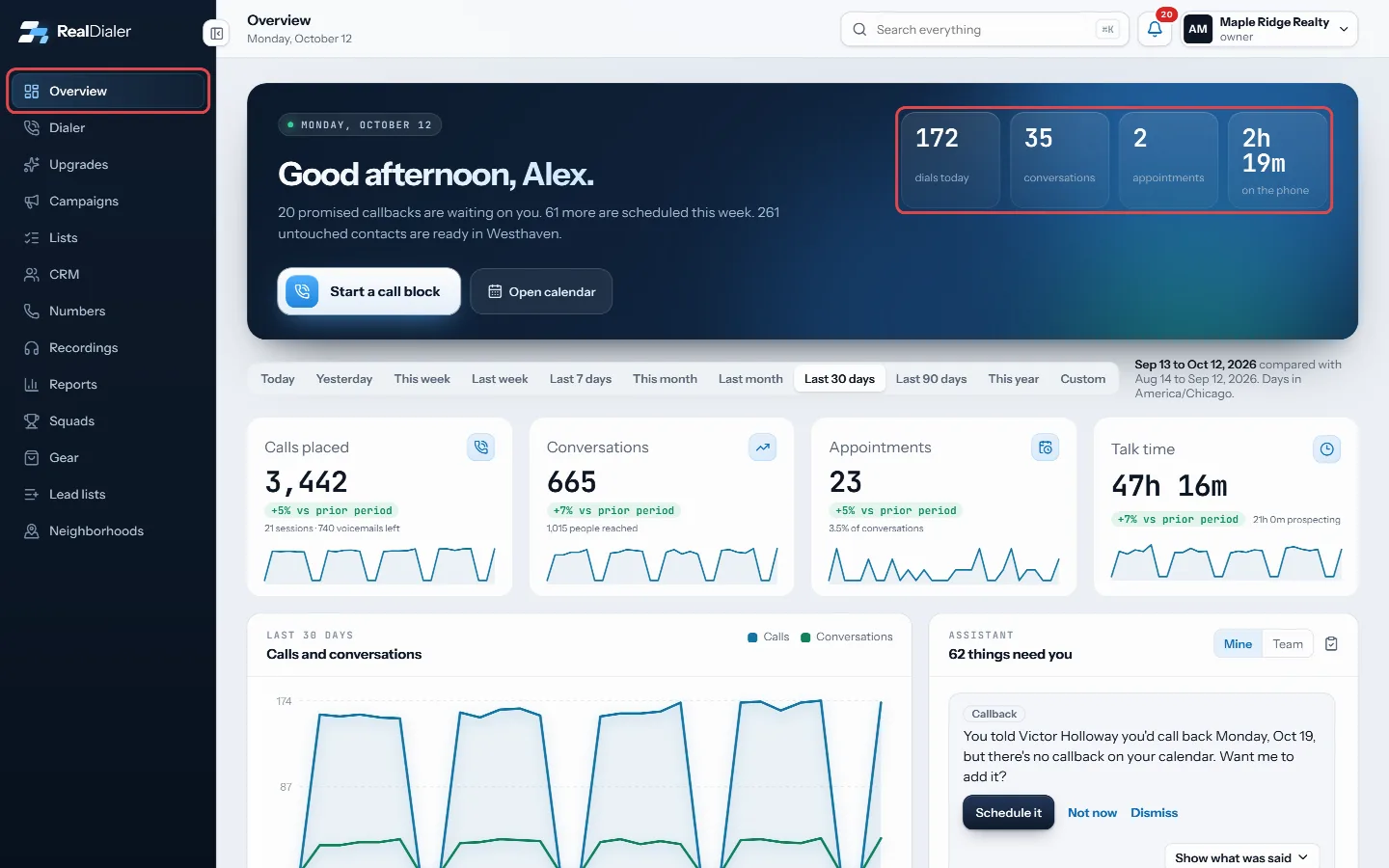
Click Overview. The top band shows today so far. - Use Start a call block to jump to the Dialer, or Open calendar to see your schedule.
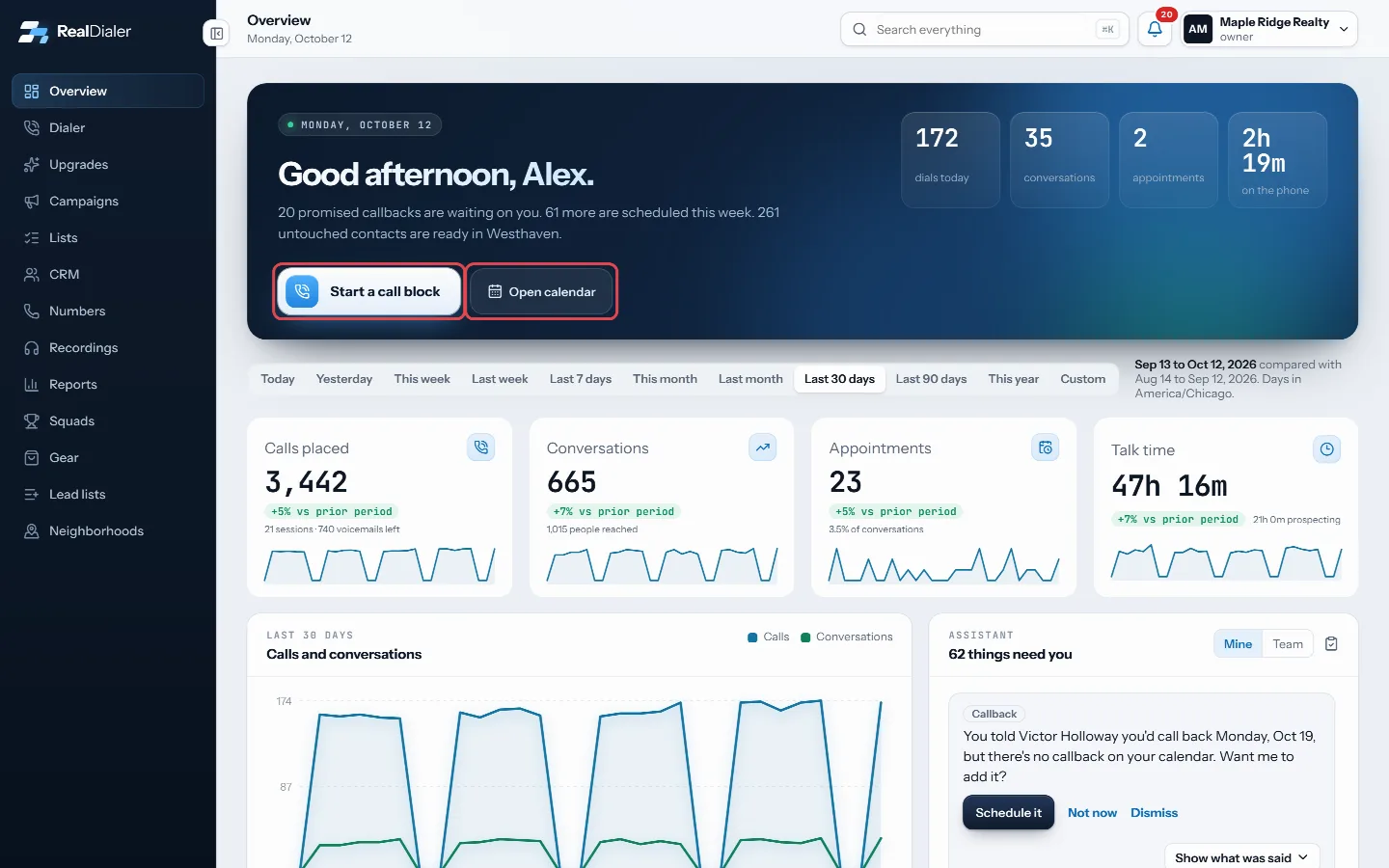
Start a call block jumps to the Dialer; Open calendar shows your schedule. - Pick a date range under the top band to change the four cards and the chart.
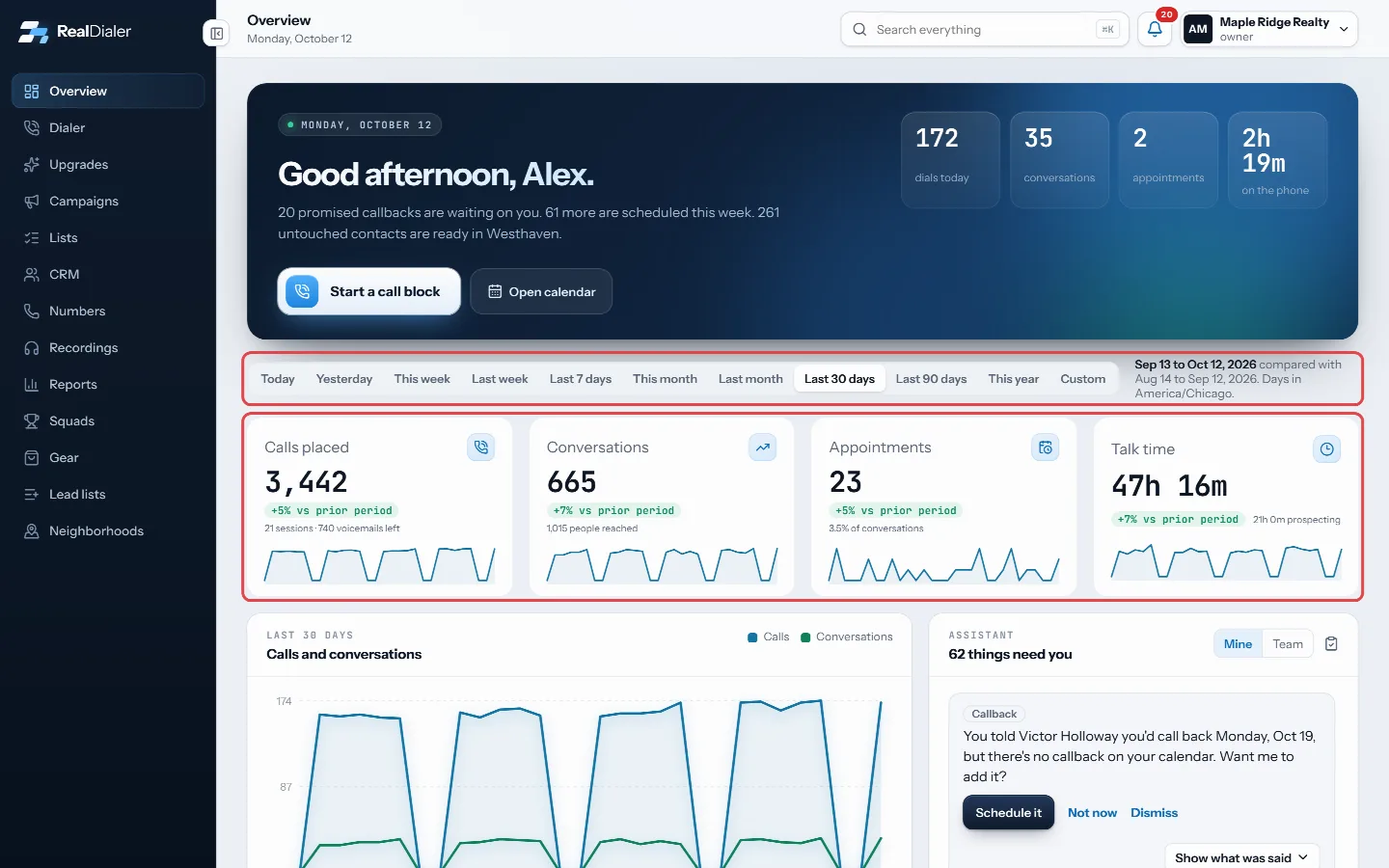
Pick a date range to change the four cards and the chart.
Good to know
- The four cards are Calls placed, Conversations, Appointments and Talk time. Each one shows the change against the same number of days just before your range.
- Calls placed also shows how many sessions you ran and how many voicemails you left.
- Conversations shows how many people you reached. A voicemail greeting or answering machine is never counted as a person.
- Talk time only counts calls that reached a person.
- The chart shows calls and conversations per day, or per hour when the range is a single day.
- Today’s tiles, scheduled callbacks, appointments and missed callbacks are live and do not follow the date range.
Was this guide helpful?
Thanks. It helps us make these better.
Next in Getting started
Accept a team inviteWhen an account owner or manager adds you to their RealDialer workspace, they send you an invite link. Opening it lets you set your password and activate your sAccept the calling termsThe RealDialer calling terms explain that you are the caller, responsible for the calls you tell RealDialer to place. You accept them before you can dial. You aBring back the setup checklistIf you closed the Start calling checklist and want it back, you can reopen it from the Support page. It returns as your Overview screen with your progress intac
Still stuck? Write to support@realdialer.com, or open Support from inside RealDialer.