What it is
Before you can use RealDialer, you read and sign the RealDialer Customer Agreement and Terms of Service, which include the Privacy Policy. You sign by typing your full legal name. When the terms change, you are asked to read and sign the new version.
Where to find it
It appears by itself over the app the first time you sign in, and again when the terms are updated. Your signed copy is under Account settings > Signed agreement.
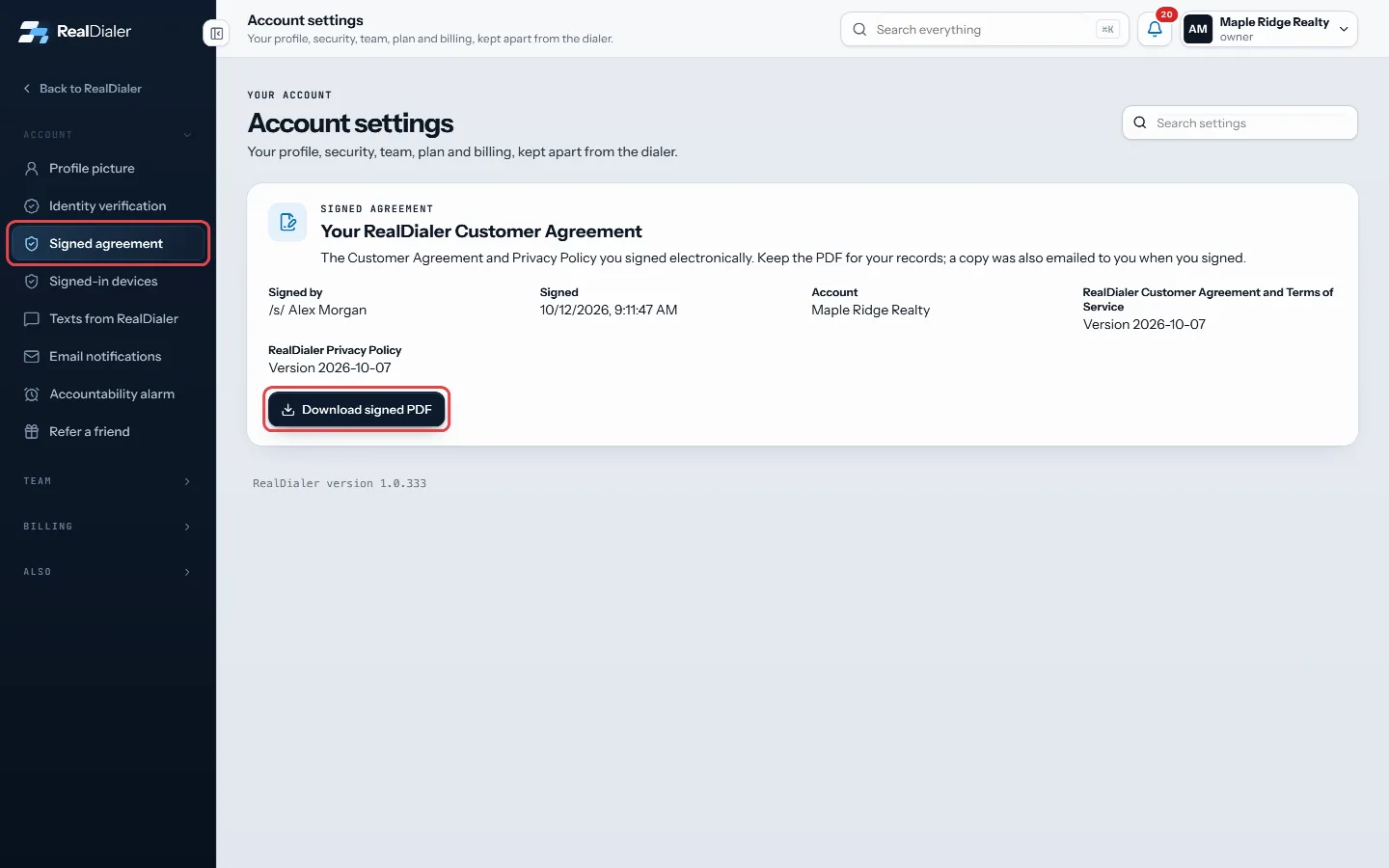
Steps
- Scroll all the way to the end of both documents. Signing stays locked until you reach the end.
- Tick the box that says you have read and agree.
- Type your first and last name under Type your full legal name to sign. Your signature appears as you type.
- Press Adopt signature and agree.
Good to know
- The button stays grey until you have scrolled to the end, ticked the box and typed at least a first and last name.
- The agreement cannot be closed or skipped. If you do not want to sign now, press Sign out.
- If the terms change while you are reading, you are asked to read the new version.
- If your account still needs an ID check, you are taken to Settings > Identity verification right after you sign.
- Signing also covers the calling terms, so you should not be asked for those separately right after.
Was this guide helpful?
Thanks. It helps us make these better.
Next in Getting started
Switch between workspacesIf you belong to more than one RealDialer workspace, for example your own account and a team you call for, you can move between them without signing out. Each wTasks, callbacks, funnel and next list on the OverviewBelow the stat cards, the Overview has panels that tell you who is waiting on you and where to put your next call block.Use light or dark modeRealDialer can show in a light theme or a dark theme. Pick whichever is easier on your eyes during a long call block.
Still stuck? Write to support@realdialer.com, or open Support from inside RealDialer.