What it is
RealDialer can show in a light theme or a dark theme. Pick whichever is easier on your eyes during a long call block.
Where to find it
Your name in the top right > Light or Dark
Steps
- Click your name or photo in the top right corner.
- At the top of the menu, click Light or Dark.
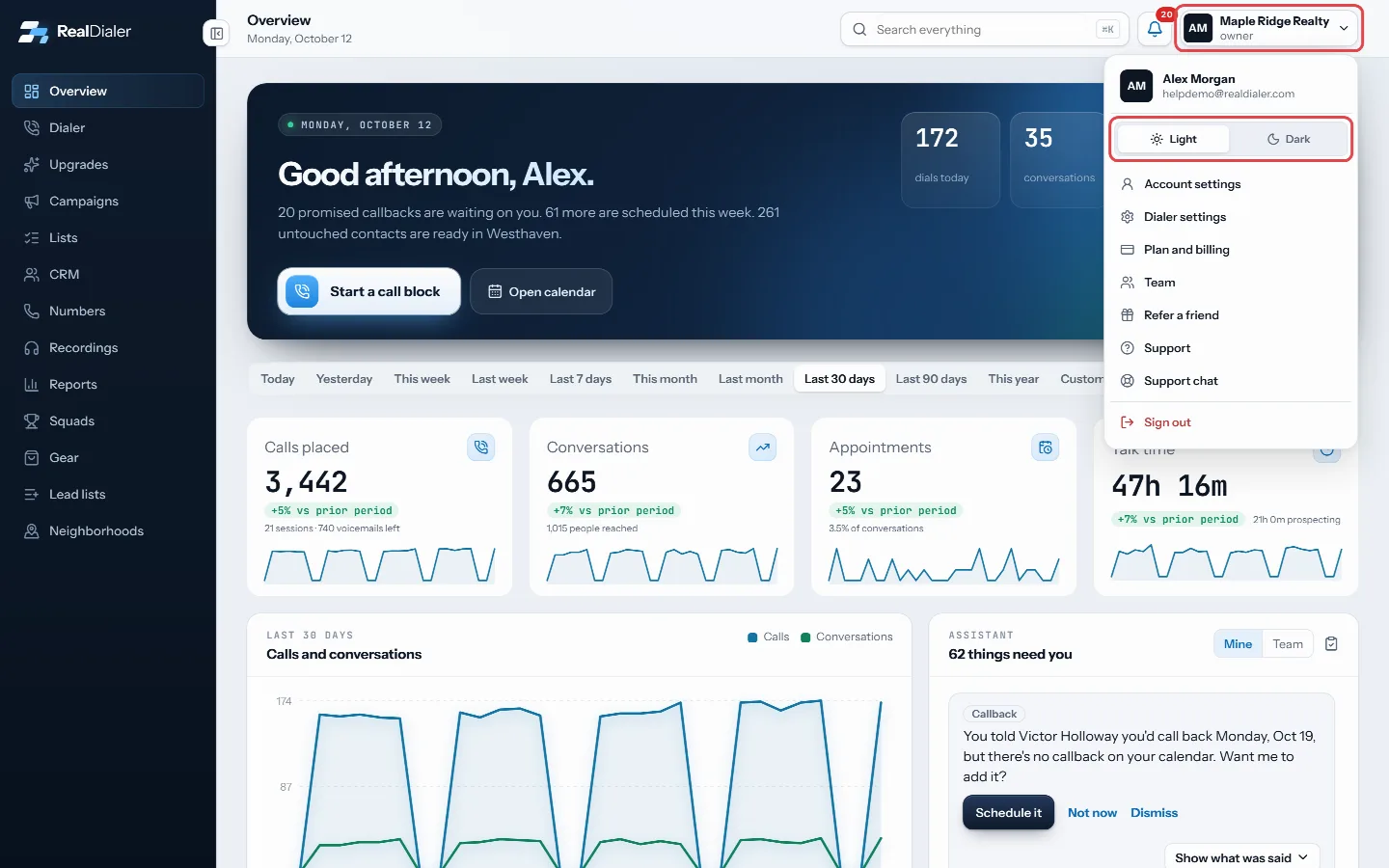
Click your name in the top right, then Light or Dark at the top of the menu. - The whole app changes right away.
Good to know
- Your choice is saved in this browser. Another browser or computer keeps its own setting.
- If your browser clears site data, the app goes back to Light.
- The theme does not change anything about your account, calls or data.
- The RealDialer iPhone app has its own look and does not follow this setting.
Was this guide helpful?
Thanks. It helps us make these better.
Next in Getting started
Use the Start calling setup checklistA new account opens on a Start calling screen instead of the dashboard. It lists the three things that stand between you and your first call, and checks each onWhat the Overview page showsThe Overview is the page you land on after you sign in. It shows how today is going, who you promised to call, how your chosen date range compares with the daysAccept a team inviteWhen an account owner or manager adds you to their RealDialer workspace, they send you an invite link. Opening it lets you set your password and activate your s
Still stuck? Write to support@realdialer.com, or open Support from inside RealDialer.