What it is
Import turns a CSV file into a calling list. You map its columns to RealDialer fields, RealDialer checks every phone number, and the list is ready for a campaign.
Where to find it
Lists > Import CSV. Also on List performance and in the Lists panel under the plus button. Inside a folder, click Import contacts at the top of the folder to import straight into it.
Steps
- Click Import CSV.
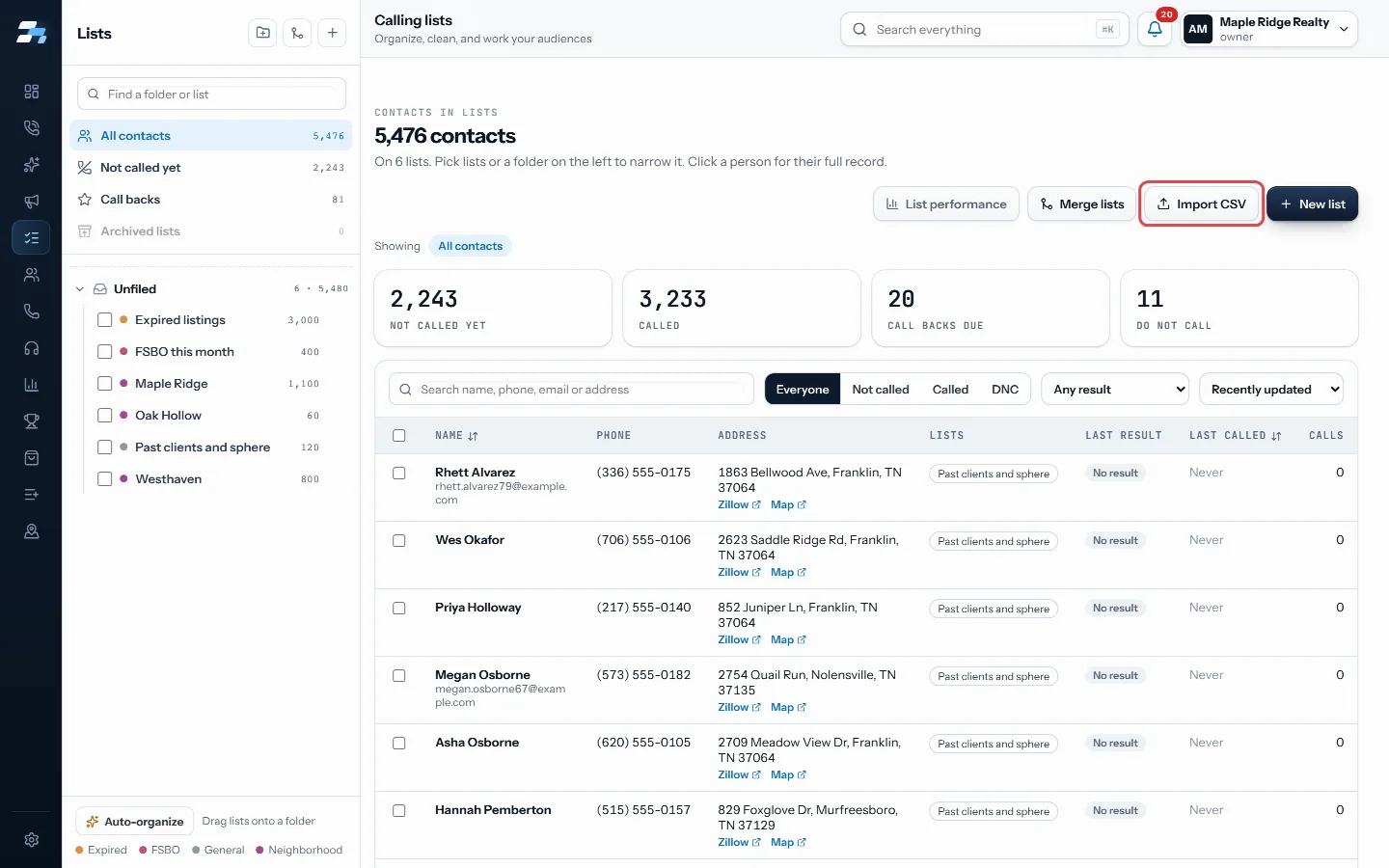
Click Import CSV - Drop one or more CSV files on the box, or click it to choose them.
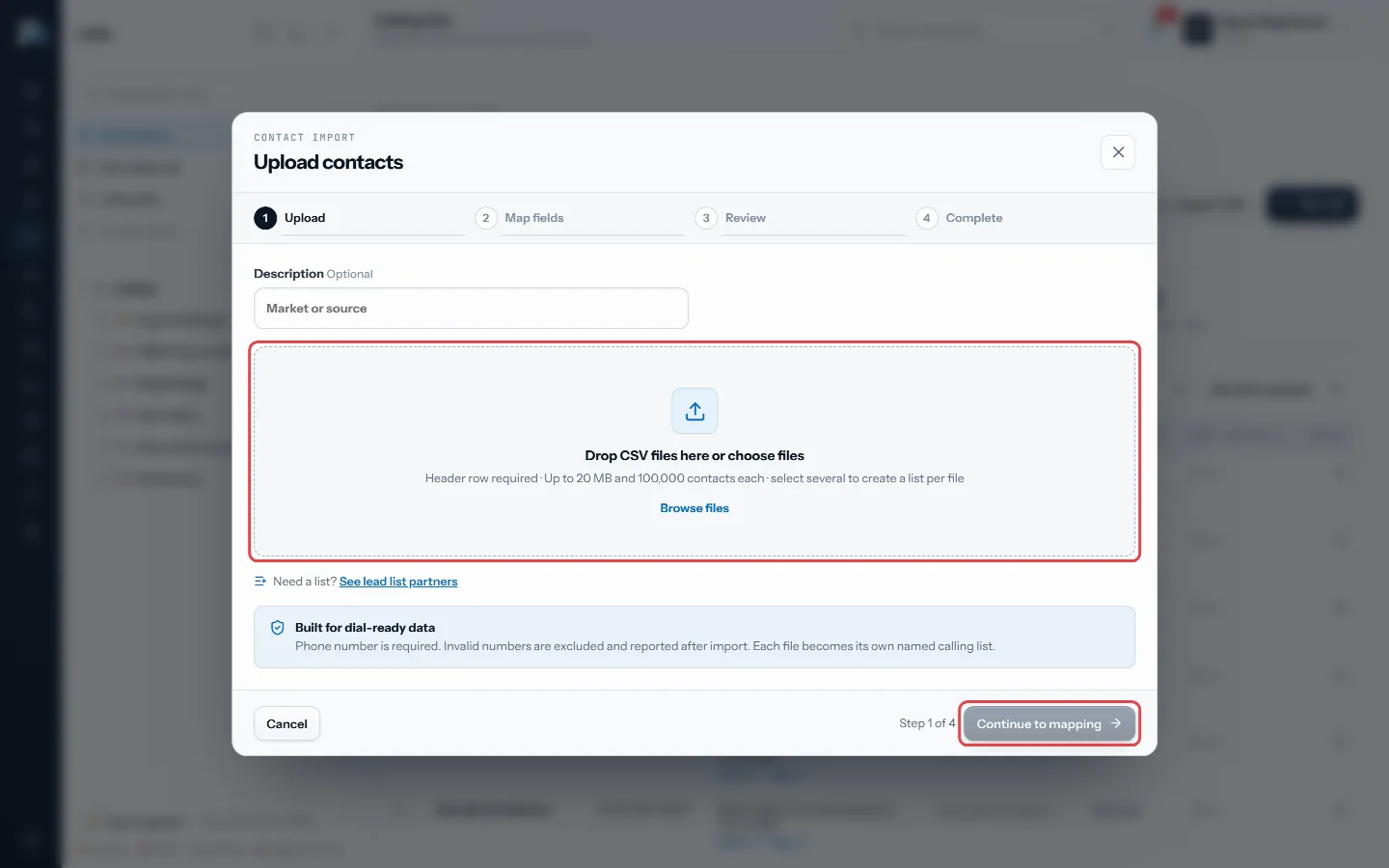
Drop CSV files on the box, or click it to choose; then Continue to mapping - For one file, pick Create a new list and name it, or choose an existing list to add the rows to. Add an optional description.
- To file a new list in a folder, pick it under Folder. Leave it on No folder (Unfiled) to skip this.
- Click Continue to mapping. Match each column to a RealDialer field, or leave it on Do not import. One column must be mapped to Phone number.
- Click Review import. Choose Keep existing data or Update from this CSV for contacts you already have.
- Click Create list & import, then View calling lists.
Good to know
- A header row is required. Each file can be up to 20 MB and 100,000 contacts.
- Several files make one list per file, all using the same column mapping.
- Started from a folder, the import is set to make a new list in that folder, named after the file. The existing lists it offers are the ones already in the folder and its subfolders. When it finishes you are back on the folder with the new list and counts in place.
- An empty folder shows Import contacts and New list here so you can fill it either way.
- Filing a list in a folder needs an owner or manager seat.
- RealDialer remembers how you mapped your last file and reuses it.
- Rows without a valid phone number are left out and counted for you.
- A contact already on your account is matched by phone number, so re-importing the same file updates it instead of making a second copy.
- Import never bypasses calling protections. Numbers on your do not call list are flagged and will not be dialed.
- Import does not scrub against the National Do Not Call Registry. Scrub the file before you import it. Built in registry scrubbing is coming.
Was this guide helpful?
Thanks. It helps us make these better.
Next in Lists
Merge listsMerging puts every contact from several lists onto one list, with their call progress. You can merge into one of the lists you picked or into a brand new list.Organize lists into foldersFolders arrange your lists in the Lists panel. A folder works like a list filter: click it and you see every contact on every list inside it, subfolders includeRename, tag or archive a listEach list in the Lists panel has a menu for renaming, tagging, filing and archiving it. Tags are groups like a town or a source, and they are shared with campai
Still stuck? Write to support@realdialer.com, or open Support from inside RealDialer.