What it is
Merging puts every contact from several lists onto one list, with their call progress. You can merge into one of the lists you picked or into a brand new list.
Where to find it
Lists > Merge lists. Also the merge icon at the top of the Lists panel, or Merge… in a list’s menu.
Steps
- Click Merge lists.
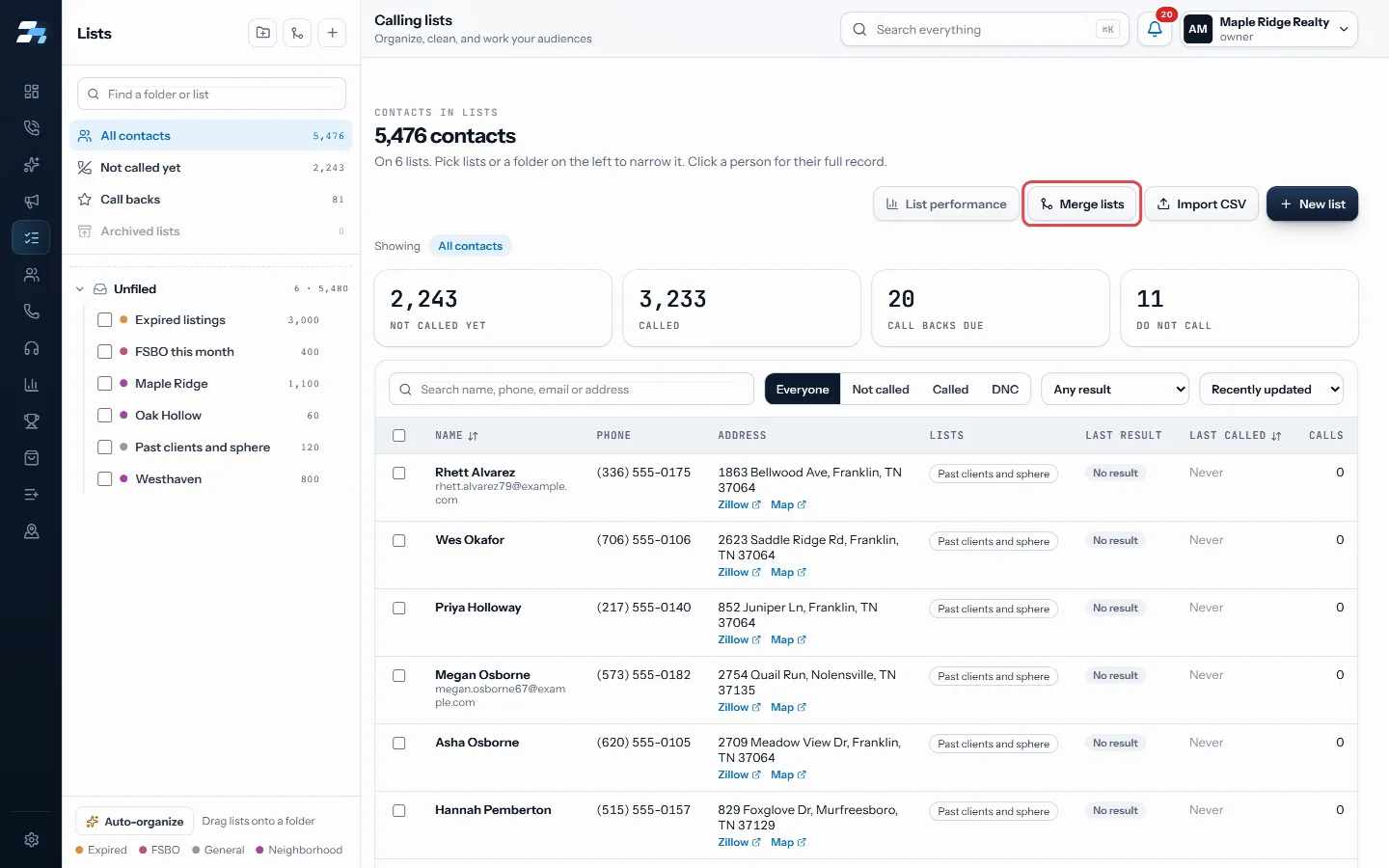
Click Merge lists - Under Lists to merge, tick the lists to combine.
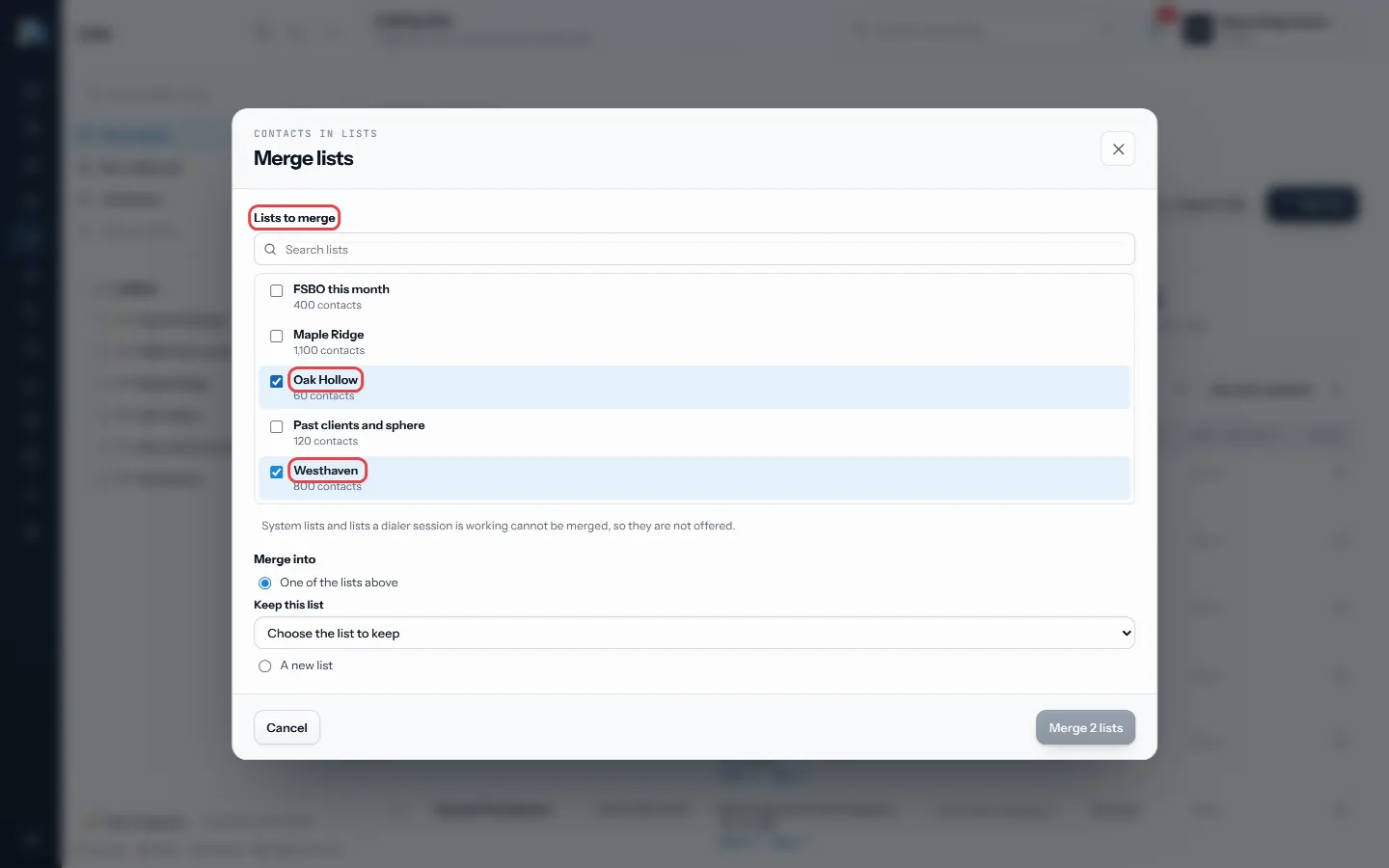
Tick the lists to combine - Under Merge into, choose One of the lists above and pick the list to keep, or choose A new list and name it.
- Read the preview, then click Merge.
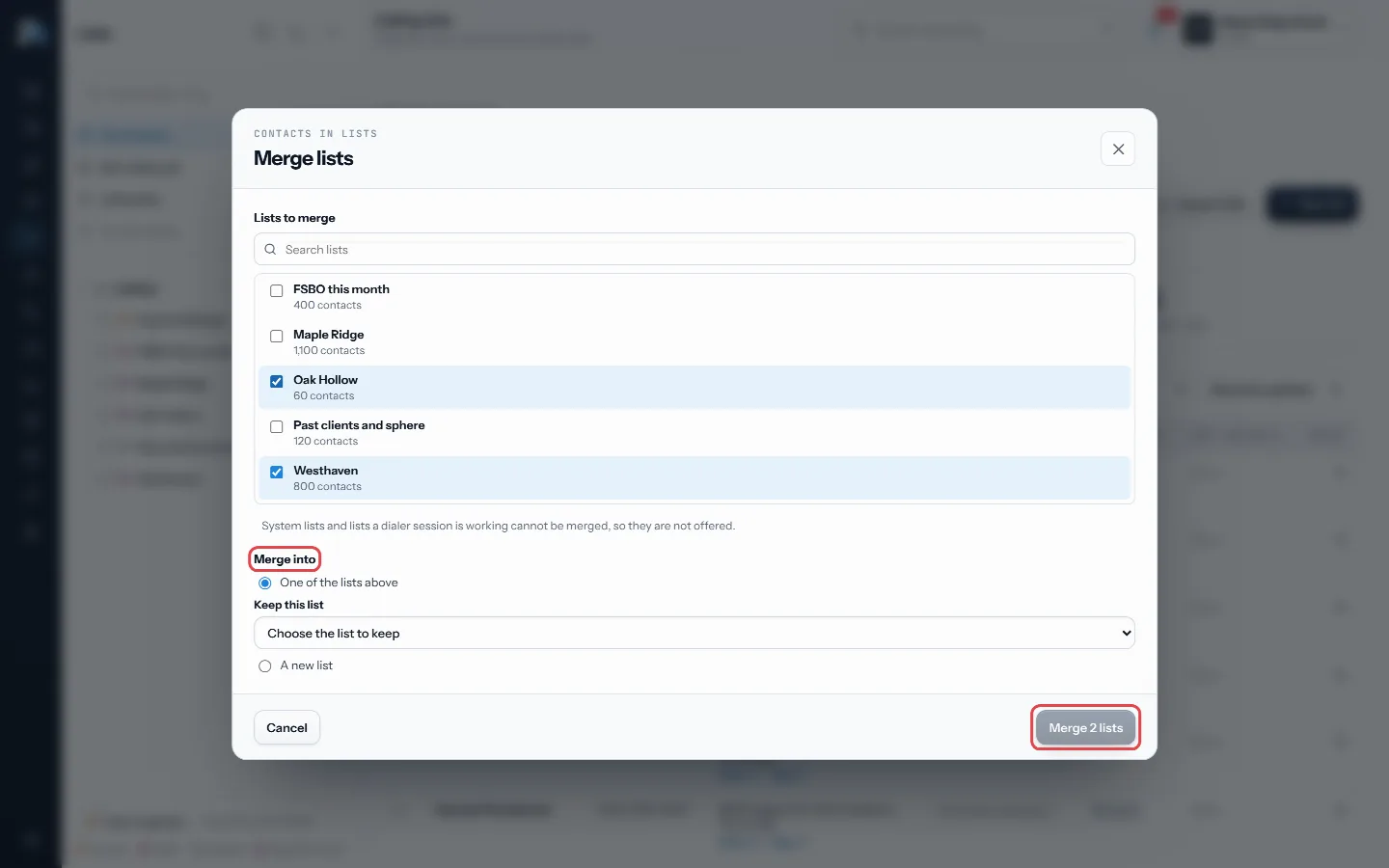
Choose where they go, read the preview, then Merge
Good to know
- Merged lists are archived, not deleted. You can find them under Archived lists.
- Campaigns that held the merged lists are pointed at the list you kept.
- System lists and lists a dialer session is working right now cannot be merged, so they are not offered.
- An archived list has to be restored before it can be merged.
- When it finishes, a summary shows what moved.
Was this guide helpful?
Thanks. It helps us make these better.
Next in Lists
Organize lists into foldersFolders arrange your lists in the Lists panel. A folder works like a list filter: click it and you see every contact on every list inside it, subfolders includeRename, tag or archive a listEach list in the Lists panel has a menu for renaming, tagging, filing and archiving it. Tags are groups like a town or a source, and they are shared with campaiSee how each list is performingList performance compares your calling lists side by side. It shows which list is giving you the most conversations per dial, and how close you are to having sp
Still stuck? Write to support@realdialer.com, or open Support from inside RealDialer.