What it is
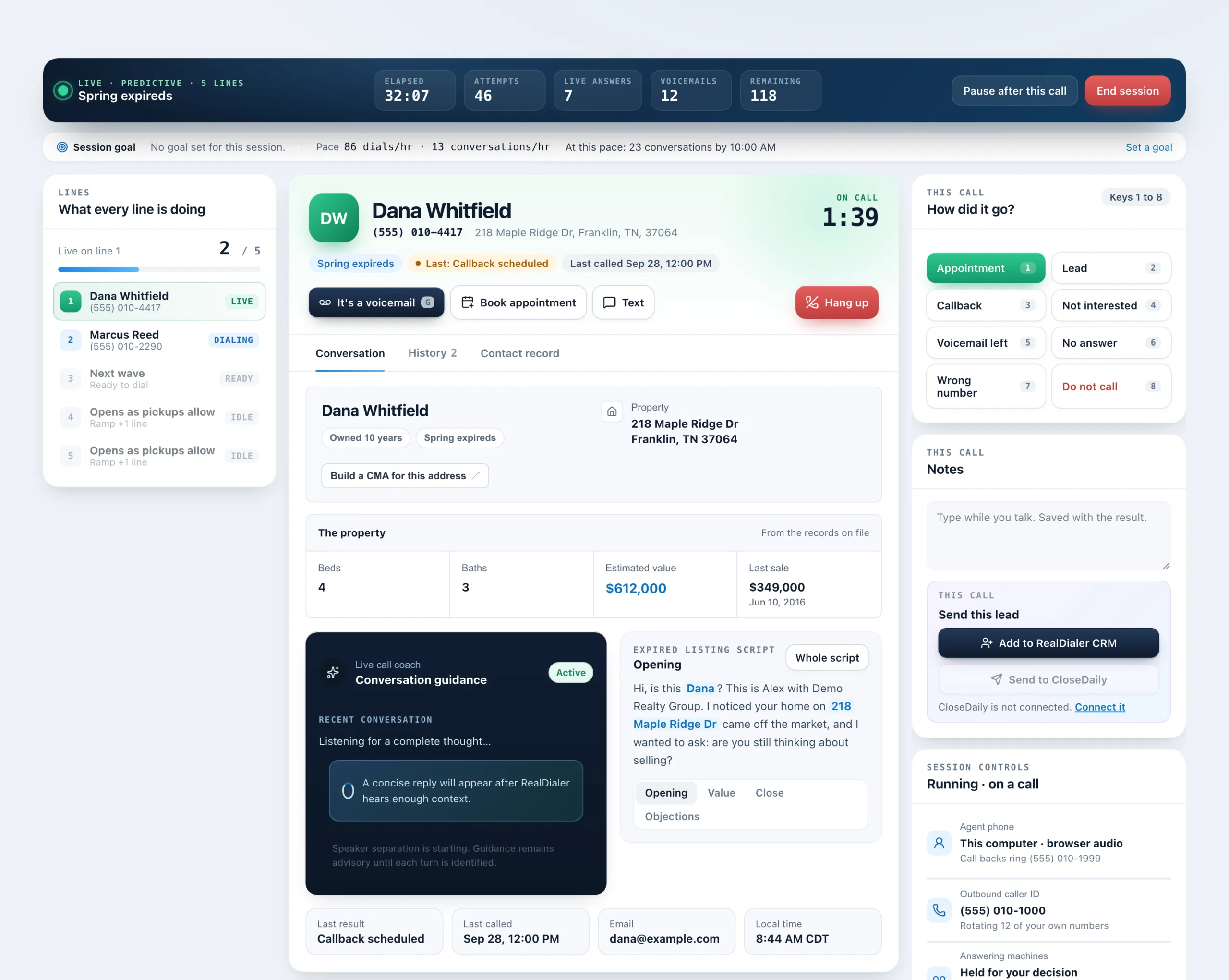
Once you start your session, the Dialer becomes the live call screen. It has three columns: your lines on the left, the person you are talking to in the middle, and the call’s tools on the right. A bar across the top tracks the session.
Where to find it
Dialer > build your call block > Connect and open session
Steps
- Read the session bar across the top. It shows the session’s state (Dialing, Live, Wrap up or Paused), the dial mode and line count, the campaign name, and Elapsed, Attempts, Live answers, Voicemails and Remaining. Your Pause and End session buttons are on the right of it.
- If you set a goal, the Session goal line under the bar tracks it.
- The Lines card on the left shows what every line is doing, numbered 1 up to your line count, with a pill such as Dialing, Ringing, Live or Leaving VM, and a meter as the dialer ramps up.
- When someone answers, their card fills the middle: name, phone, property address, the list they came from, their last result and when they were last called, and a timer.
- Under the name are the call’s buttons: Mute (M), It’s a voicemail (G), Book appointment, Text and Hang up.
- Use the tabs under the card: Conversation, History and Contact record. Conversation opens first on every call.
- On the right, How did it go? holds the results (keys 1 to 8), then Notes with Send this lead, then Session controls.
Good to know
- The Conversation tab leads with the property: owner, links such as Zillow, beds, baths, estimated value and last sale. Below it, the live call coach (with RealDialer AI) sits beside your script, and a row shows the last result, last call, email and their local time.
- Without the AI upgrade there is no coach, and the script takes the full width.
- When nobody is on the line, the middle card shows Working the list with a log of every dial, ring, answer and release.
- If an iPhone or Google call screening assistant picks up and asks who is calling, the line shows Screener. Say your name and why you are calling; the person may pick up.
- If a coach joins the call, a badge at the top says who and whether they are listening, whispering or on the call.
- The left menu folds down to icons during a session to give the call more room.
- The screen restores from the server if the page reloads. In browser audio sessions, a reload hangs up your audio.
Was this guide helpful?
Thanks. It helps us make these better.
Next in Dialer
Fix browser audio problemsIn a browser audio session, the audio bar on the Dialer tells you whether you can be heard. It reads Connected · headset live when all is well. Most problems coHandle answering machines while dialingWhen a call reaches a voicemail box, RealDialer can leave your saved voicemail drop for you, hold the mailbox for your decision, or let you drop it yourself. WhKeyboard shortcuts for call resultsYou can pick call results and run the call from the keyboard. Numbers pick the eight results on the live screen, letters pick any result in the popup, and a few
Still stuck? Write to support@realdialer.com, or open Support from inside RealDialer.