What it is
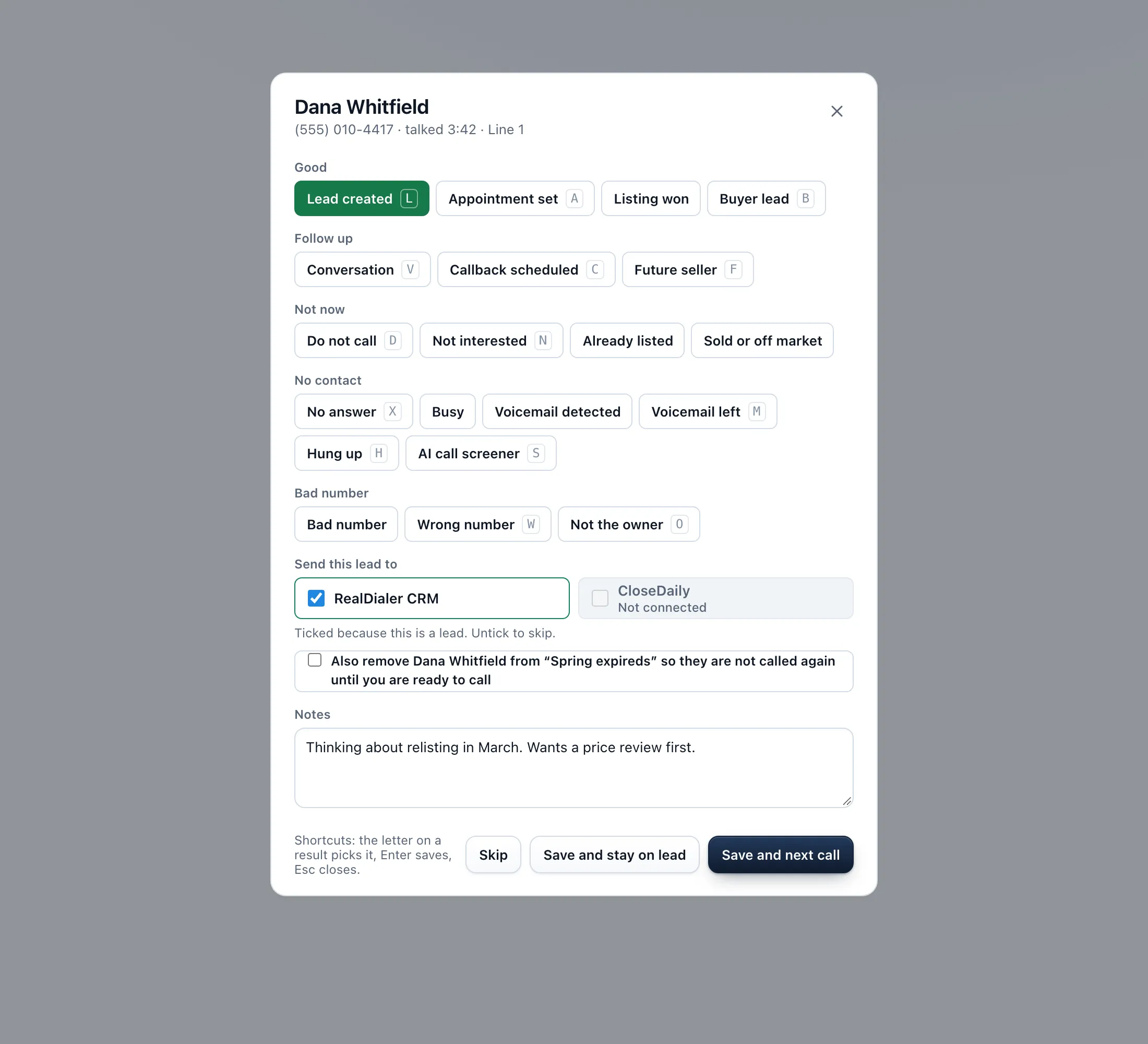
When a call ends, the result popup opens by itself. You pick what happened, add a follow up time if the result needs one, and save. You can move straight on to the next call, or stay on this lead to keep working it.
Where to find it
Dialer > live session > when a call ends
Steps
- While you talk, you can pick a result under How did it go? on the right, or press its key, 1 to 8. It shows highlighted in the popup.
- When the call ends, click a result in the popup. Results are grouped as Good, Follow up, Not now, No contact and Bad number.
- For Callback scheduled, set Callback time. For Future seller, set Follow up on or leave it empty for 90 days out. For Appointment set, set the time or leave it empty if you booked it with Book appointment.
- For a lead, check where it goes under Send this lead to: RealDialer CRM, and CloseDaily if connected. With RealDialer CRM ticked you can also tick Also remove them from the list so they are not called again until you are ready.
- Add or edit Notes.
- Press Save and next call to move on, or Save and stay on lead to keep this person on screen. Press Next call in the session bar when you are ready.
Good to know
- Skip or the X closes the popup without saving. Reopen it with Choose the result under How did it go?
- Only leads are sent. Other results stay in RealDialer.
- If a send fails, the result is still saved and a Retry link stays on screen.
- Each result button shows how many times you have used it this session.
- If the campaign uses a result set, the popup shows a shorter list and says so.
- With a recorded call and RealDialer AI, the notes box and callback time may be filled in from the call. Check them before you save.
- What each result does next, such as stopping calls or booking a callback, is set in Dialer settings, Call flows.
Was this guide helpful?
Thanks. It helps us make these better.
Next in Dialer
Save and stay on leadSave and stay on lead saves the call result but keeps the person on your screen instead of dialing the next one. Use it when you want to finish notes, book a tiSet a goal for your sessionA session goal is your own target for conversations, appointments and leads in one sitting. The live dialer tracks each one against your real numbers, shows youStart a calling sessionA calling session, also called a call block, is one sitting on the Dialer working a campaign. You build it in four steps: Audience, Connection, Preferences and
Still stuck? Write to support@realdialer.com, or open Support from inside RealDialer.