What it is
Step 2 of the Dialer connects your own voice to the session. You talk through the browser on this computer with a headset, so no phone line or PIN is needed. The iPhone app works the same way with Connect in app. Calling in by phone with a PIN is not offered.
Where to find it
Dialer > Connection
Steps
- Open Dialer, pick a campaign and press Continue.
- Under Connect your audio, you will see This computer, through the browser.
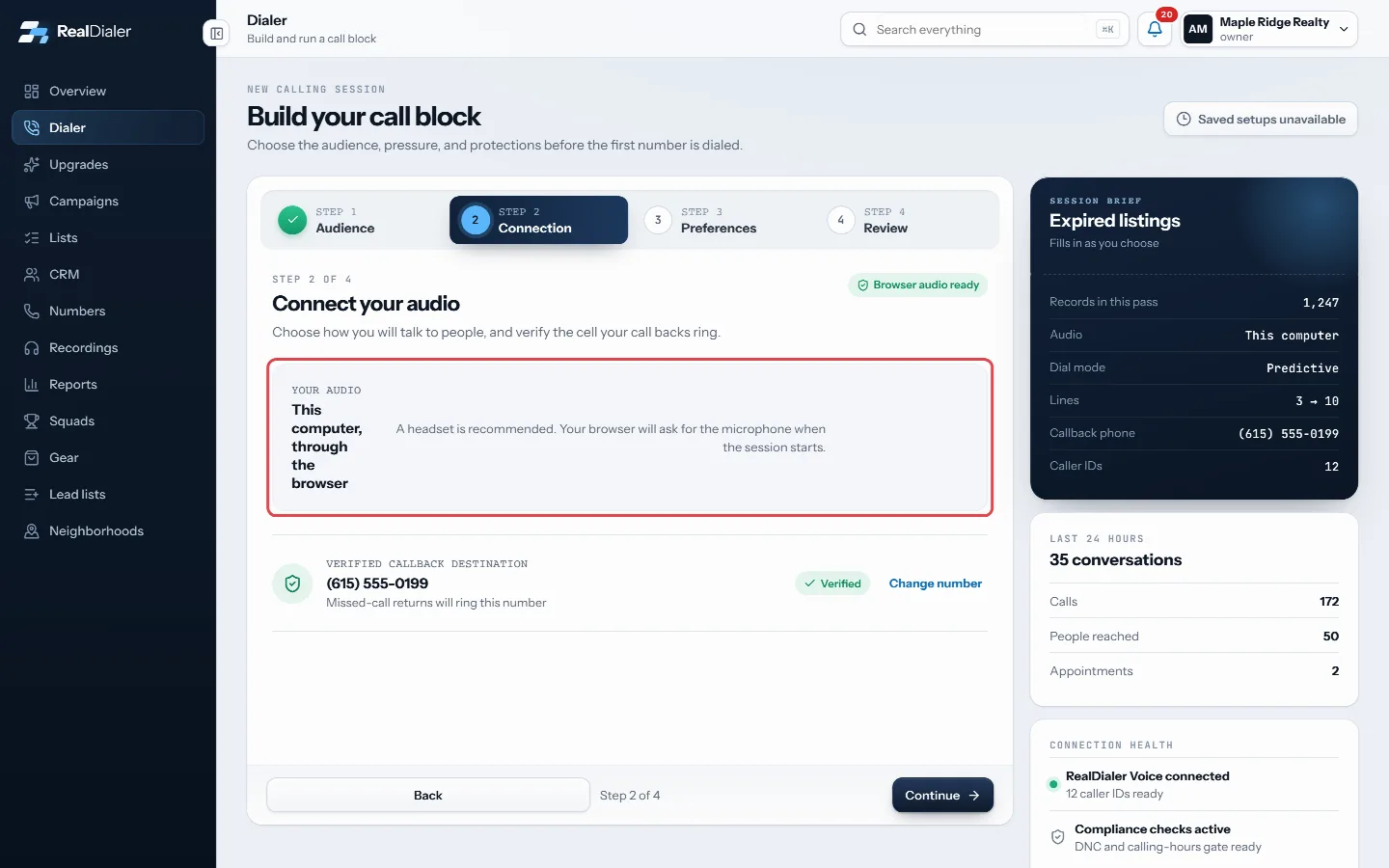
Step 2 Connection: Connect your audio shows This computer, through the browser. - Verify your callback phone if it is not verified yet.
- Finish the remaining steps and press Connect and open session.
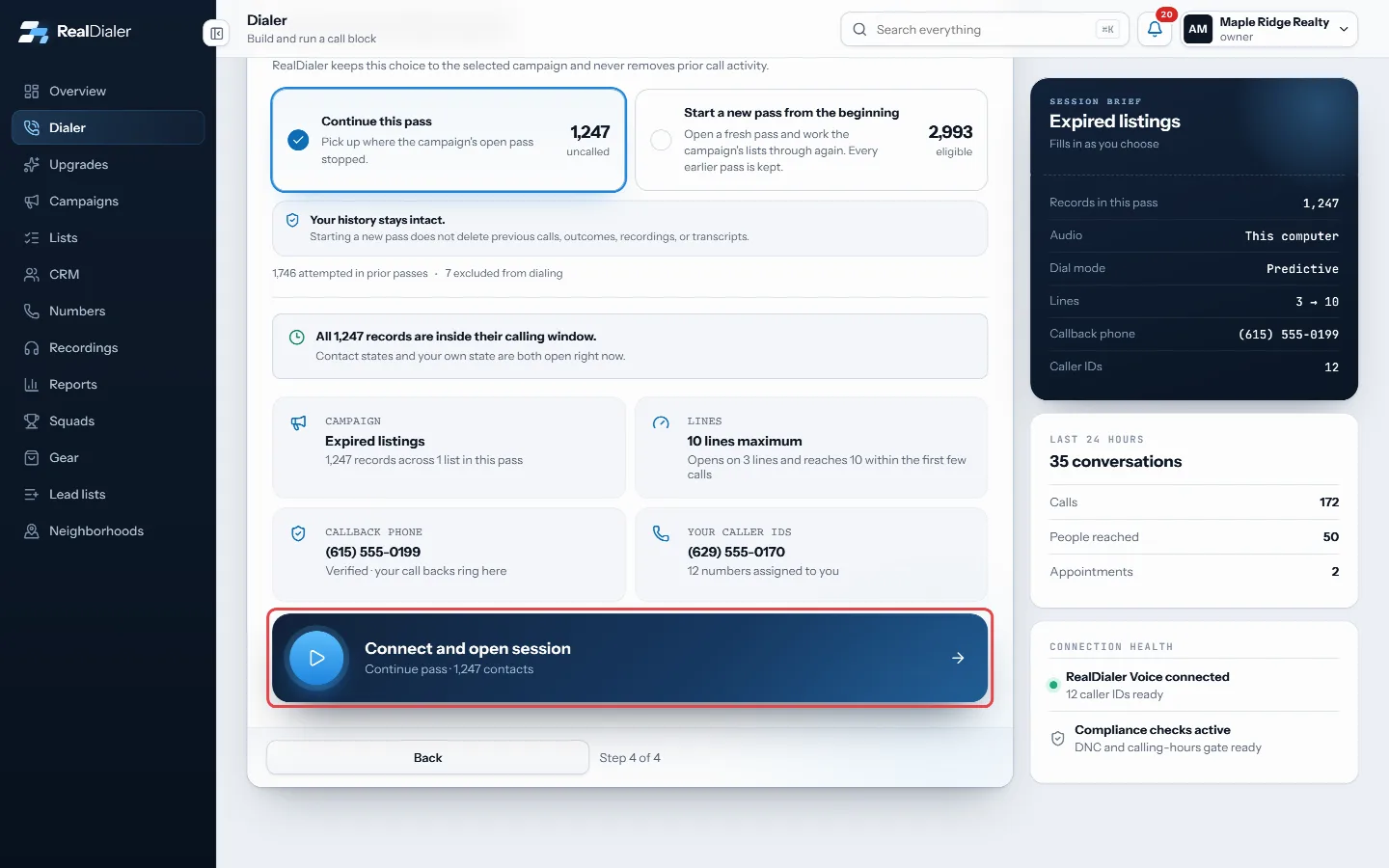
On the Review step, press Connect and open session. Allow the microphone when your browser asks. - Allow the microphone when your browser asks.
Good to know
- Browser audio carries your voice over the internet, so no phone minutes are used for your side of the call.
- A verified callback phone is still required, because it is where people who call you back will ring.
- Browser sessions end if you close or reload the tab.
- If the Dialer says browser calling is not available, try again shortly or contact support.
- In the browser, a headset gives the clearest calls. Speakers work, but expect echo.
Was this guide helpful?
Thanks. It helps us make these better.
Next in Dialer
Fill in a lead sheet during a callA lead sheet is a short form your manager writes, filled in while the person is still on the phone. The answers file against the contact and the call, and land Find your way around the live dialerOnce you start your session, the Dialer becomes the live call screen. It has three columns: your lines on the left, the person you are talking to in the middle,Fix browser audio problemsIn a browser audio session, the audio bar on the Dialer tells you whether you can be heard. It reads Connected · headset live when all is well. Most problems co
Still stuck? Write to support@realdialer.com, or open Support from inside RealDialer.