What it is
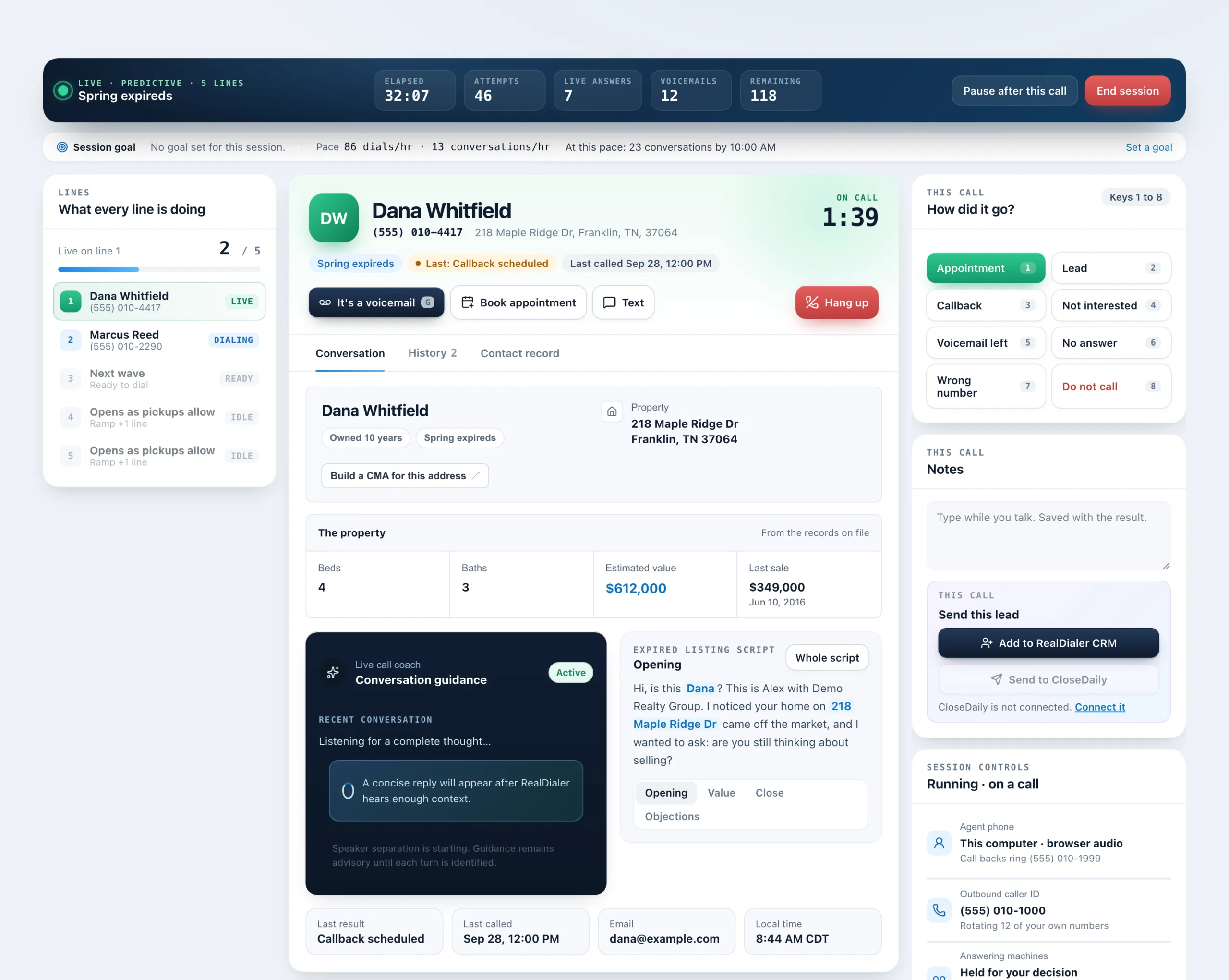
A session goal is your own target for conversations, appointments and leads in one sitting. The live dialer tracks each one against your real numbers, shows your pace and, once there is enough to go on, projects when you will hit it.
Where to find it
Dialer > live session > Session goal
Steps
- After your audio connects, fill in Goal for this session under the Start auto dialer button. Leave a box blank to skip it.
- During the session, the Session goal bar under the top bar shows each goal as a count, such as 3 of 10.
- Press Set a goal or Edit goal on the bar to change it, then Save goal.
Good to know
- Goals are optional and only for you. They are remembered in this browser for next time.
- Pace counts dialing time only. Time you spend paused is left out.
- After about 10 minutes and a handful of dials, the bar shows dials and conversations per hour, then a line like “At this pace” with a finish time.
- A reached goal gets a check mark.
- Goals do not change how the dialer works or what shows in Reports.
Was this guide helpful?
Thanks. It helps us make these better.
Next in Dialer
Start a calling sessionA calling session, also called a call block, is one sitting on the Dialer working a campaign. You build it in four steps: Audience, Connection, Preferences and Take notes during a callThe Notes card sits on the right of the live call screen, so you can type while the person talks. Whatever you type carries into the result popup and saves to tText people who did not answerDuring a session, everyone whose call rang out, was busy or went to voicemail builds up in the People to text card. Each person has their own Text button, so ev
Still stuck? Write to support@realdialer.com, or open Support from inside RealDialer.