What it is
A calling session, also called a call block, is one sitting on the Dialer working a campaign. You build it in four steps: Audience, Connection, Preferences and Review. Then RealDialer connects your audio and waits for your approval before the first number rings.
Where to find it
Dialer > Build your call block
Steps
- Open Dialer. Under Which campaign are you calling?, pick a campaign and press Continue.
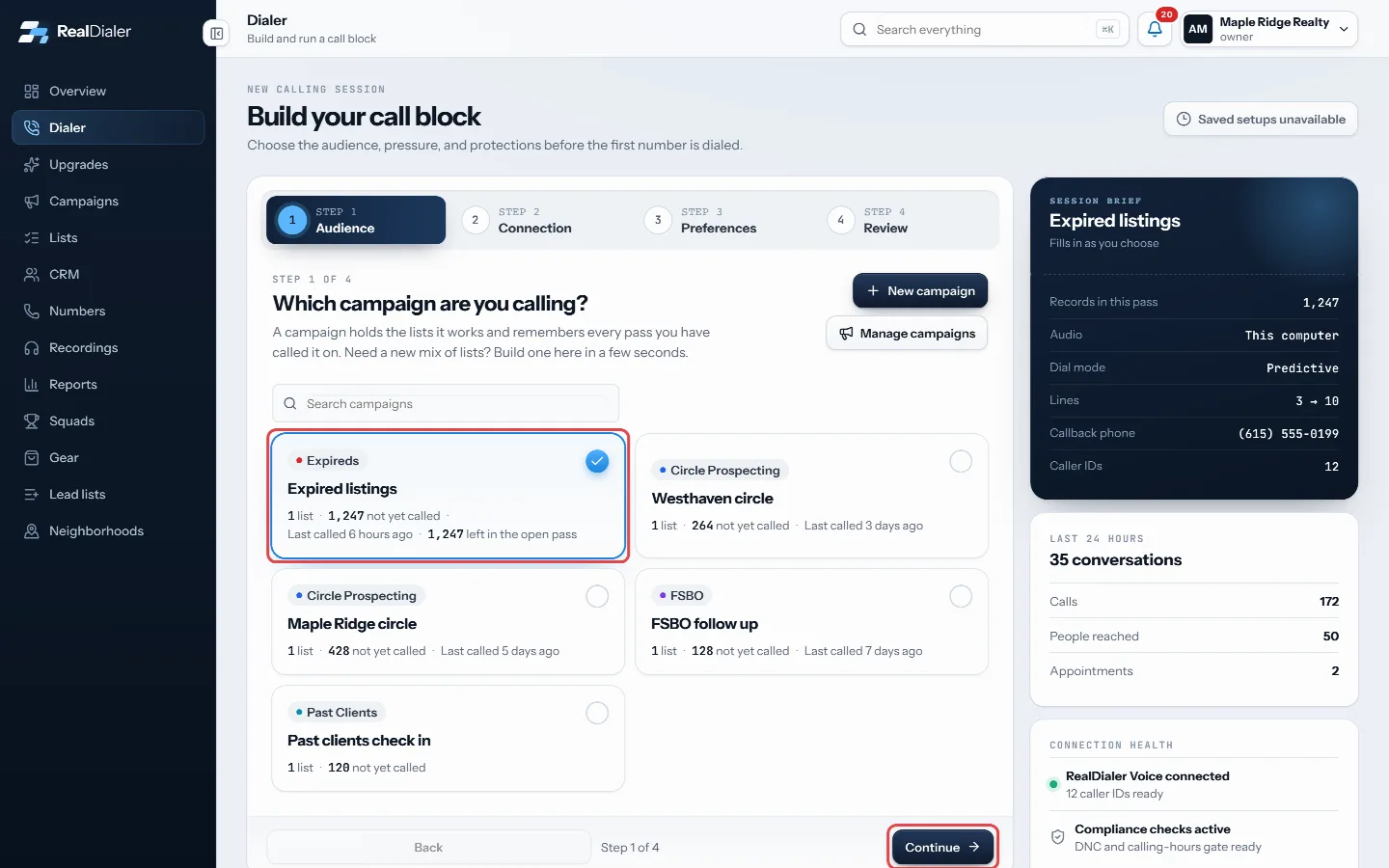
Under Which campaign are you calling?, pick a campaign and press Continue. - Under Connect your audio, check that your audio connects through this computer and that your callback phone shows Verified. Press Continue.
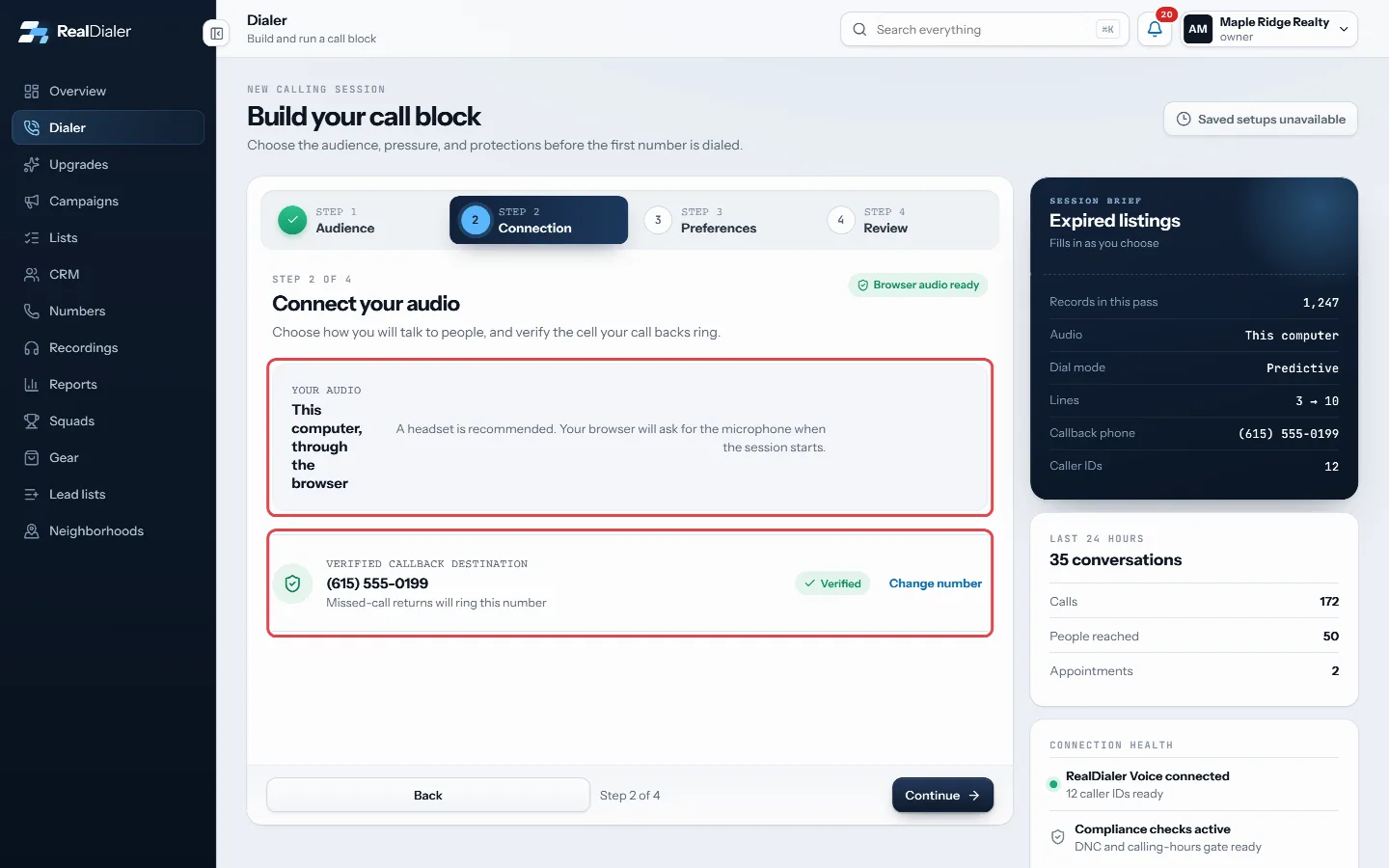
Under Connect your audio, check the browser audio and that your callback phone shows Verified. - Under Choose your lines (or Choose how this campaign dials for a preview campaign), pick your lines and press Continue.
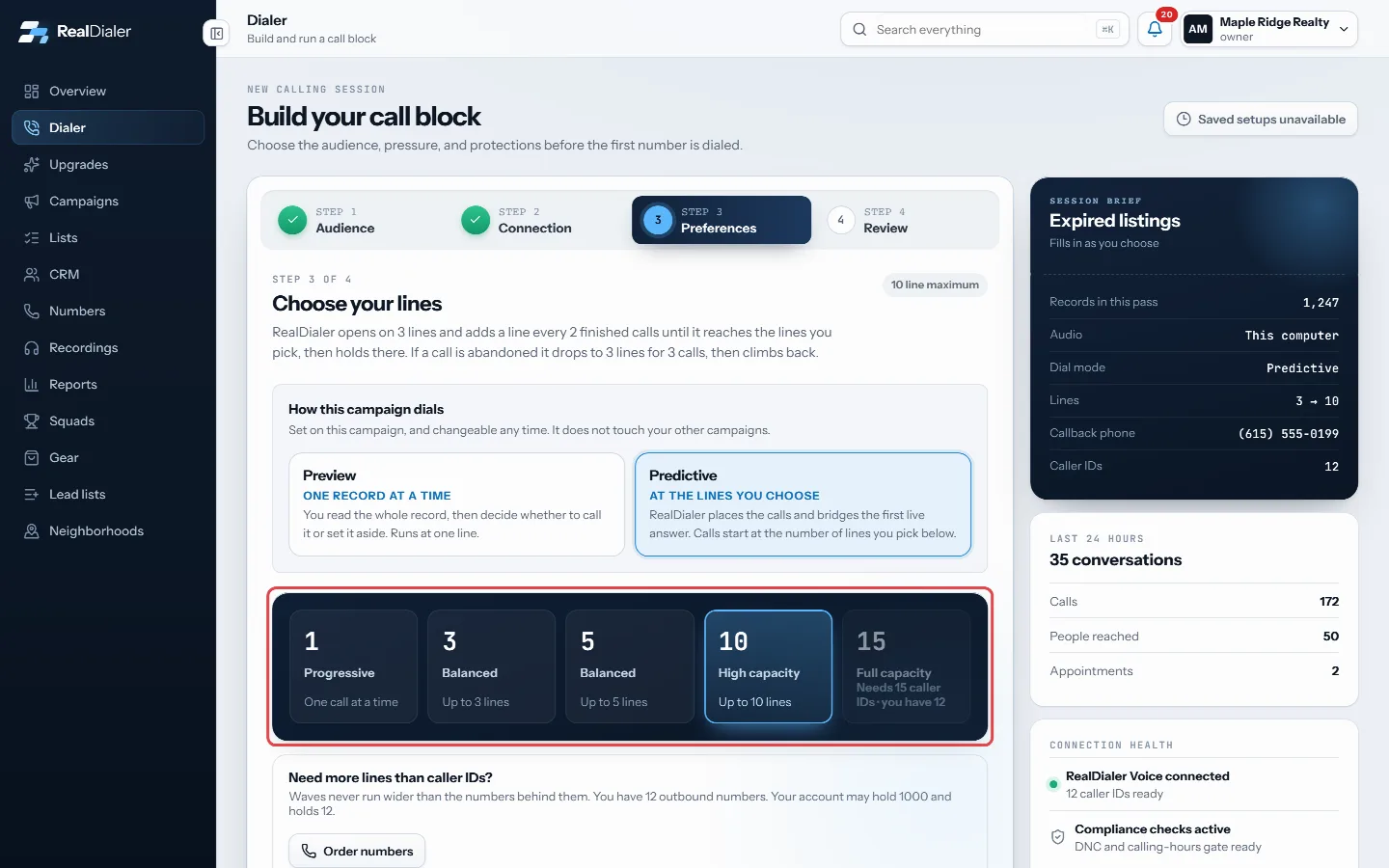
Under Choose your lines, pick how many lines to dial. - On the review step, choose Continue this pass or Start a new pass from the beginning.
- Press Connect and open session.
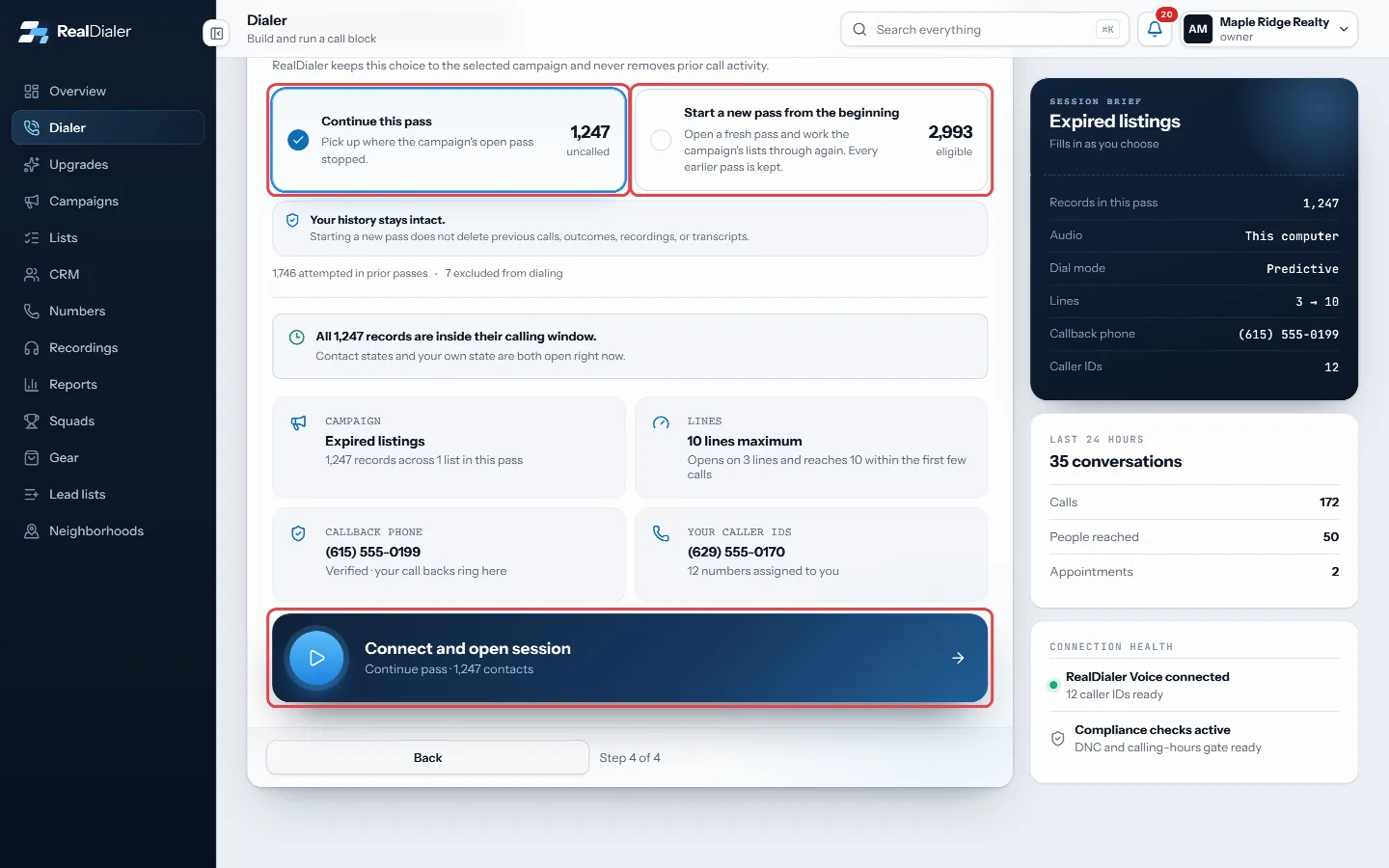
Choose the pass, then press Connect and open session. - When your audio connects, check the campaign, the first contact and the line count, then press Start auto dialer.
Good to know
- The status pill on the review step must read All checks passed before the start button works. If it does not, the heading tells you what to fix.
- You can click any step at the top to go back to it.
- After your audio connects you have 3 minutes to press Start auto dialer. The countdown shows on screen.
- The setup screen also shows your last 24 hours: calls, people reached and appointments.
- Line limits, attempt limits and calling hours are checked again the moment you start, so a contact outside its calling window is held, not dialed.
Was this guide helpful?
Thanks. It helps us make these better.
Next in Dialer
Take notes during a callThe Notes card sits on the right of the live call screen, so you can type while the person talks. Whatever you type carries into the result popup and saves to tText people who did not answerDuring a session, everyone whose call rang out, was busy or went to voicemail builds up in the People to text card. Each person has their own Text button, so evUse a script during a callYour calling script sits on the Conversation tab during a live call, with the person's details filled in. It shows one section at a time, with a switch between
Still stuck? Write to support@realdialer.com, or open Support from inside RealDialer.