What it is
A lead sheet is the form your callers fill in while someone is still on the phone. You write the questions once. Every answer comes back to the Leads tab here, attached to the contact and the call it came from.
Where to find it
Settings > Calling > Lead sheets
Steps
- Open Settings and choose Lead sheets, then the Sheets tab.
- Press New lead sheet.
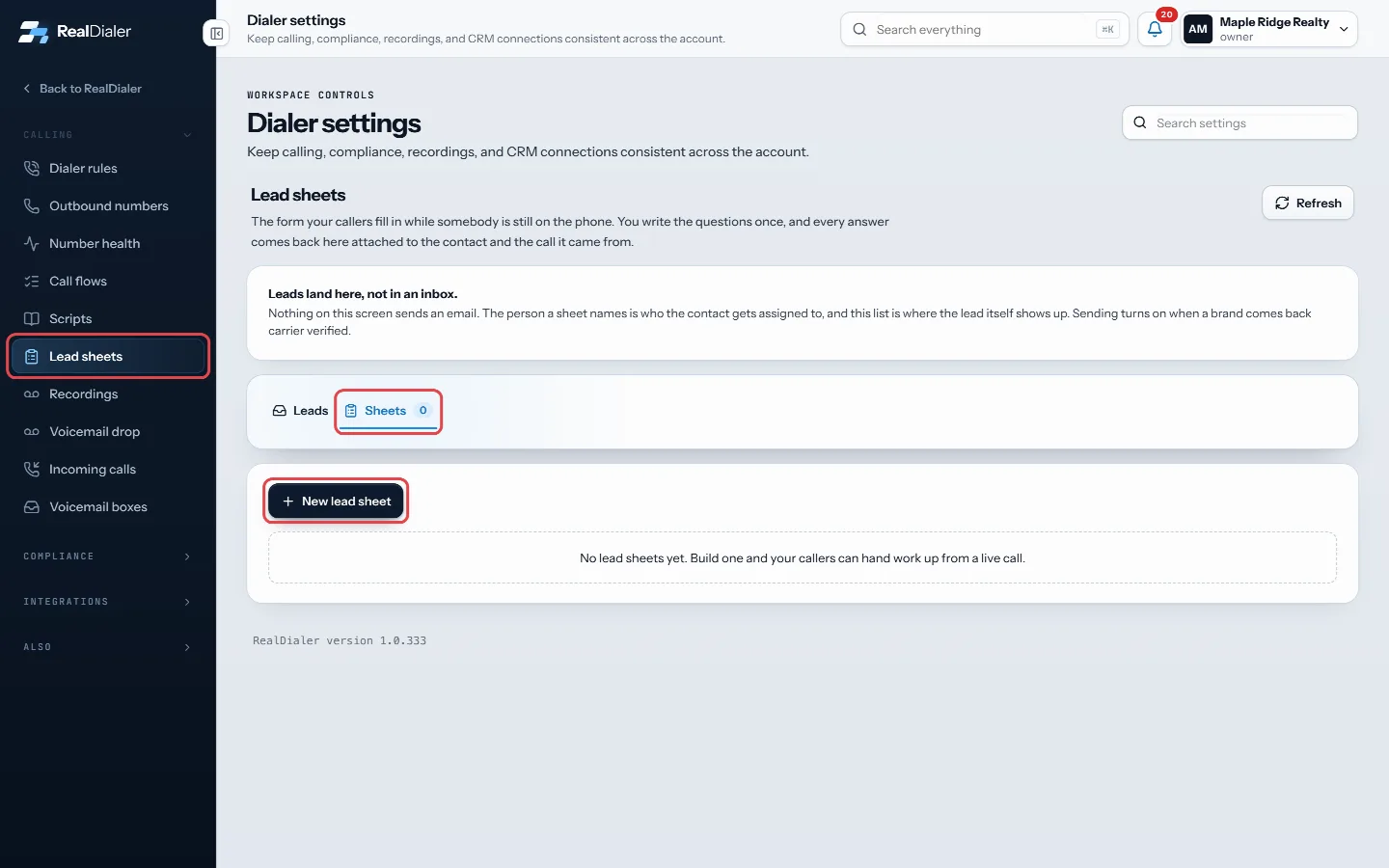
Settings, Lead sheets: open the Sheets tab and press New lead sheet - Give it a Name and, if you like, a note under What it is for.
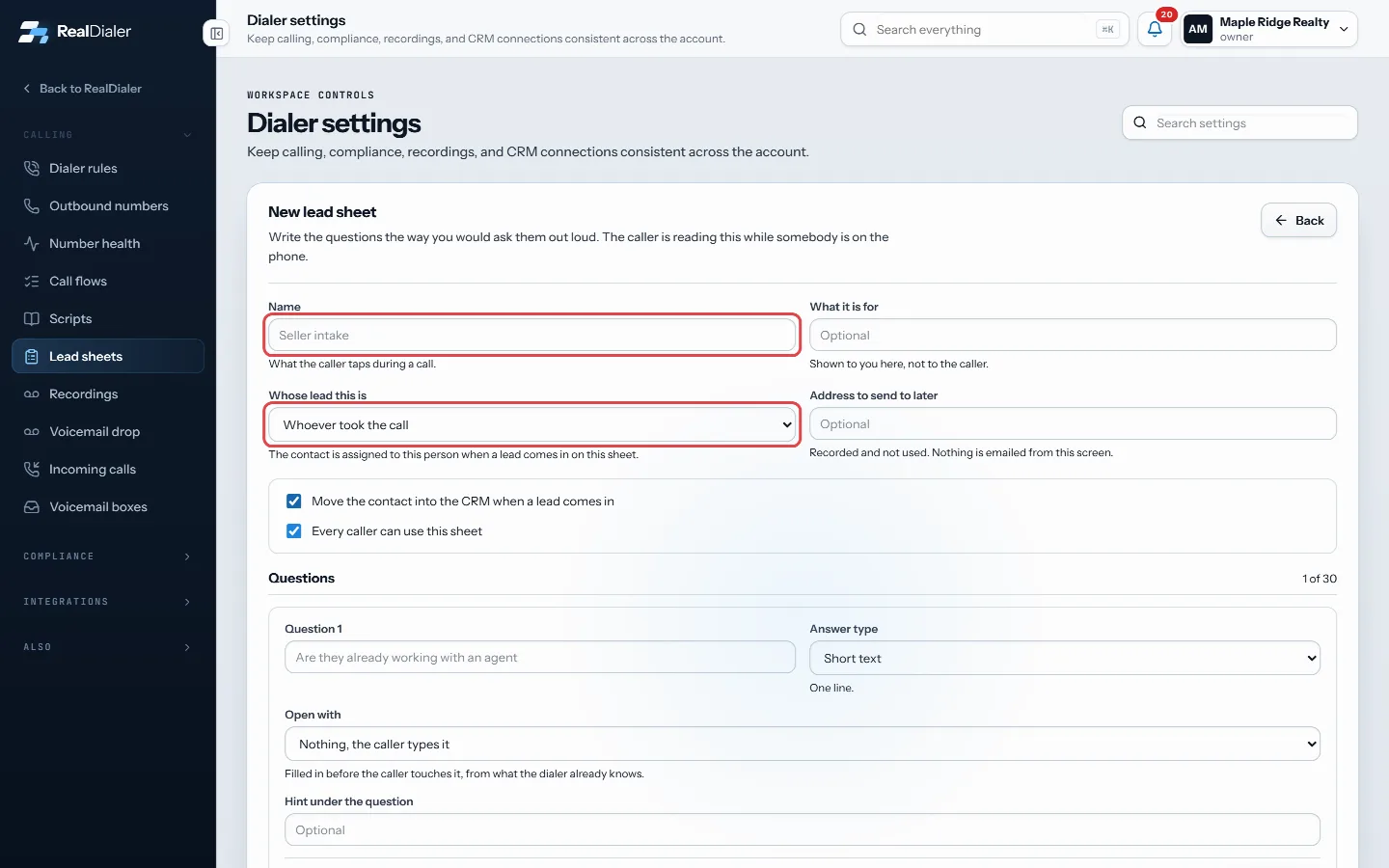
Give the sheet a name and choose whose lead it is - Choose Whose lead this is, or leave it on Whoever took the call.
- Under Questions, press Add a question. Pick the Answer type, add Choices for a pick list, and tick Has to be answered where needed. Use Open with to prefill an answer from what the dialer already knows.
- Choose who can use it, and whether to Move the contact into the CRM when a lead comes in.
- Press Save lead sheet. Callers see it on their next call.
Good to know
- Write questions the way you would ask them out loud. The caller reads them during a live call.
- Sent leads appear on the Leads tab, with a count of new ones. Filter by state or sheet.
- Nothing on this screen sends an email. Leads land here, not in an inbox.
- Archiving a sheet keeps every lead it collected.
- Only owners and managers build sheets. Callers fill them in from the Lead sheet tab in the dialer.
Was this guide helpful?
Thanks. It helps us make these better.
Next in Calling settings
Change how long calls ringRing time is how long each outbound call rings before it counts as no answer. It is shown in rings and each ring is about 6 seconds.Choose what each call result doesEach call result can do things automatically when it is saved: stop calling the contact, add them to your do not call list, book a callback, put an appointment Choose what happens when someone answersThis setting decides what the dialer does in the first seconds after someone picks up: connect you right away, or listen longer to filter out voicemail greeting
Still stuck? Write to support@realdialer.com, or open Support from inside RealDialer.