What it is
Appointments is a ledger of every appointment that got set and what came of it. At the top it counts Set, Kept, Settled, Kept rate, No shows and Waiting on you.
Where to find it
CRM > Appointments
Steps
- Pick a window: All time, Upcoming, This week or Last 30 days.
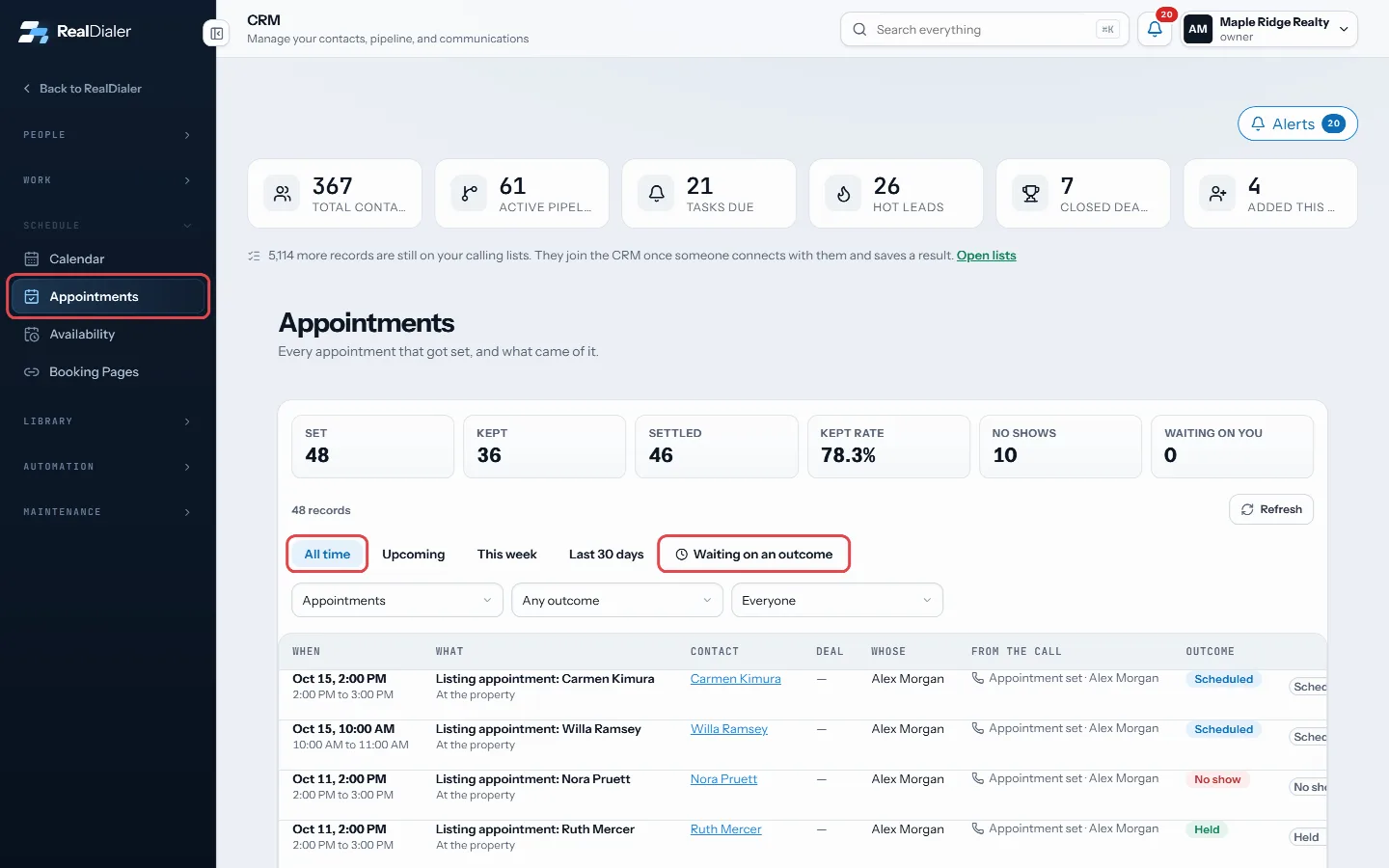
Open Appointments, pick a window, or press Waiting on an outcome - Press Waiting on an outcome to see appointments whose time has passed with no outcome yet.
- In each row, use the outcome menu to set Held, No show, Rescheduled, Completed or Cancelled. It saves straight away.
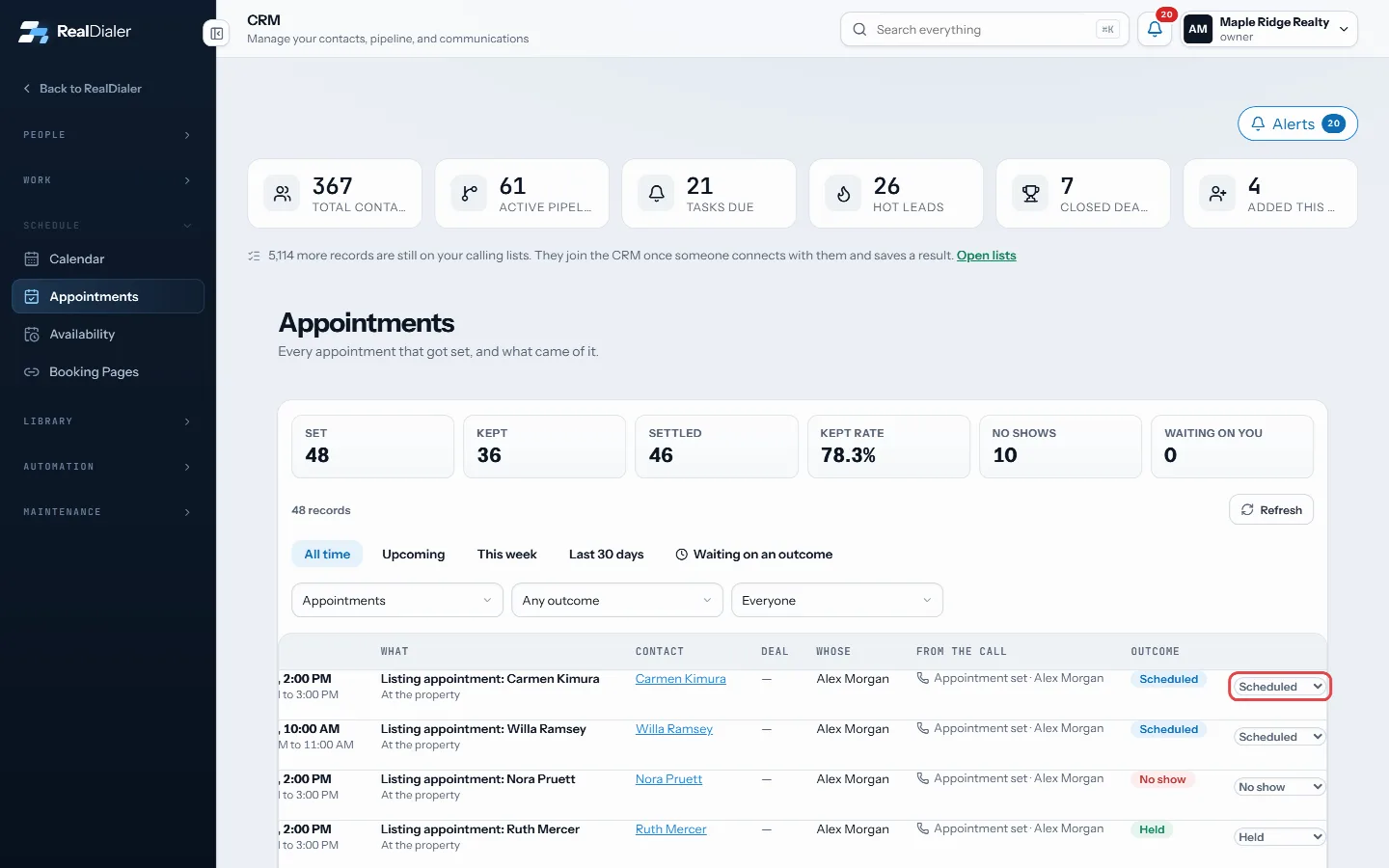
Set the outcome on each row. It saves straight away - Press the bell on an appointment row to see its reminders.
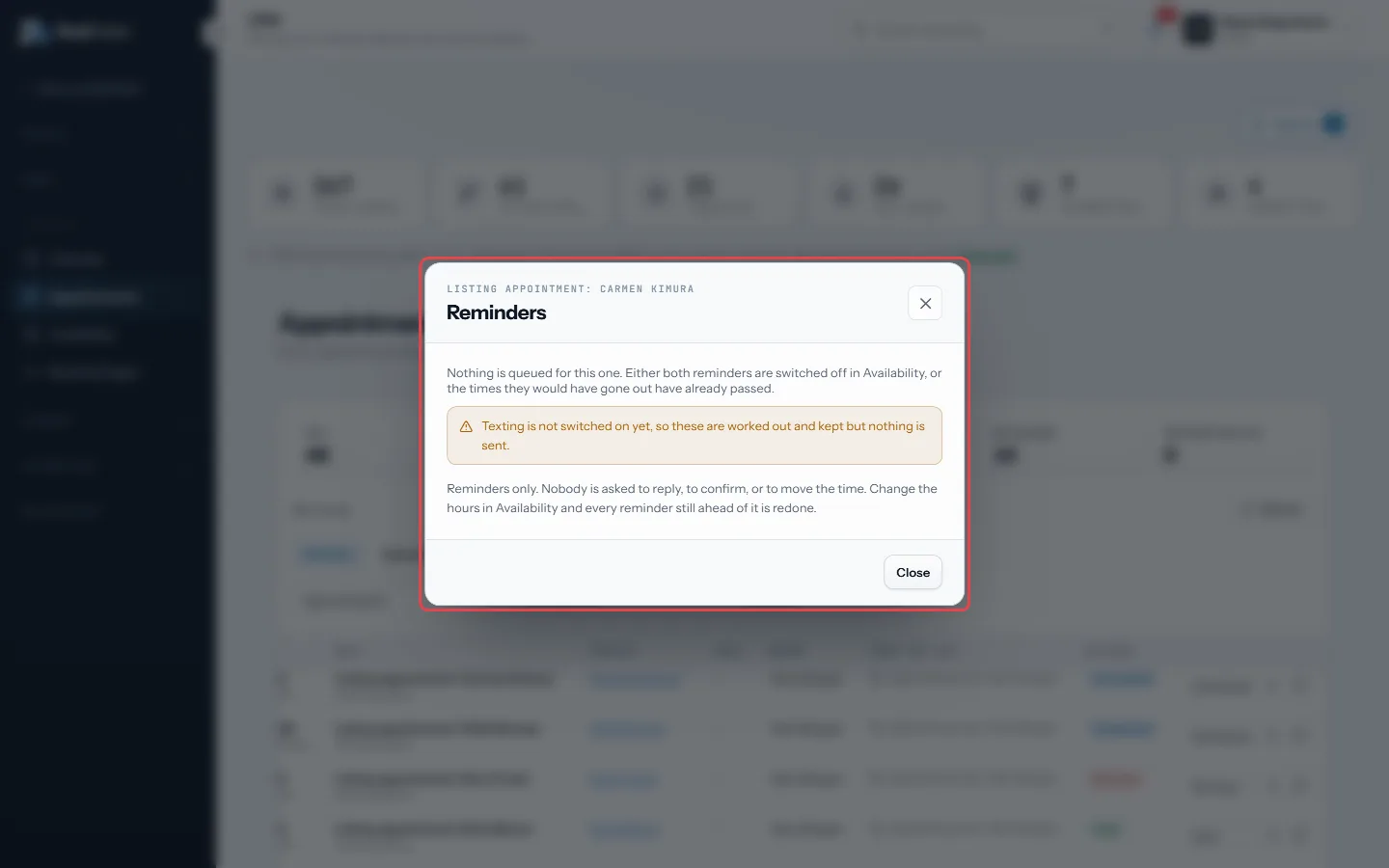
The bell on a row shows that appointment's reminders - Use the filters to include callbacks, show one outcome, or show one person’s appointments.
Good to know
- Kept rate is kept appointments out of settled ones, so an appointment that has not happened yet does not count against you.
- Nothing sets an outcome for you. The numbers are only as good as the outcomes you save.
- The From the call column shows the call result and who booked it, or Added by hand.
- Keep a failed appointment and change its outcome rather than deleting it, so your no shows still count.
- Reminders are set up in Availability. They are worked out and kept on each appointment, but only sent once texting is switched on for your account.
Was this guide helpful?
Thanks. It helps us make these better.
Next in CRM
Track deals on the pipeline boardDeals shows your opportunities on a board, one column per stage, with the count and total value in each. Each card shows the contact, the value, the next task aUse and save smart listsA smart list is a saved question, not a saved copy. It re-runs against your CRM every time you open it, so it is always current. RealDialer comes with built in Use the contact record pageEach person in RealDialer has one record page with everything about them: numbers, contact info, lists they are on, your fields, tags, the next follow-up, calli
Still stuck? Write to support@realdialer.com, or open Support from inside RealDialer.