What it is
A sequence is a cadence of touches over time: call, wait, text, wait, email. Each touch either lands as a task for whoever works the contact, or, for an email, can send by itself. It can stop the moment they text back or book.
Where to find it
CRM > Sequences
Steps
- Owners and managers press New sequence, give it a name, and press Make it. It starts off with nobody in it.
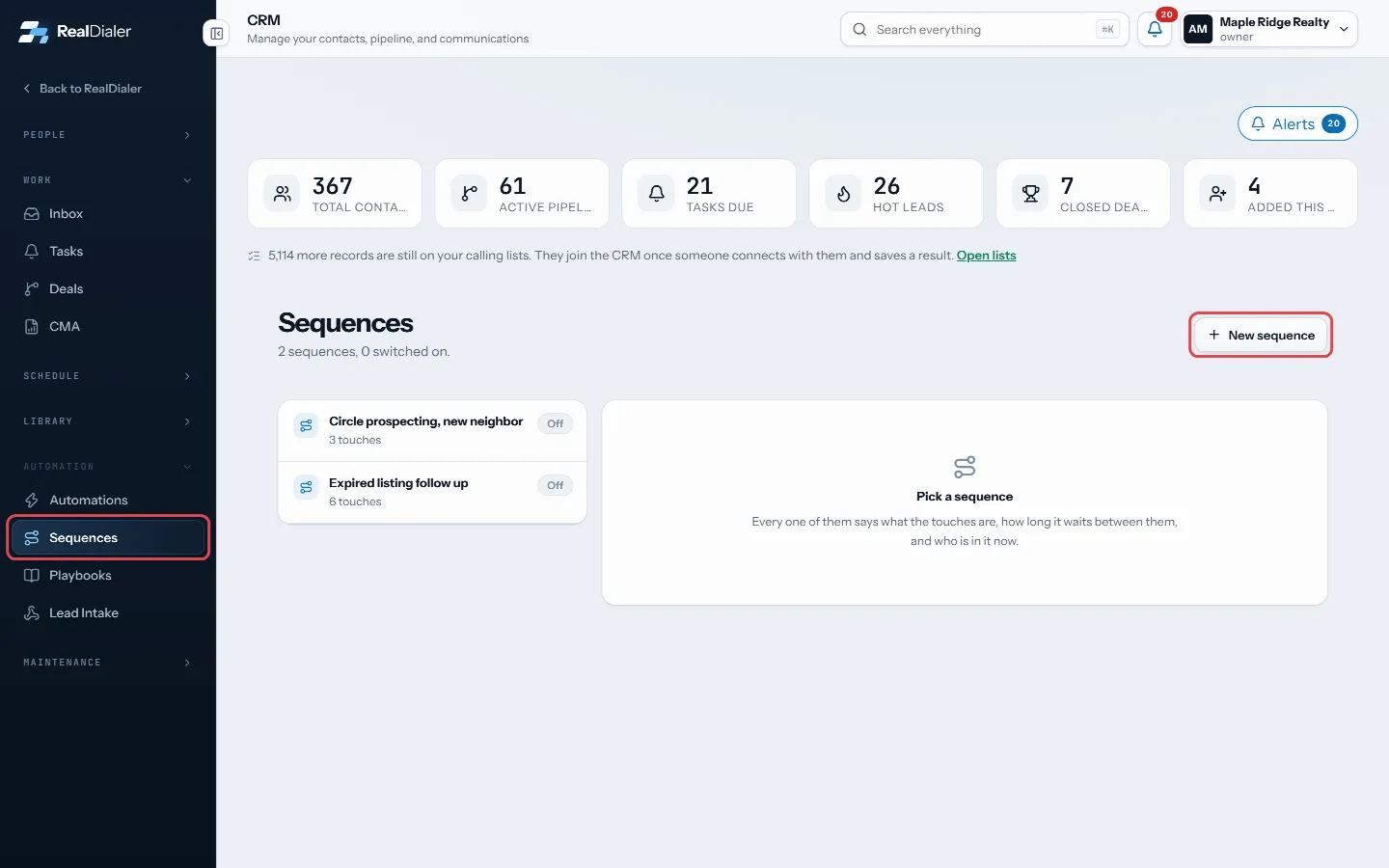
In CRM > Sequences, press New sequence - Pick a touch type under Add a touch (Call, Text, Email or Something else) and press Add.
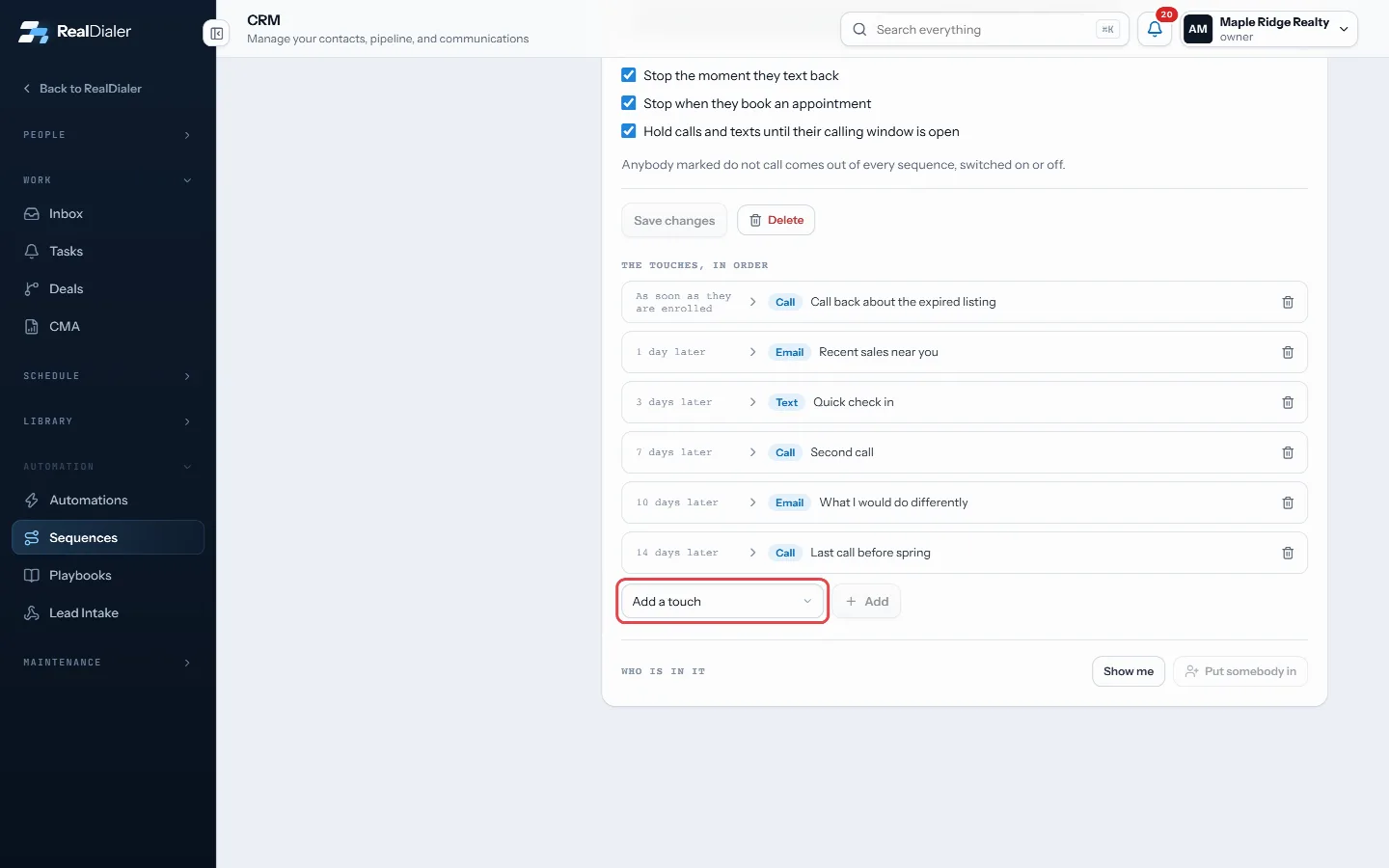
Open a sequence and pick a touch under Add a touch - Open the touch. Set Wait first in minutes, write what the task says, and the message or notes. For email, add a subject and tick Send automatically if you want it to send itself.
- Optionally attach a library file, or hold the touch until the contact has a file with a certain label.
- Press Save this touch, and repeat. A sequence holds up to 20 touches.
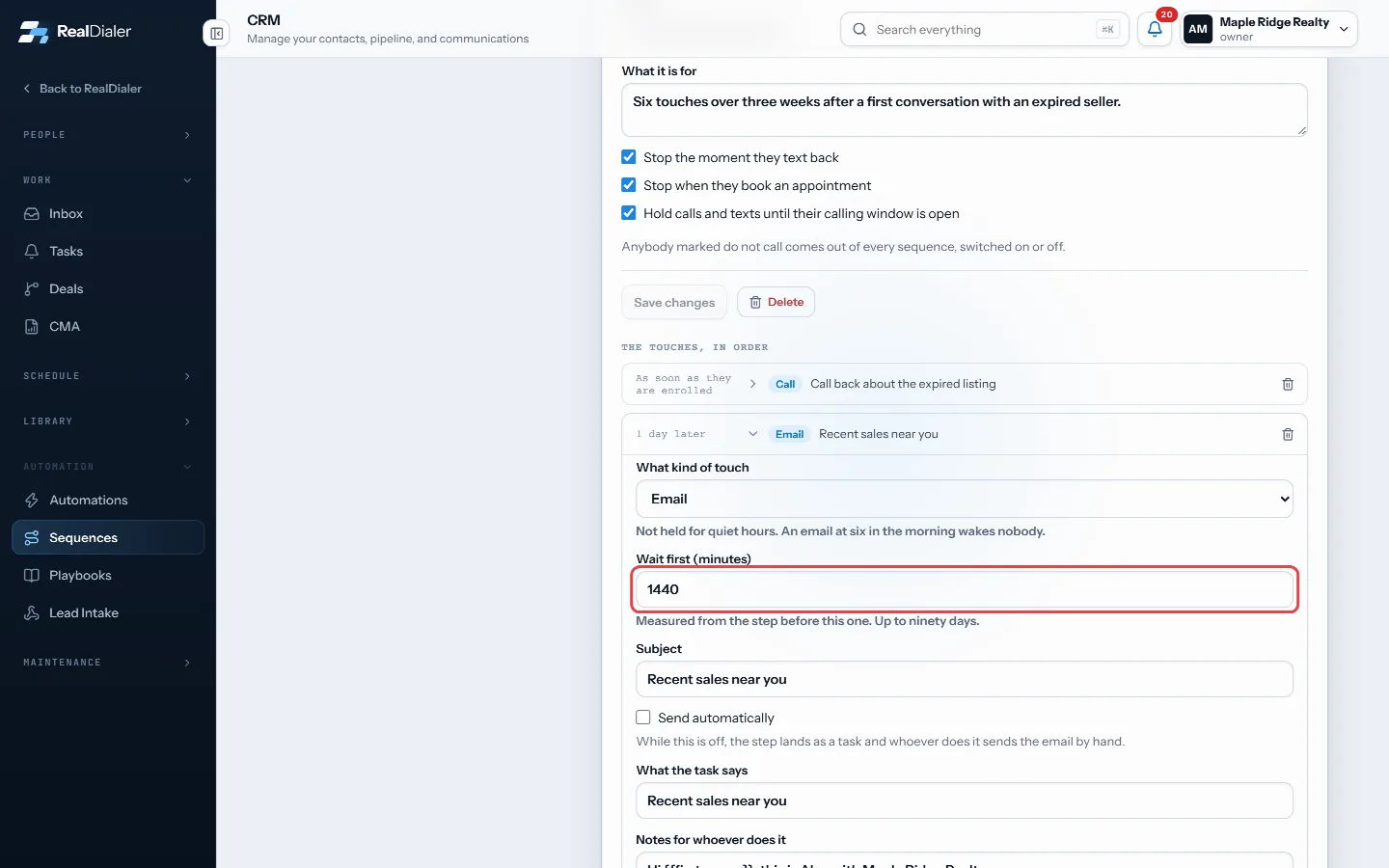
Open a touch, set Wait first and the wording, then press Save this touch below - Set the options: stop when they text back, stop when they book, and hold calls and texts until their calling window is open. Press Save changes.
- Switch it On, then press Put somebody in and pick a contact.
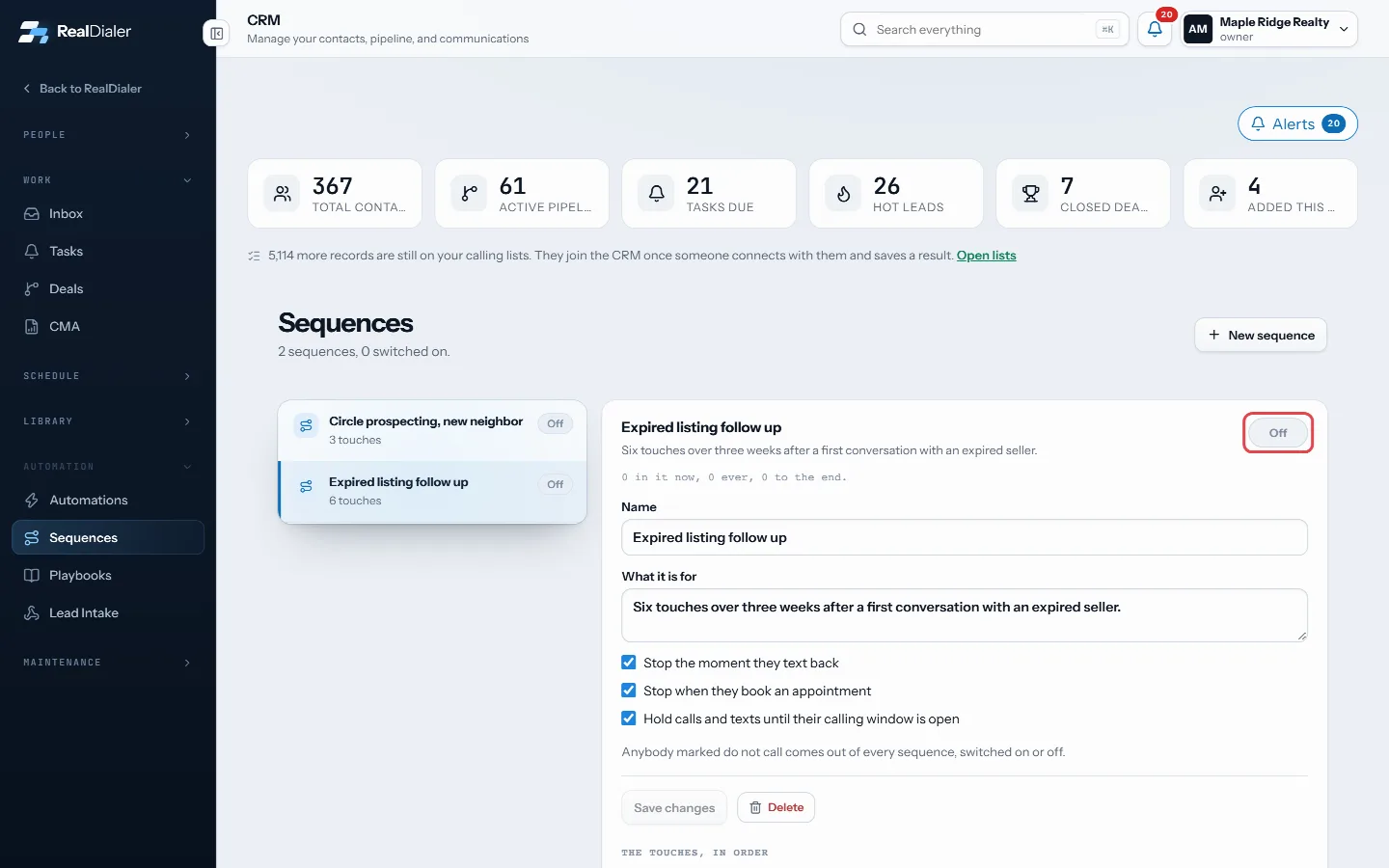
Switch it On, then press Put somebody in at the bottom and pick a contact
Good to know
- Agents can read every sequence and put their own contacts into one. Building them is for owners and managers.
- Sending emails automatically needs email sending set up in Settings and the Email upgrade. Otherwise the email lands as a task, written out.
- Text steps land as tasks unless texting is on for your account.
- Anyone marked do not call comes out of every sequence.
- Show me lists who is in it. Use the remove icon to take someone out.
Was this guide helpful?
Thanks. It helps us make these better.
Next in CRM
Call a contact from the CRMYou can call one person straight from the CRM. RealDialer dials that one number for you, keeps a small call bar on the page, and saves the result to their timelChange many contacts at once and exportTick contacts in the table and a bar appears with actions that change all of them together: Add tag, Remove tag, Assign, Temperature, Type, Rating and Delete. ECheck your notifications and alertsThe bell in the top bar shows what happened while you were busy: missed calls, voicemails and replies. The number on the bell is how many are unread. The same l
Still stuck? Write to support@realdialer.com, or open Support from inside RealDialer.