What it is
Fields are the questions your account asks about every person, such as budget, move date or loan type. Because they are typed, you can filter on them and build smart lists from them, which a note cannot do.
Where to find it
CRM > Fields
Steps
- Press Add a field.
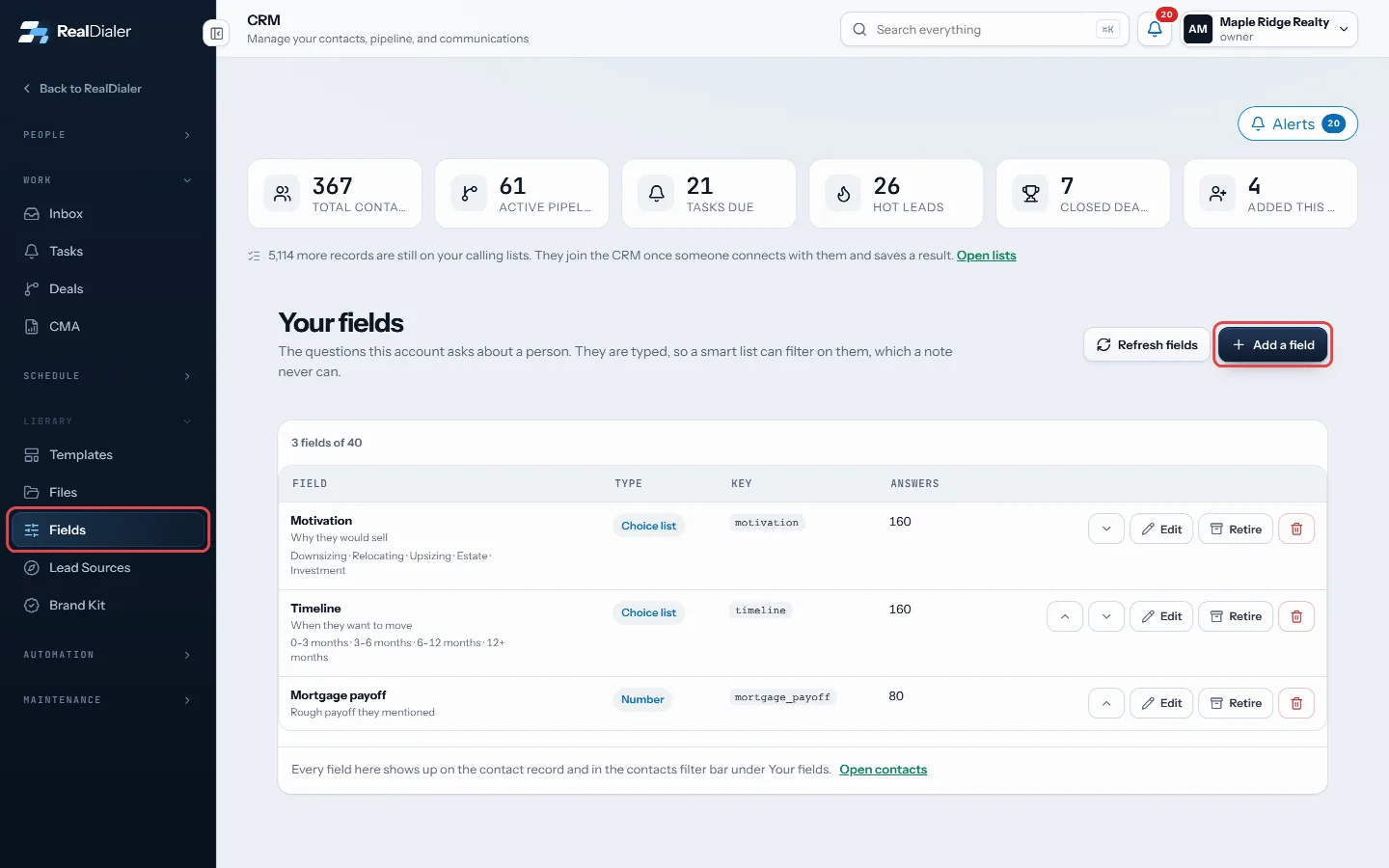
In CRM > Fields, press Add a field - Give it a Name, such as Budget.
- Pick a Type: Text, Number, Date or Choice list.
- Check the Key. It is filled in from the name and does not change later.
- For a choice list, write one choice per line, up to forty.
- Add short Help text if it needs one.
- Press Add field.
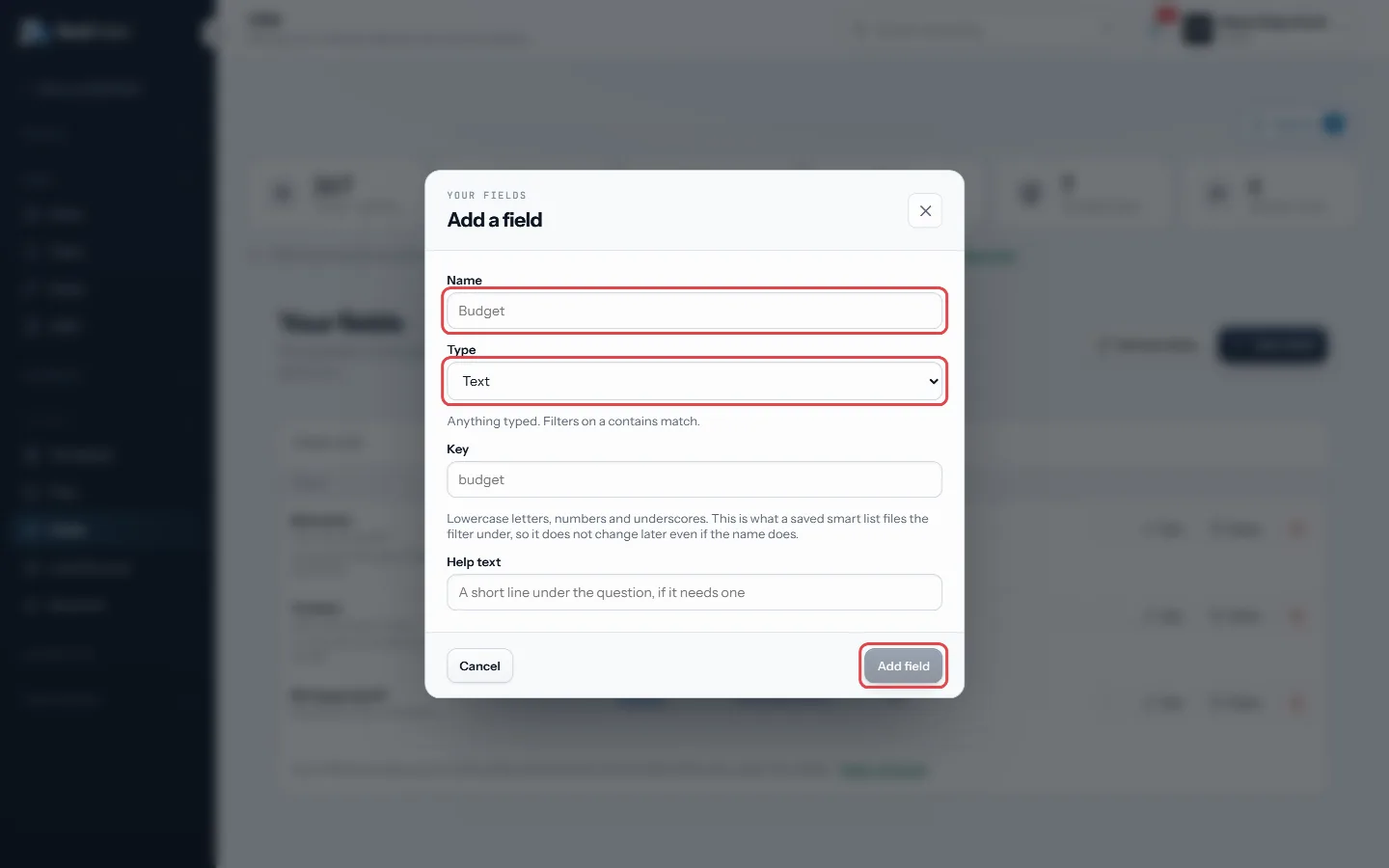
Name it, pick a type, then Add field - Use the arrows to reorder fields, Edit to rename, and Retire to stop asking.
Good to know
- Every field shows on each contact record in the Your fields card, and in the contacts filter bar under Your fields.
- Anyone can answer fields on a contact. Only owners and managers write the field list.
- The type and key cannot be changed. Retire the field and add a new one if either is wrong.
- Retiring keeps every answer readable. Deleting removes the answers too and cannot be undone.
- The page shows how many fields your account can hold.
Was this guide helpful?
Thanks. It helps us make these better.
Next in CRM
Add, pin and edit notesNotes are what you learned about a person, kept on their record and on their timeline. Anyone who can see the contact can read the notes on it.Attach a file to a contactEach contact has a Files tab for documents about that person: agreements, disclosures, offers, photos and more. Each file gets a label so you can find it later.Build a call block from your contactsBuild call block turns the people in a smart list, or the contacts table as filtered right now, into a calling list your dialer can work. You can hand it straig
Still stuck? Write to support@realdialer.com, or open Support from inside RealDialer.