What it is
Tags are short labels you put on contacts, such as Hot seller or Past client. You can filter the contacts table by tag, build smart lists on them, and use them to set off automations.
Where to find it
Open a contact > + Tag under the name, or the Tags card on the left.
Steps
- Open the contact and press + Tag under their name.
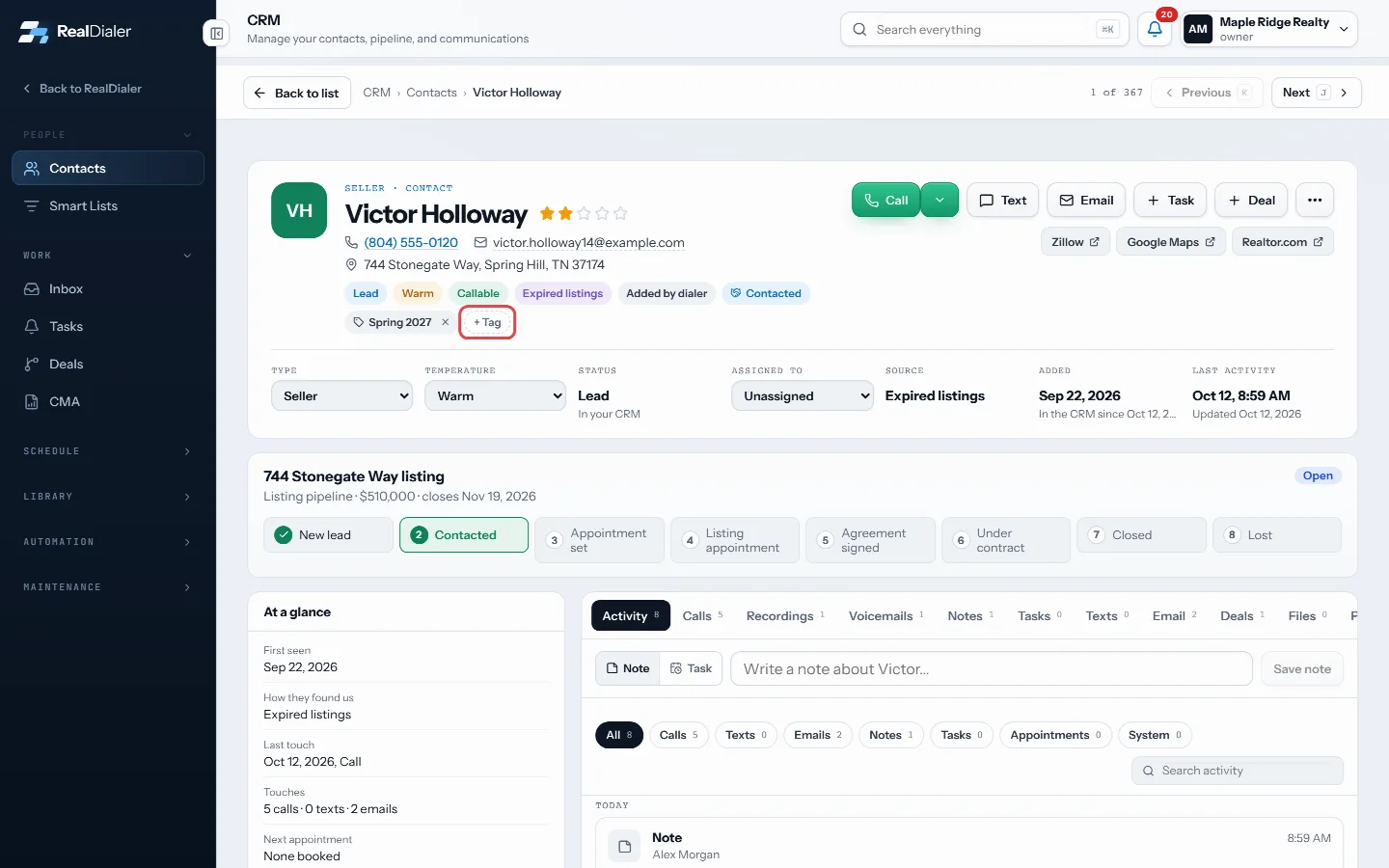
Press + Tag under the name - Type a tag name, or pick one you already use from the suggestions, and press Add.
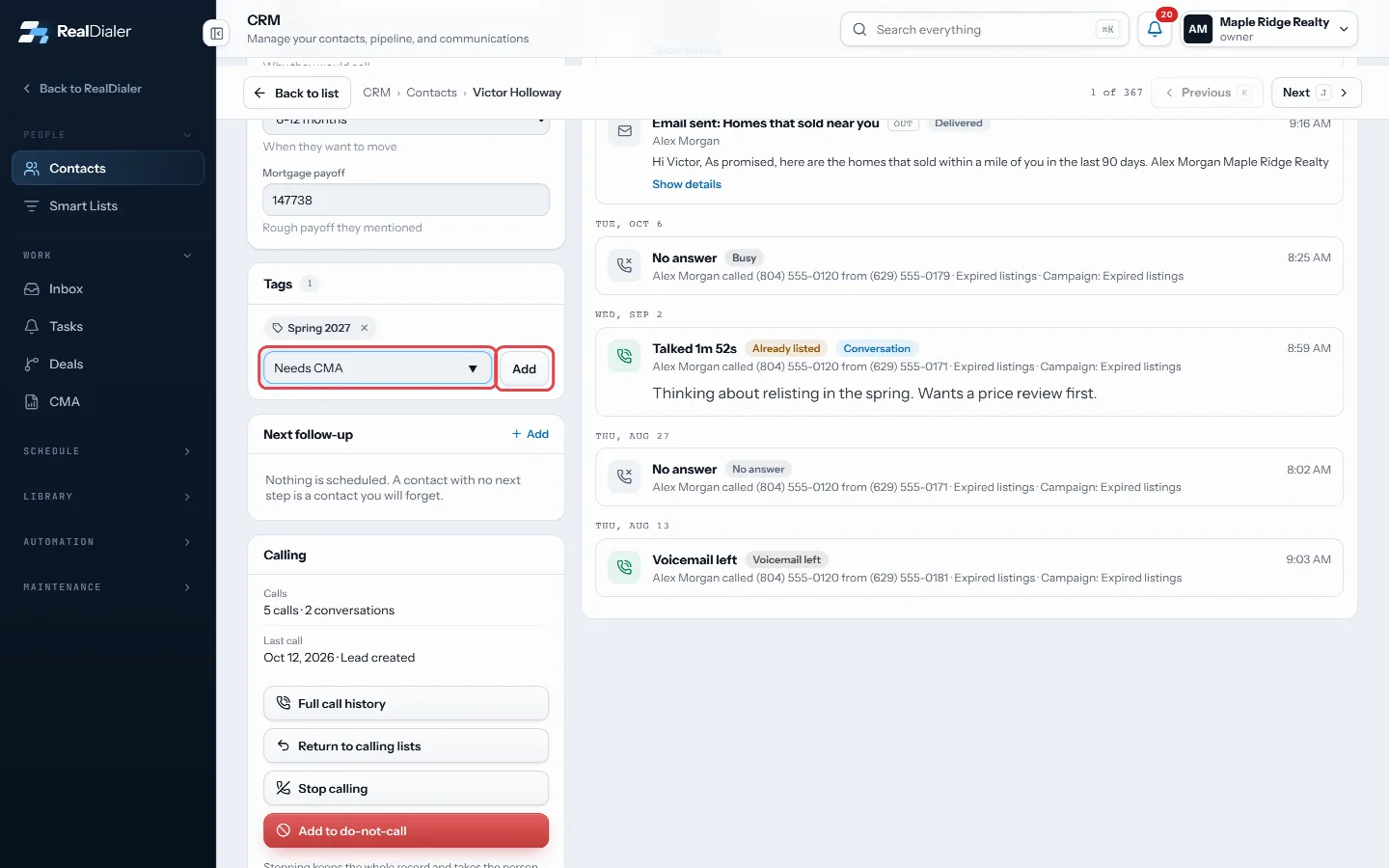
Type a tag or pick one, then press Add - To remove a tag, press the small x on it.
- To tag many contacts at once, tick them in CRM > Contacts and press Add tag in the bar that appears.
- To find everyone with a tag, pick it in the tag filter on CRM > Contacts.
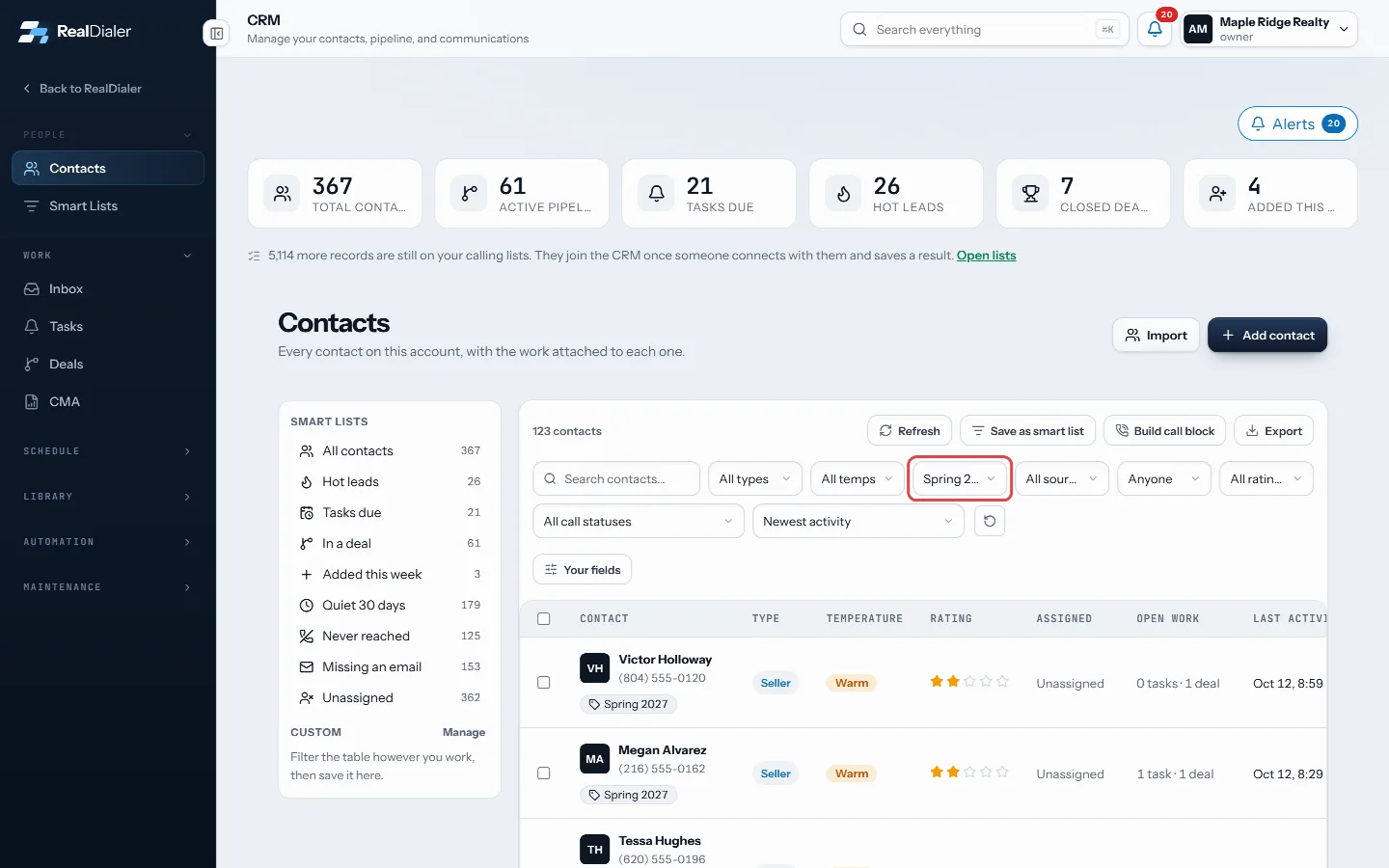
Pick a tag in the tag filter to find everyone with it
Good to know
- A new tag name is created the first time you use it.
- Tags can be up to 64 characters.
- Remove tag in the bulk bar takes one tag off many contacts at once.
- Automations can start when a tag is added or removed.
Was this guide helpful?
Thanks. It helps us make these better.
Next in CRM
Text a contact from a callClick to text lets you send one text by hand to the person on your screen. You read the message, press Send, and nothing goes out on its own. Texts come from yoTrack appointment outcomes and kept rateAppointments is a ledger of every appointment that got set and what came of it. At the top it counts Set, Kept, Settled, Kept rate, No shows and Waiting on you.Track deals on the pipeline boardDeals shows your opportunities on a board, one column per stage, with the count and total value in each. Each card shows the contact, the value, the next task a
Still stuck? Write to support@realdialer.com, or open Support from inside RealDialer.