What it is
Every contact record can be changed at any time: name, email, address, type, temperature, rating, lead source and owner.
Where to find it
Open a contact > More actions > Edit contact. You can also press Edit on the Contact info card.
Steps
- Open the contact from CRM > Contacts.
- Press the More actions button (three dots) and choose Edit contact.
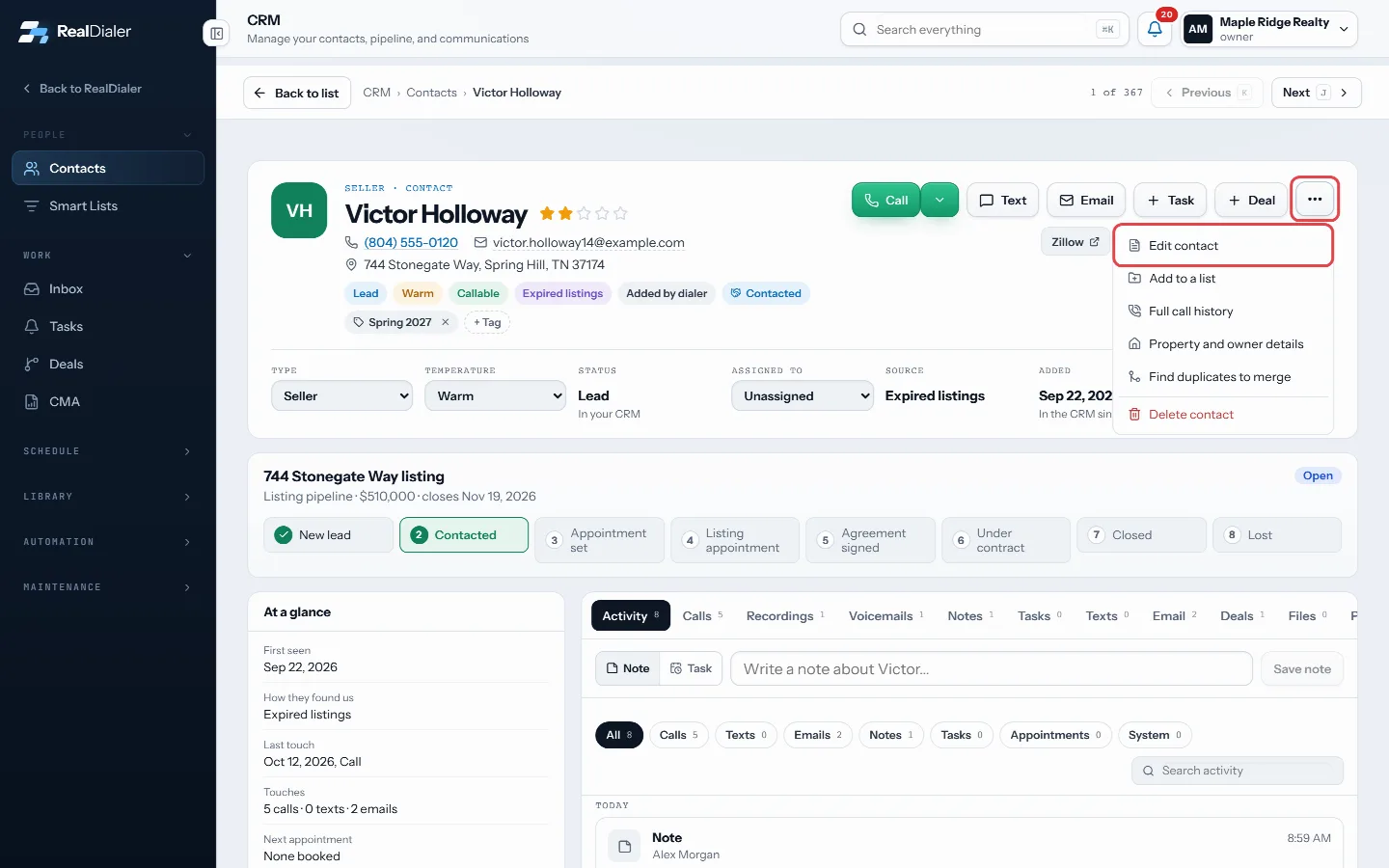
More actions > Edit contact - Change the name, email, address, contact type, temperature, lead source or rating.
- Add a Second owner if someone else is also on title.
- Press Save contact.
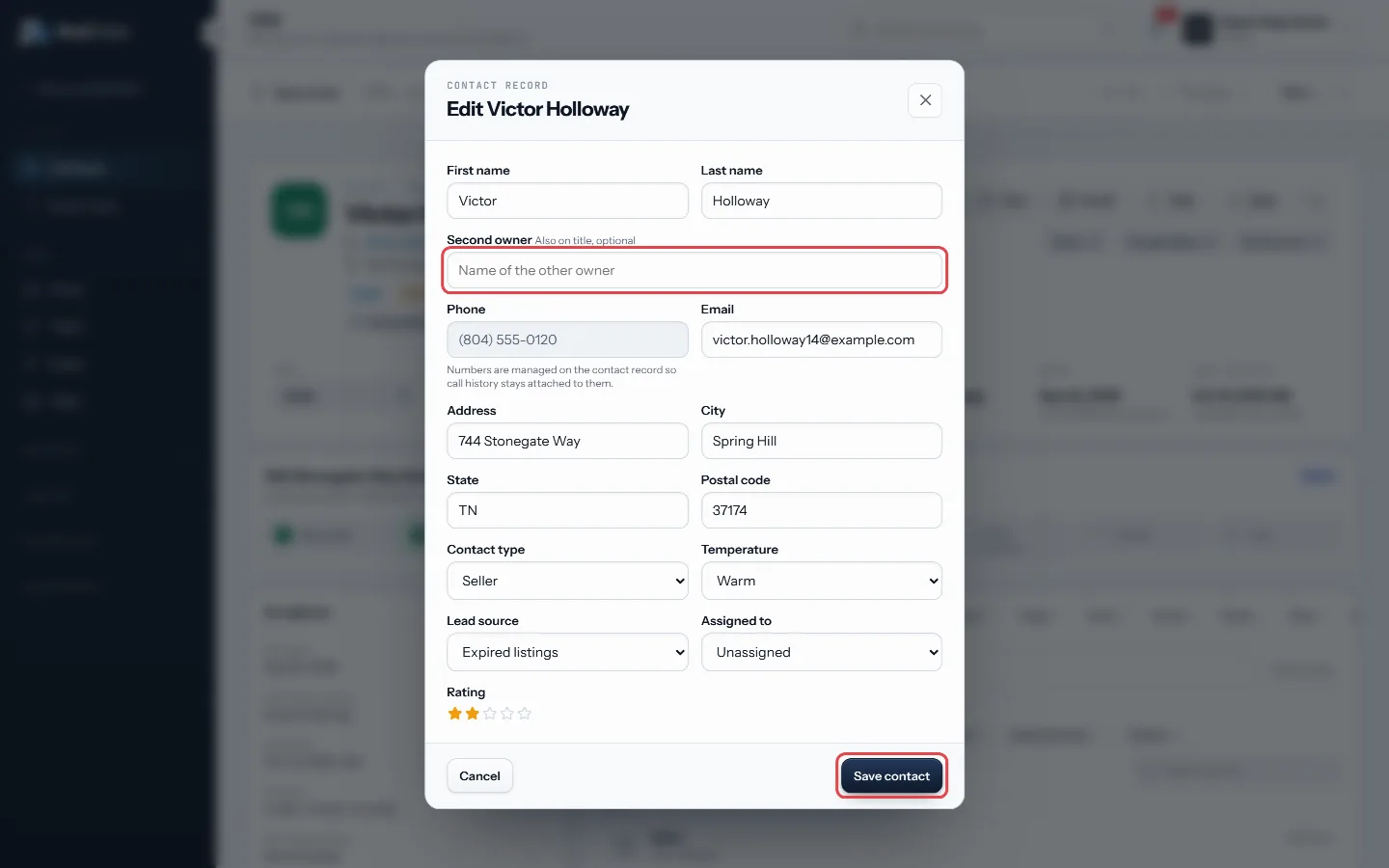
Change the details, then Save contact - For quick changes, click the stars next to the name to change the rating, or use the Type, Temperature and Assigned to menus under the name. Each saves as soon as you pick.
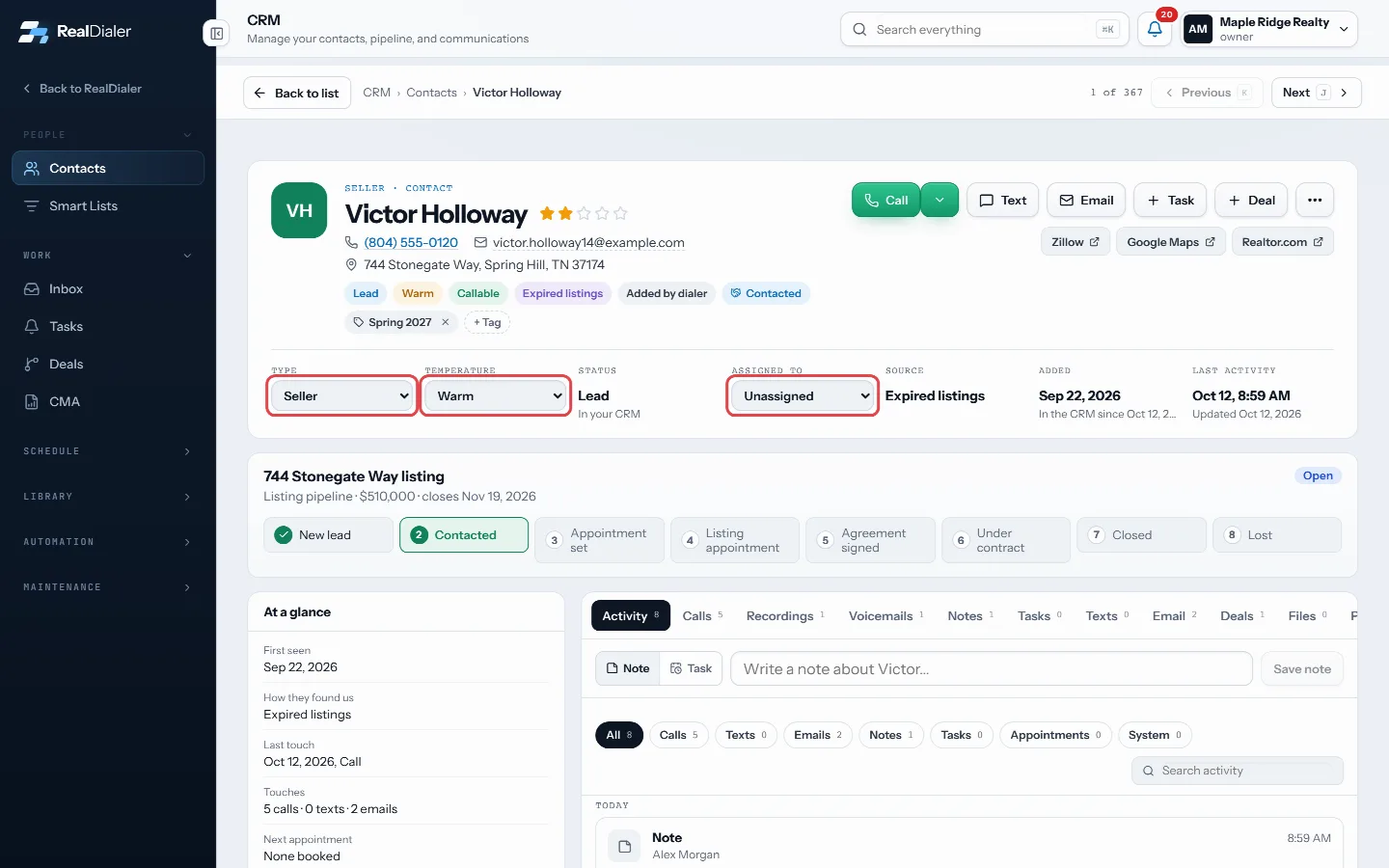
Quick changes save as soon as you pick
Good to know
- The phone number cannot be changed in the edit form. Numbers are managed in the Numbers on file card so call history stays attached to them. Add a new number from the Property tab.
- Only owners and managers can reassign a contact to someone else.
- Retired lead sources still show on contacts already filed under them, but are not offered for new choices.
Was this guide helpful?
Thanks. It helps us make these better.
Next in CRM
Fill in your brand kitThe Brand Kit holds the facts every message carries: your name, licence number, brokerage, office address, direct phone and email, website, disclosure line, sigFind and filter your contactsThe Contacts room is a table of everyone in your CRM, with their type, temperature, rating, owner, open work and last activity. A row of filters narrows it downGet around the CRMThe CRM is where the people you talk to live after a call: their record, notes, tasks, deals, appointments and messages. It comes with every plan.
Still stuck? Write to support@realdialer.com, or open Support from inside RealDialer.