What it is
Build call block turns the people in a smart list, or the contacts table as filtered right now, into a calling list your dialer can work. You can hand it straight to a campaign.
Where to find it
CRM > Contacts > Build call block, or the phone icon on any card in CRM > Smart Lists.
Steps
- Open a smart list or filter the contacts table.
- Press Build call block.
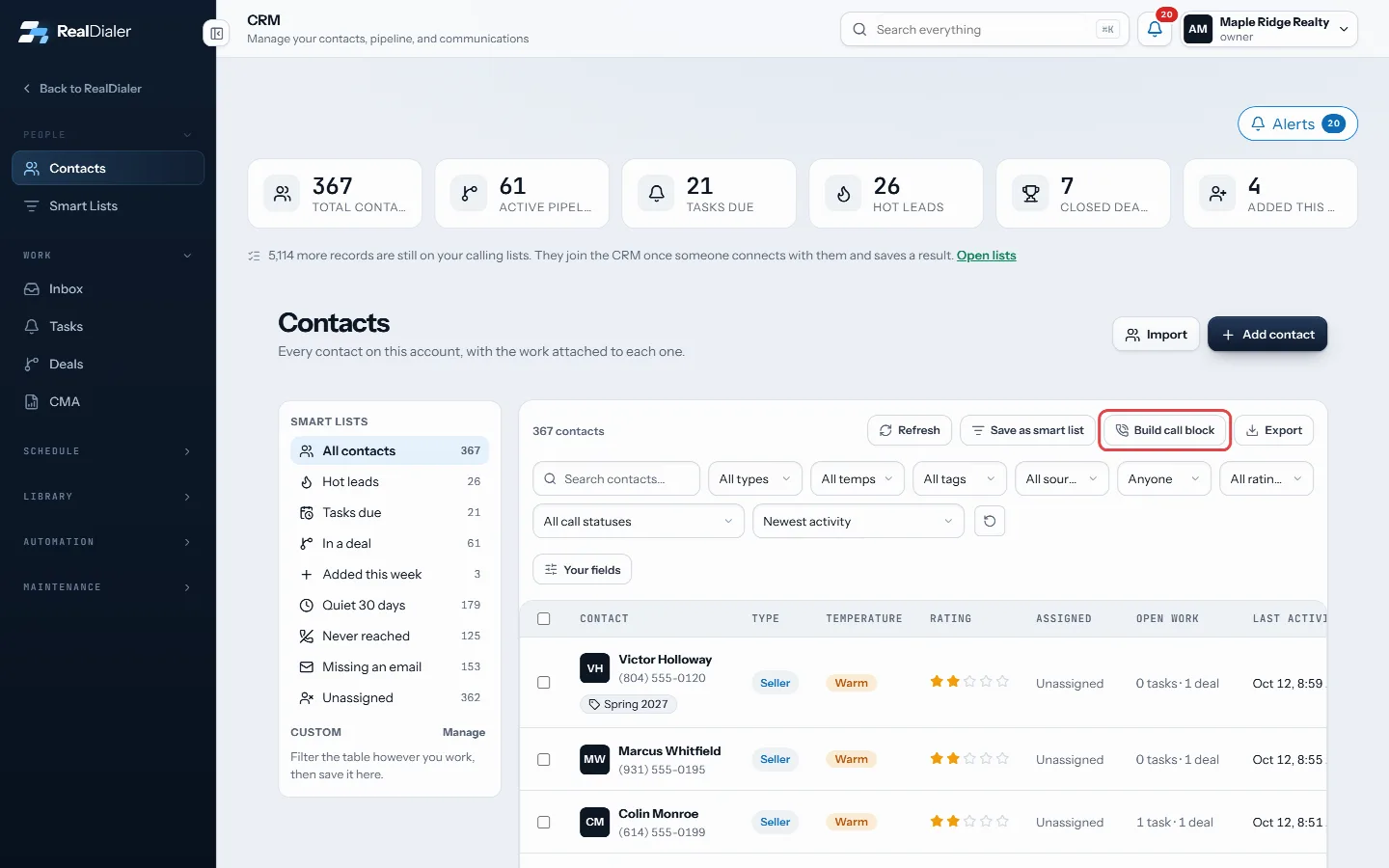
Filter the table or open a smart list, then press Build call block - Read the tally. It shows how many match, how many can be dialed, and why the rest were left out, such as no phone number or marked do not call.
- Name the call block.
- Pick a campaign under Add it to a campaign, or leave it on Not yet, just build the list.
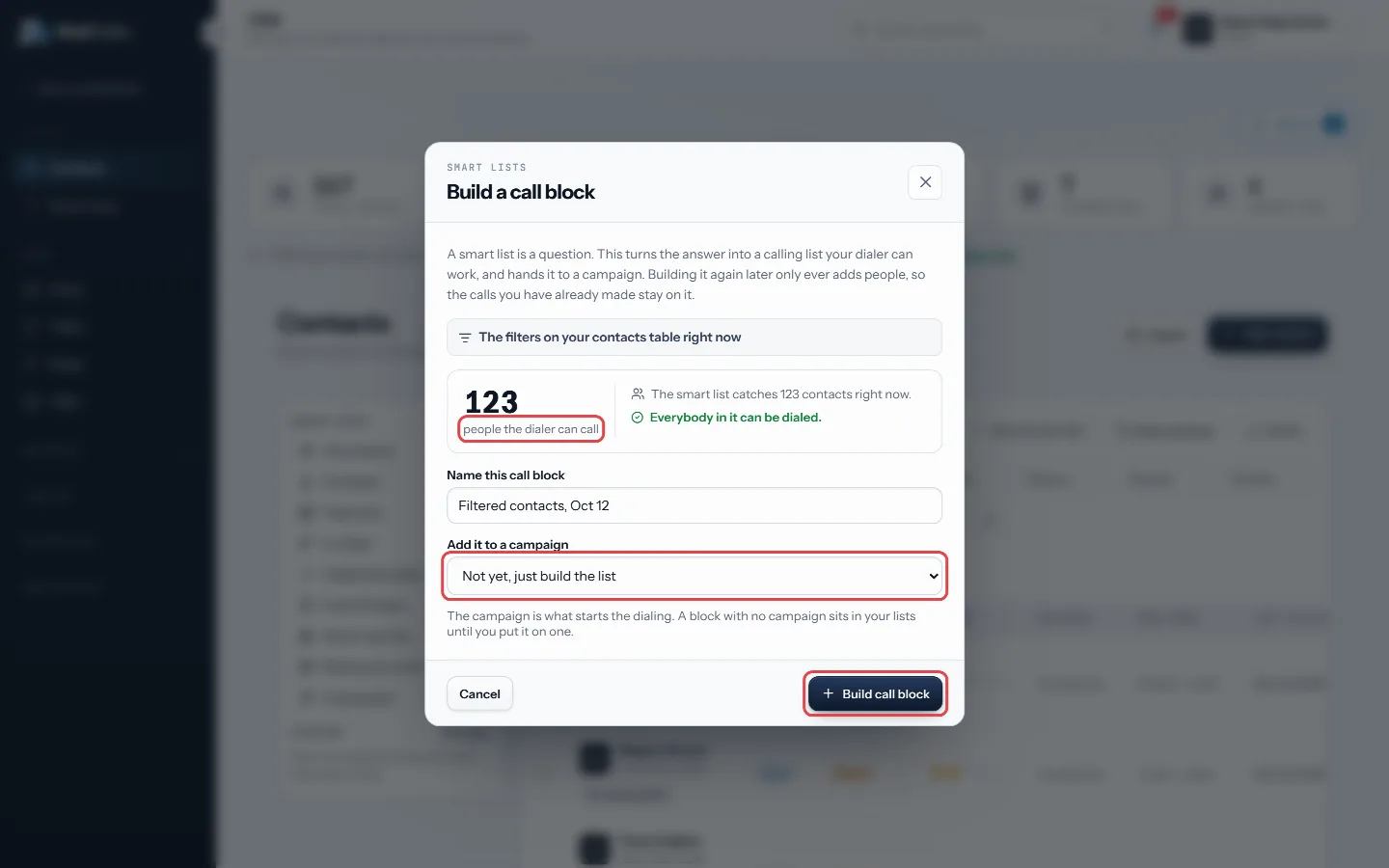
Read the tally, name it, pick a campaign, then Build call block - Press Build call block, then Open campaigns to start dialing.
Good to know
- A block with no campaign sits in your lists and nothing dials it until you attach it.
- If you built one from the same list before, press Top up the existing one to add only the new people without disturbing calls already made.
- Building again only ever adds people.
- Your built blocks are listed under Call blocks on the Smart Lists page, with how many new matches each has and a Refresh button.
Was this guide helpful?
Thanks. It helps us make these better.
Next in CRM
Build a CMA reportThe CMA room builds a comparative market analysis from the sales you keep on file. You get a supported value range, a price per square foot, the sales it used, Build a follow-up sequenceA sequence is a cadence of touches over time: call, wait, text, wait, email. Each touch either lands as a task for whoever works the contact, or, for an email, Call a contact from the CRMYou can call one person straight from the CRM. RealDialer dials that one number for you, keeps a small call bar on the page, and saves the result to their timel
Still stuck? Write to support@realdialer.com, or open Support from inside RealDialer.