What it is
Tasks are everything you said you would do: call back, send the comps, drop off a packet. Each task can be tied to a contact, has a type, a priority, a due time and an owner.
Where to find it
CRM > Tasks. You can also add a task from any contact record.
Steps
- Go to CRM > Tasks and press New task, or press Task on a contact record.
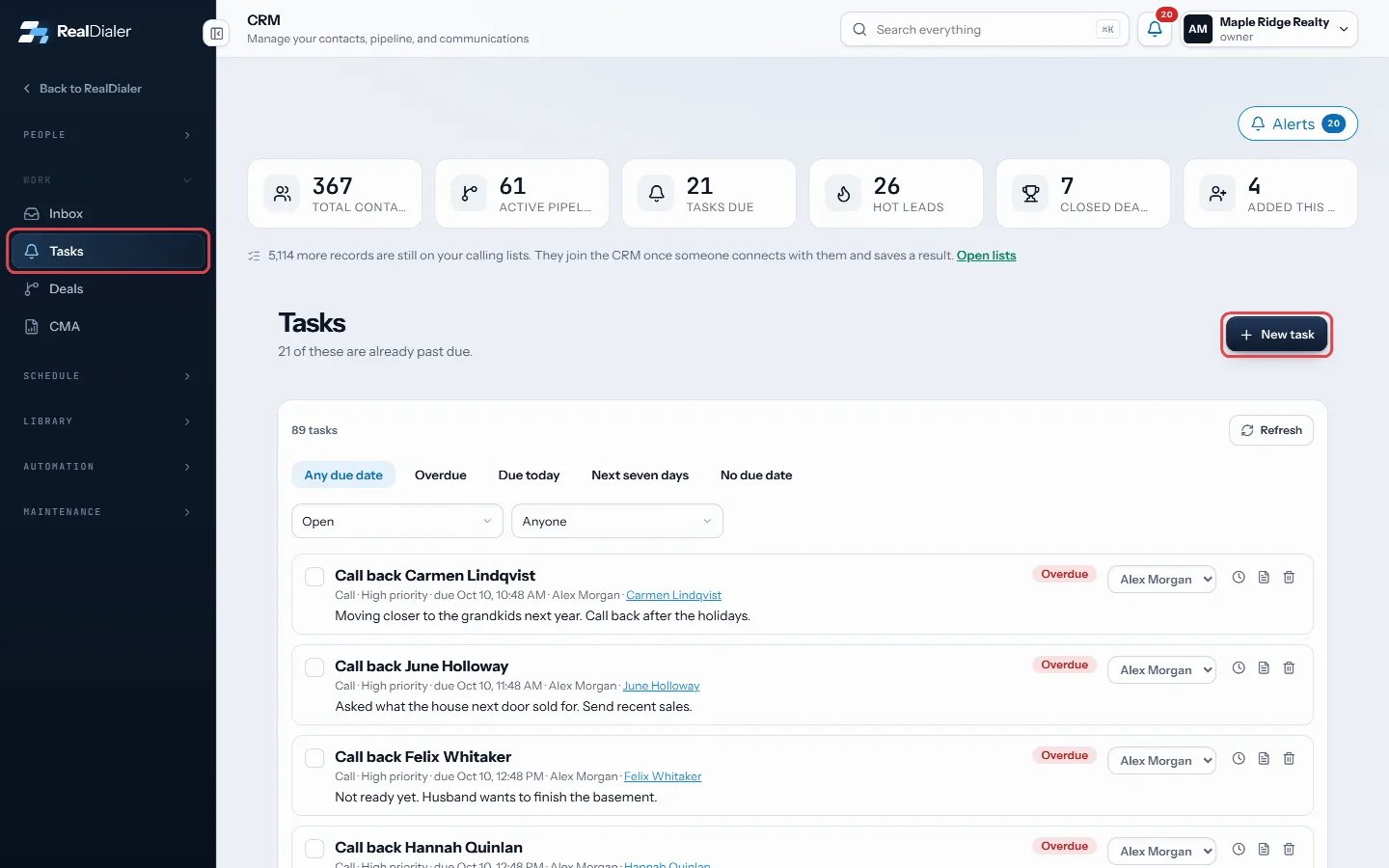
In CRM > Tasks, press New task - Type what needs doing.
- Pick a type (follow up, call, text, email, appointment, showing or other) and a priority.
- Set the Due date and time.
- Owners and managers can assign it to someone else.
- Press Save task.
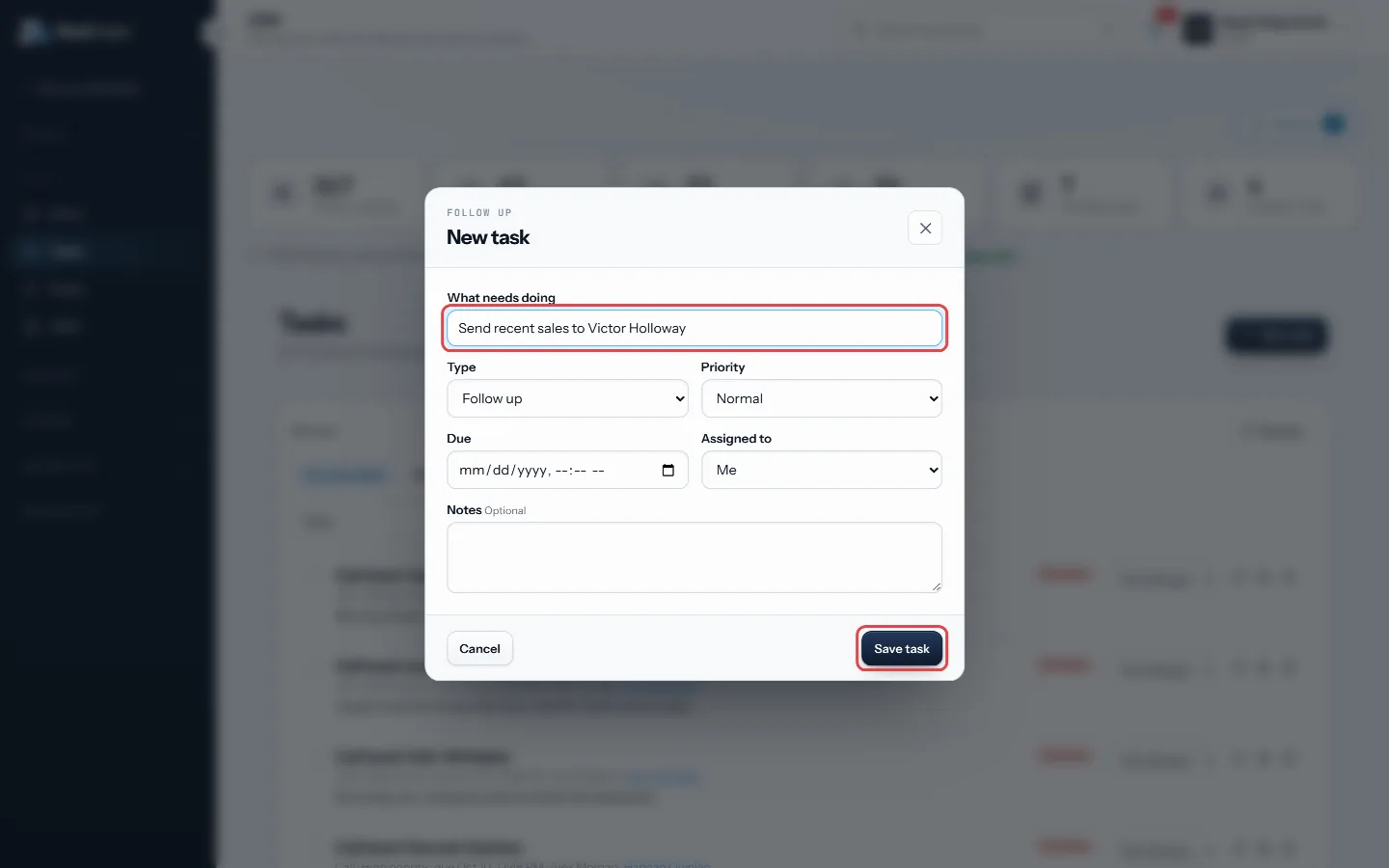
Type what needs doing, set the type, priority and due time, then Save task - On the Tasks page, use the chips Overdue, Due today, Next seven days and No due date to filter.
- Tick the circle to complete a task. Use the clock to snooze it to Later today, Tomorrow morning or Next Monday.
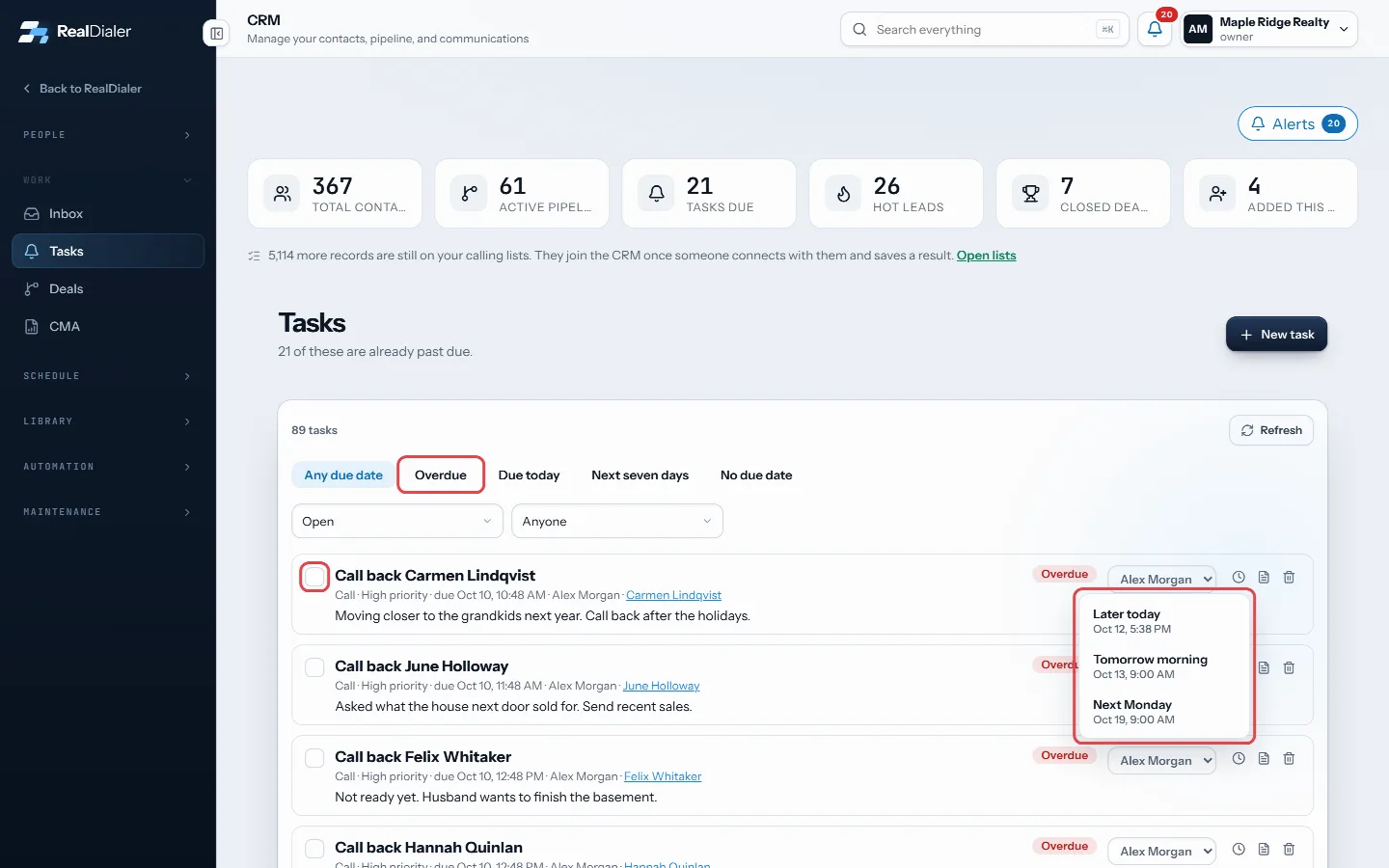
Filter with the chips, tick the circle to complete, or snooze with the clock
Good to know
- Overdue and Due soon tasks are marked.
- A task on a contact also shows in the Next follow-up card on their record.
- Deleted tasks go to the Recycle Bin for 30 days.
- Sequences and automations can create tasks for you.
- Agents see tasks assigned to them.
Was this guide helpful?
Thanks. It helps us make these better.
Next in CRM
Delete and restore contacts with the recycle binEverything you delete in the CRM, whether a contact, deal, task or note, waits in the Recycle Bin for 30 days before it is gone for good. Contacts in the bin arEdit a contact’s detailsEvery contact record can be changed at any time: name, email, address, type, temperature, rating, lead source and owner.Fill in your brand kitThe Brand Kit holds the facts every message carries: your name, licence number, brokerage, office address, direct phone and email, website, disclosure line, sig
Still stuck? Write to support@realdialer.com, or open Support from inside RealDialer.