What it is
The bell in the top bar shows what happened while you were busy: missed calls, voicemails and replies. The number on the bell is how many are unread. The same list opens from the Alerts button at the top of the CRM.
Where to find it
The bell in the top bar, on every page. In the CRM, the Alerts button above the numbers.
Steps
- Click the bell.
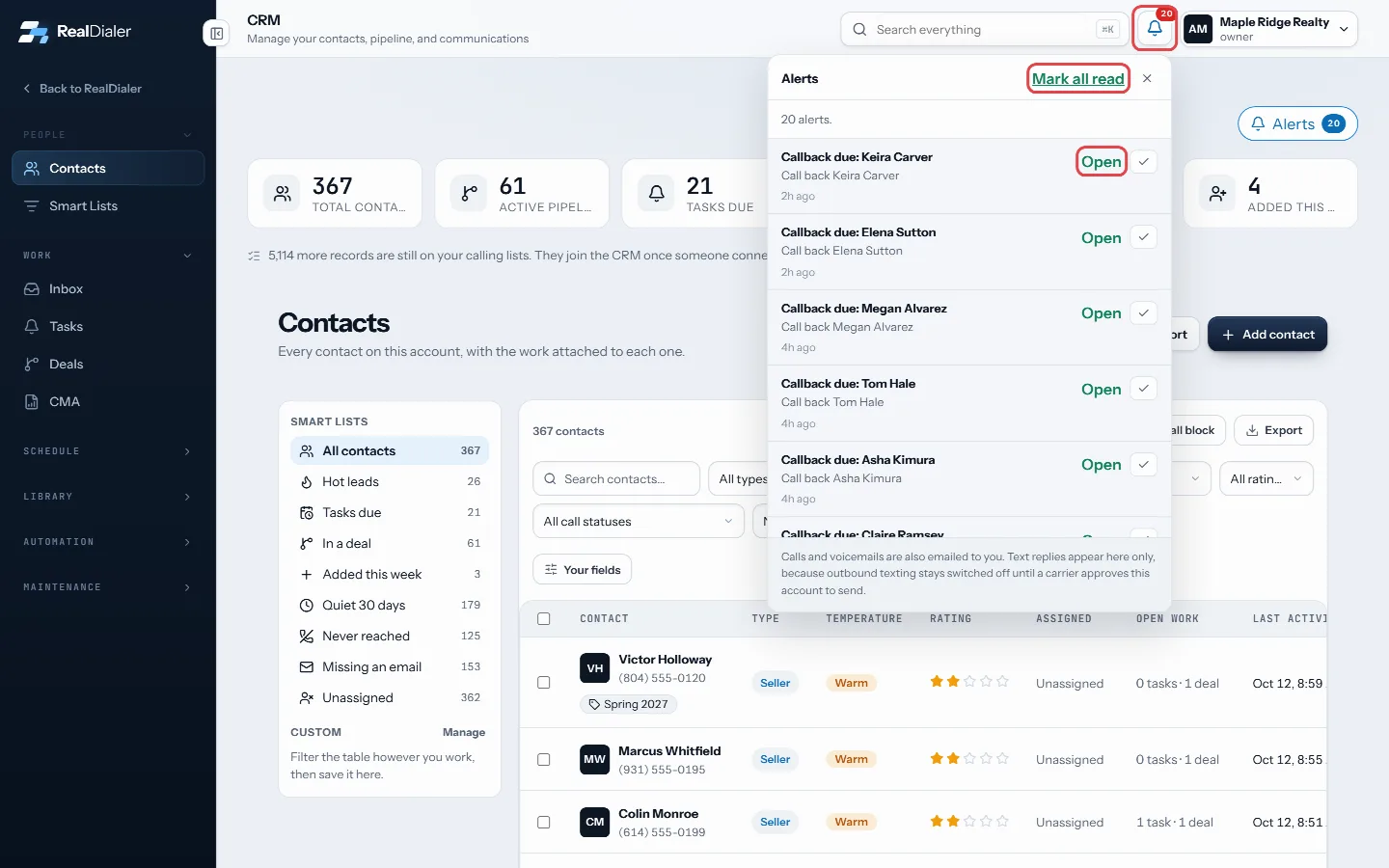
Click the bell to read your alerts 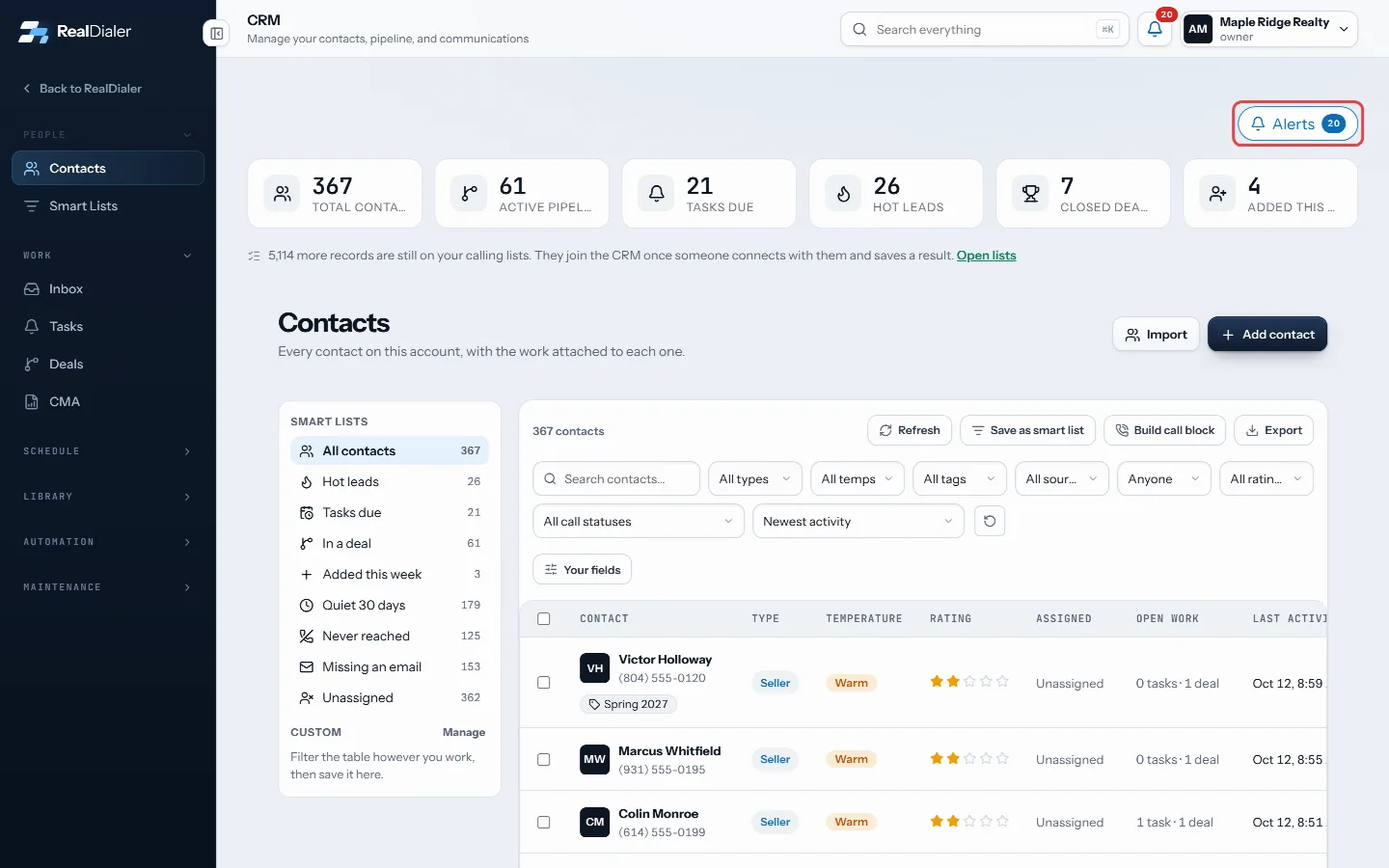
In the CRM, Alerts opens the same list - Read each alert. It says who it is about and when.
- Press Open to go to that contact, or Listen to hear a voicemail.
- If an alert says Nobody owns this yet, press Claim to take it.
- Press the tick to dismiss an alert.
- Press Mark all read to clear the count.
Good to know
- The bell checks for new alerts every 30 seconds.
- Calls and voicemails are also emailed to you.
- Text replies appear here only.
- An alert nobody owns goes to everyone who can see the whole account until someone claims it.
Was this guide helpful?
Thanks. It helps us make these better.
Next in CRM
Create a booking pageA booking page is a link you send people so they can pick a time out of your real calendar and book themselves.Create and work your tasksTasks are everything you said you would do: call back, send the comps, drop off a packet. Each task can be tied to a contact, has a type, a priority, a due timeDelete and restore contacts with the recycle binEverything you delete in the CRM, whether a contact, deal, task or note, waits in the Recycle Bin for 30 days before it is gone for good. Contacts in the bin ar
Still stuck? Write to support@realdialer.com, or open Support from inside RealDialer.