What it is
An automation watches for one thing to happen and then does up to 12 things about it, with nobody clicking. For example, tag every new seller, assign whoever comes in overnight, or put a lost deal back on a calling list.
Where to find it
CRM > Automations
Steps
- Press New automation, give it a name, pick When this happens, and press Make it. It starts switched off.
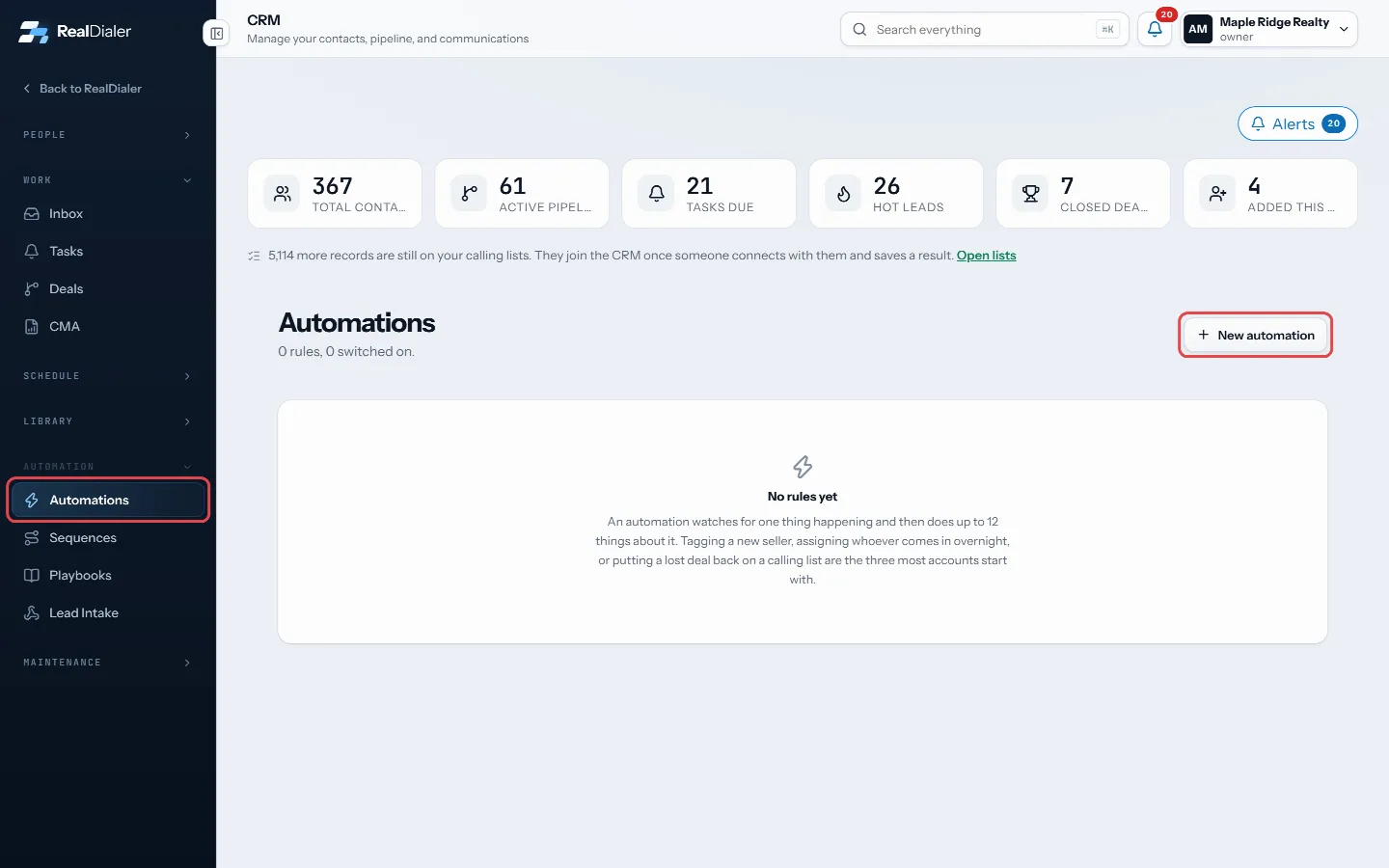
In CRM > Automations, press New automation 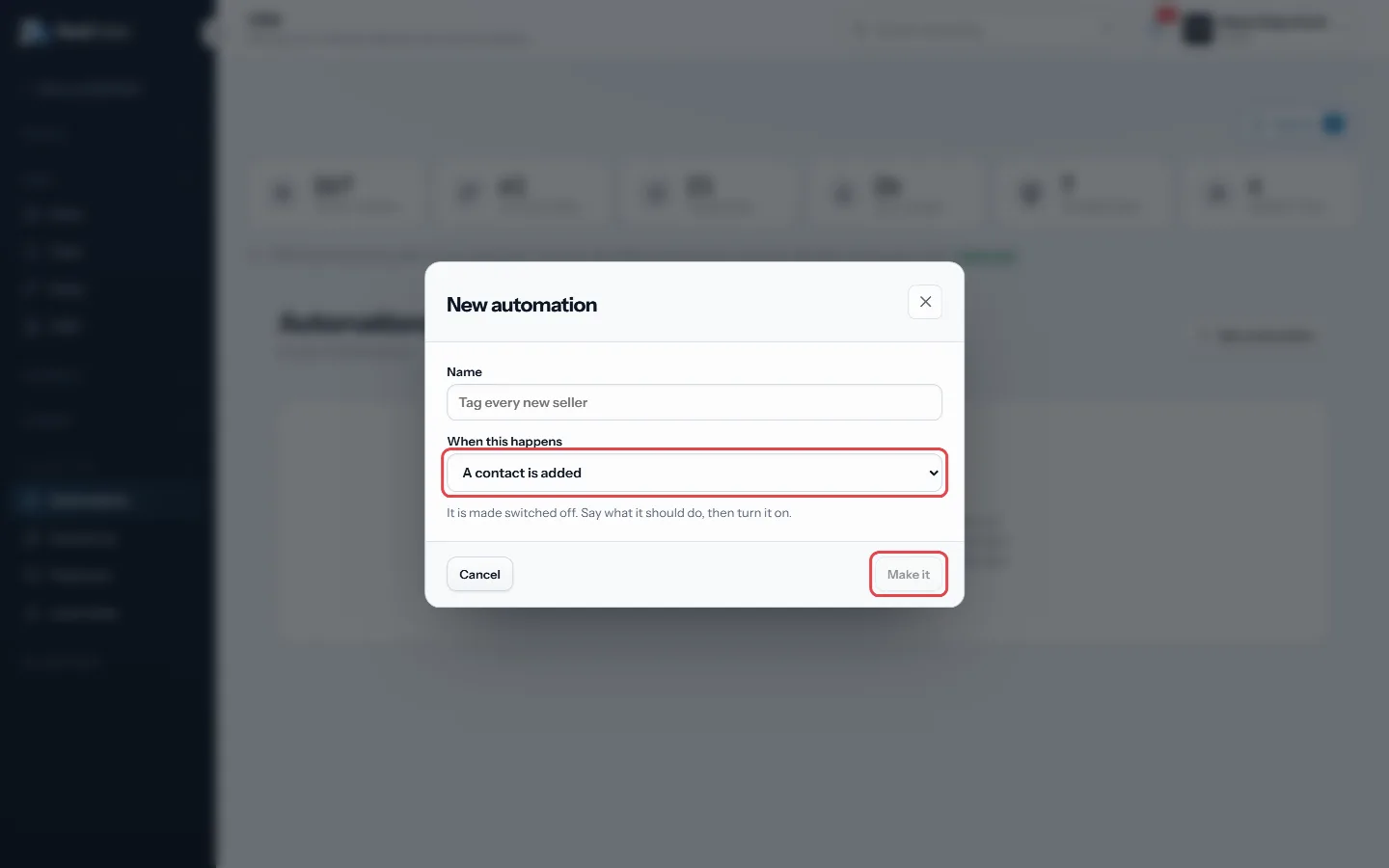
Name it, pick When this happens, then Make it - Triggers include a contact is added, assigned or marked do not call, a tag is added or removed, a task is completed, a deal is created, moves stage, is won or is lost, an appointment is booked or settled, and a contact replies.
- Narrow it if you want: only if tagged, only into one stage, only one kind of contact, or only at one temperature.
- Set Wait first (up to seven days) and tick Only once per contact if it should never repeat.
- Press Save changes.
- Under Then do this, pick a step in Add a step: add or remove a tag, add to a calling list, set the type or temperature, assign the contact, create a task, email a teammate, stop calling, move the deal to a stage, or start a sequence. Pick what it points at, such as the tag or the sequence, and press Add. To change a step later, open it, make the change, and press Save this step.
- Press the Off switch to turn it on.
Good to know
- An automation with no steps cannot be switched on.
- Press What this has done to see each run, including anything passed over and why.
- Agents can read every rule but only owners and managers can change them.
- Automations do not send texts.
- Start a sequence needs a sequence to pick. Build one under Sequences first. A sequence that is switched off starts nobody until it is back on.
- Playbooks can install ready made automations for you.
Was this guide helpful?
Thanks. It helps us make these better.
Next in CRM
Set your availability and booking rulesAvailability holds the hours you are willing to be booked in and the rules around them. Your booking pages and the free slots RealDialer offers are worked out fStop calling a contact or add them to do-not-callThere are two ways to keep the dialer away from someone. Stop calling is a working decision you can undo. Add to do-not-call puts every number on the record on Tag contactsTags are short labels you put on contacts, such as Hot seller or Past client. You can filter the contacts table by tag, build smart lists on them, and use them
Still stuck? Write to support@realdialer.com, or open Support from inside RealDialer.