What it is
A booking page is a link you send people so they can pick a time out of your real calendar and book themselves.
Where to find it
CRM > Booking Pages
Steps
- Press New page, give it a name, and choose the link. It has to be unique across RealDialer. Press Create page.
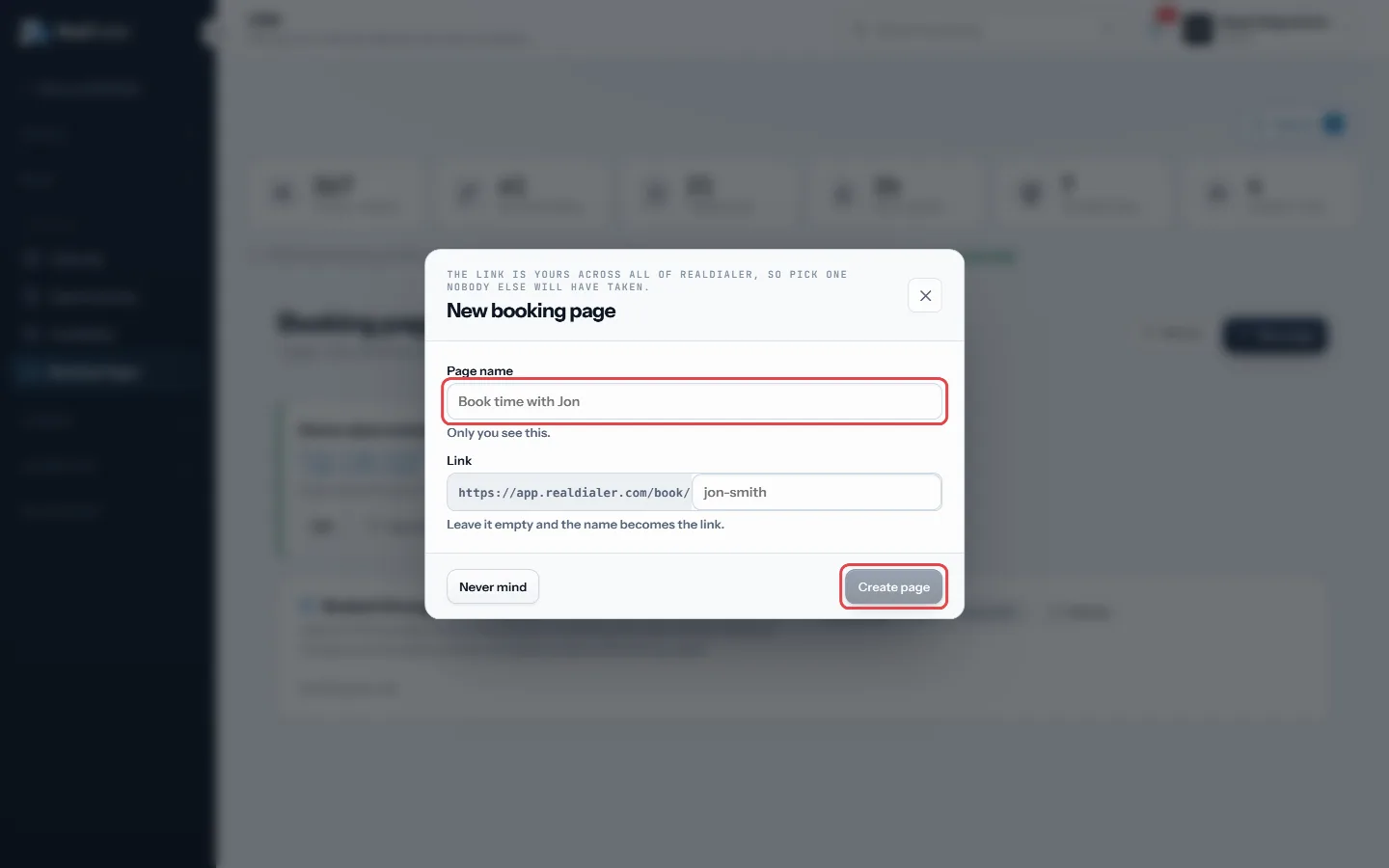
Press New page, name it, choose the link, then Create page - Add a title and branding: the name shown, your photo and an accent colour.
- Under What people can book, add an appointment type, such as Buyer consultation. Set how long it runs and the location details shown after booking.
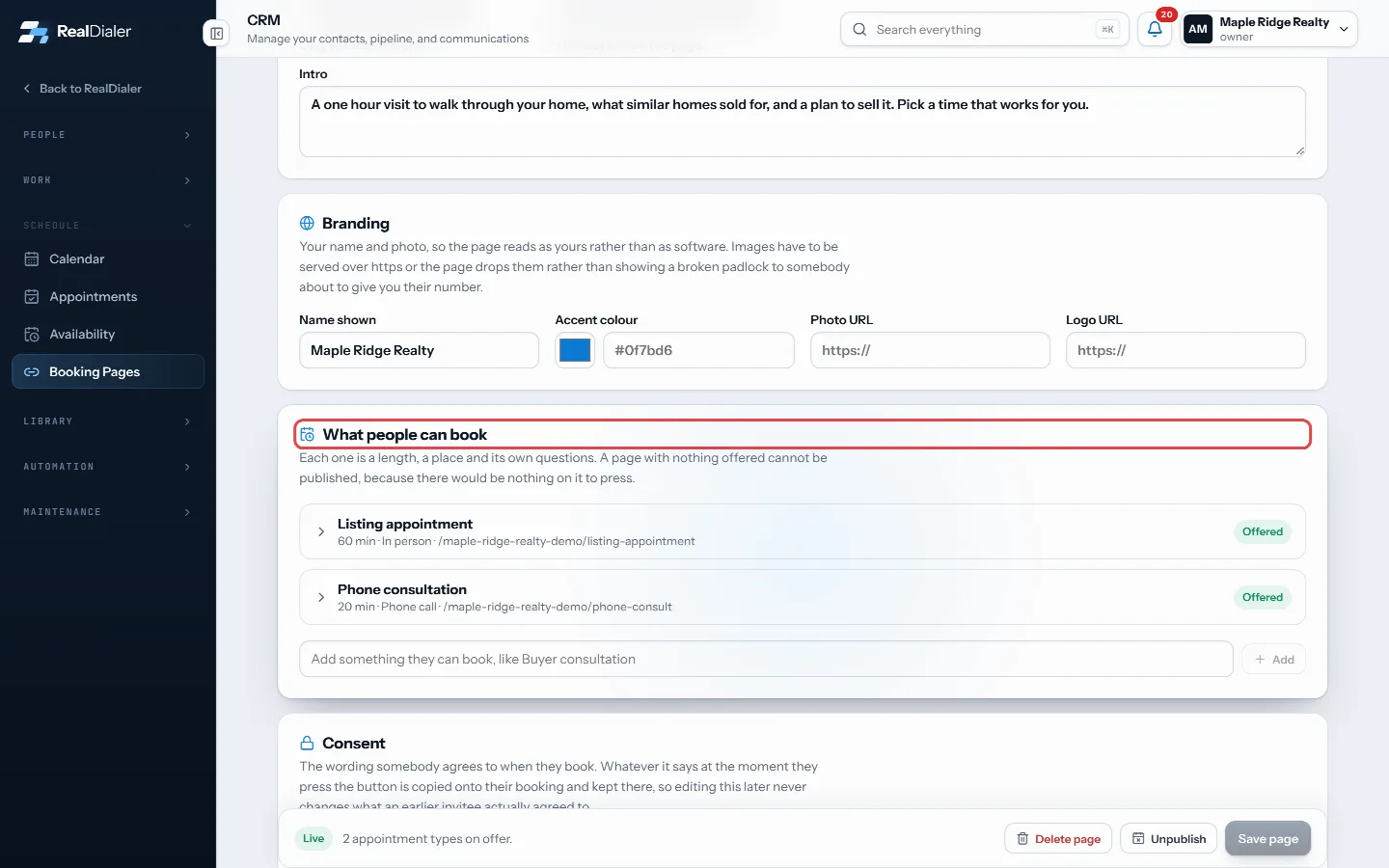
Add appointment types under What people can book - Add any questions you want answered. You can save an answer to the contact or one of your fields.
- Under What a booking sets off, add actions such as add a tag, add to a calling list, set the type or temperature, or create a task.
- Under Consent, choose whether to ask for agreement and press Use the standard wording if you want it.
- Press Save page, then Publish. Press Copy link to share it.
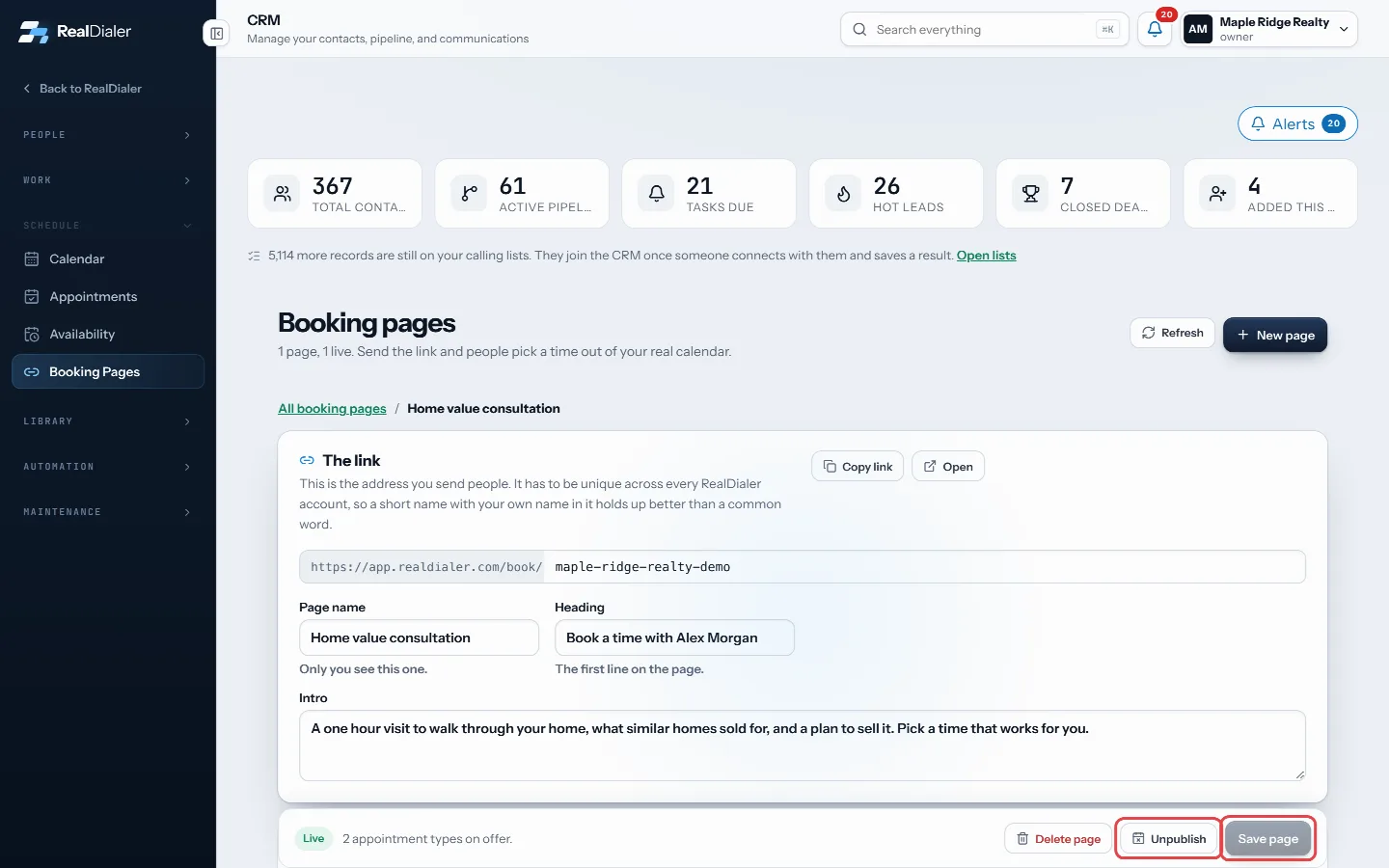
Save page, then Publish 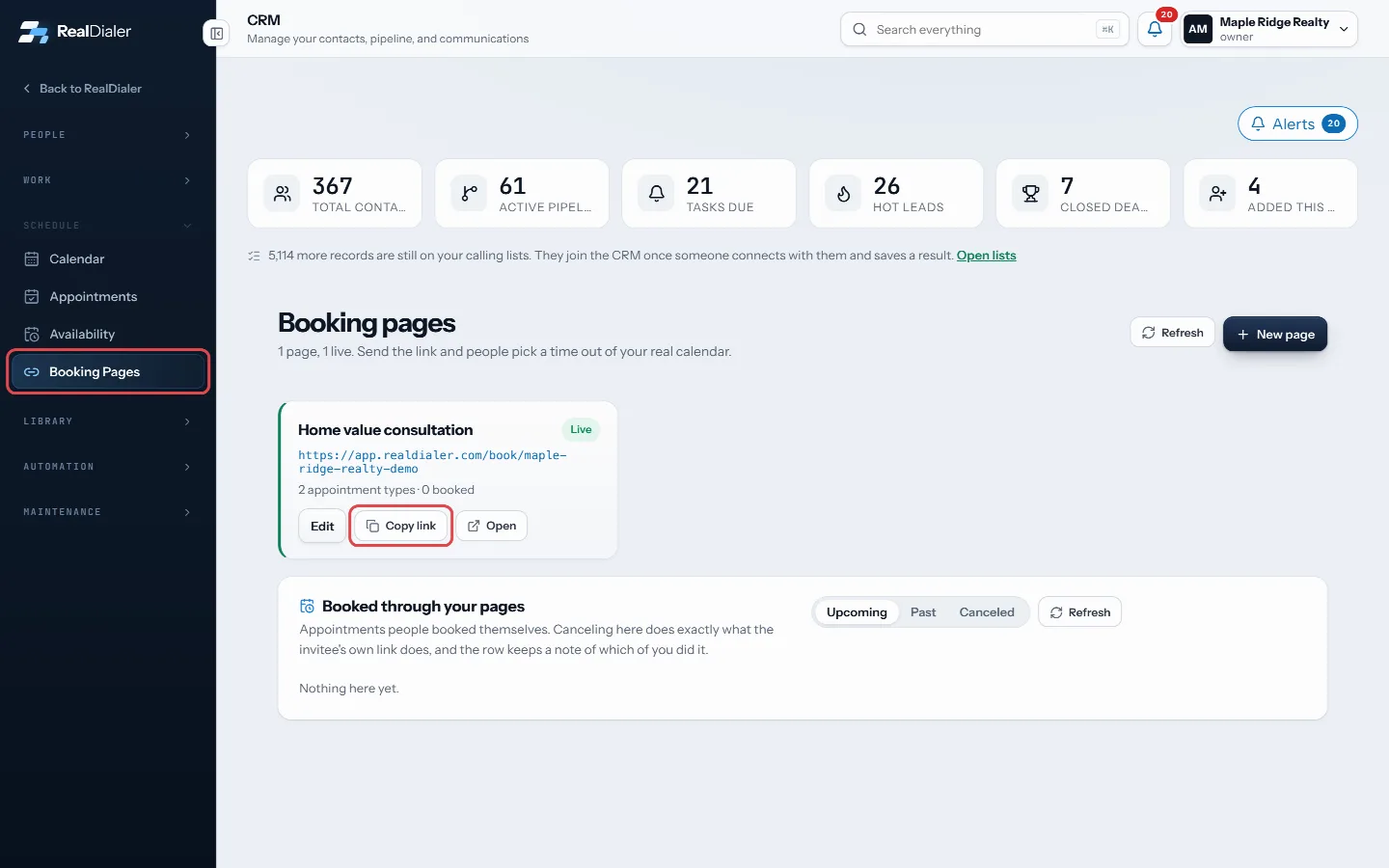
Copy link to share a live page
Good to know
- A page is a draft until you publish it. Unpublish closes the link.
- Pages only offer times when Let other people book time on this calendar is on in Availability.
- Each appointment type can follow your Availability rules or set its own limits.
- Bookings made through your pages are listed under Booked through your pages, where you can cancel one.
- Deleting a page stops the link. Appointments already booked are kept.
Was this guide helpful?
Thanks. It helps us make these better.
Next in CRM
Create and work your tasksTasks are everything you said you would do: call back, send the comps, drop off a packet. Each task can be tied to a contact, has a type, a priority, a due timeDelete and restore contacts with the recycle binEverything you delete in the CRM, whether a contact, deal, task or note, waits in the Recycle Bin for 30 days before it is gone for good. Contacts in the bin arEdit a contact’s detailsEvery contact record can be changed at any time: name, email, address, type, temperature, rating, lead source and owner.
Still stuck? Write to support@realdialer.com, or open Support from inside RealDialer.