What it is
Each contact has a Files tab for documents about that person: agreements, disclosures, offers, photos and more. Each file gets a label so you can find it later.
Where to find it
Open a contact > Files tab
Steps
- Open the contact and click the Files tab.
- Pick a label under Label it: CMA, Net sheet, Buyer report, Market update, Offer, Contract, Disclosure, Photos or Other.
- Press Attach a file and choose the document.
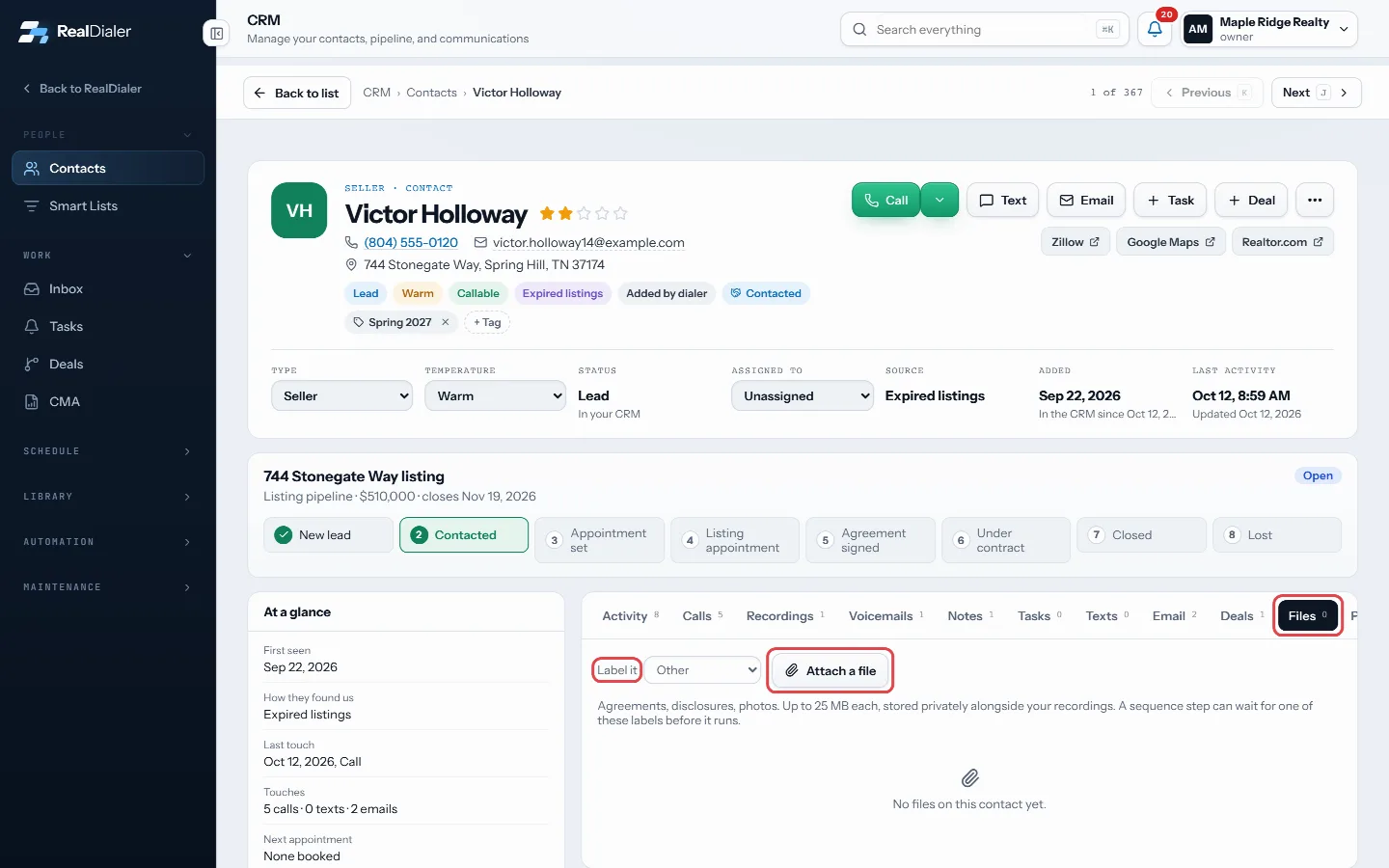
Files tab: pick a label, then Attach a file - To change a label later, use the menu on the file’s row.
- Use the download icon to open a file, or the bin to delete it.
Good to know
- Files can be up to 25 MB each and are stored privately.
- A sequence step can wait until a file with a certain label is on the contact before it runs, for example hold a touch until the signed contract is attached.
- When you merge duplicates, files move to the record you keep.
Was this guide helpful?
Thanks. It helps us make these better.
Next in CRM
Build a call block from your contactsBuild call block turns the people in a smart list, or the contacts table as filtered right now, into a calling list your dialer can work. You can hand it straigBuild a CMA reportThe CMA room builds a comparative market analysis from the sales you keep on file. You get a supported value range, a price per square foot, the sales it used, Build a follow-up sequenceA sequence is a cadence of touches over time: call, wait, text, wait, email. Each touch either lands as a task for whoever works the contact, or, for an email,
Still stuck? Write to support@realdialer.com, or open Support from inside RealDialer.