What it is
The search box in the top bar looks across your whole account: contacts, call transcripts, call notes, notes, texts and email, tasks, callbacks, appointments, deals, calling lists, campaigns and templates.
Where to find it
The Search everything box in the top bar, on every page.
Steps
- Click the box, or press Cmd K on a Mac, Ctrl K on Windows, or the / key.
- Type at least two characters: a name, a phone number, or something said on a call.
- The top few results of each kind drop down under the box. Use the arrow keys and Enter, or click one.
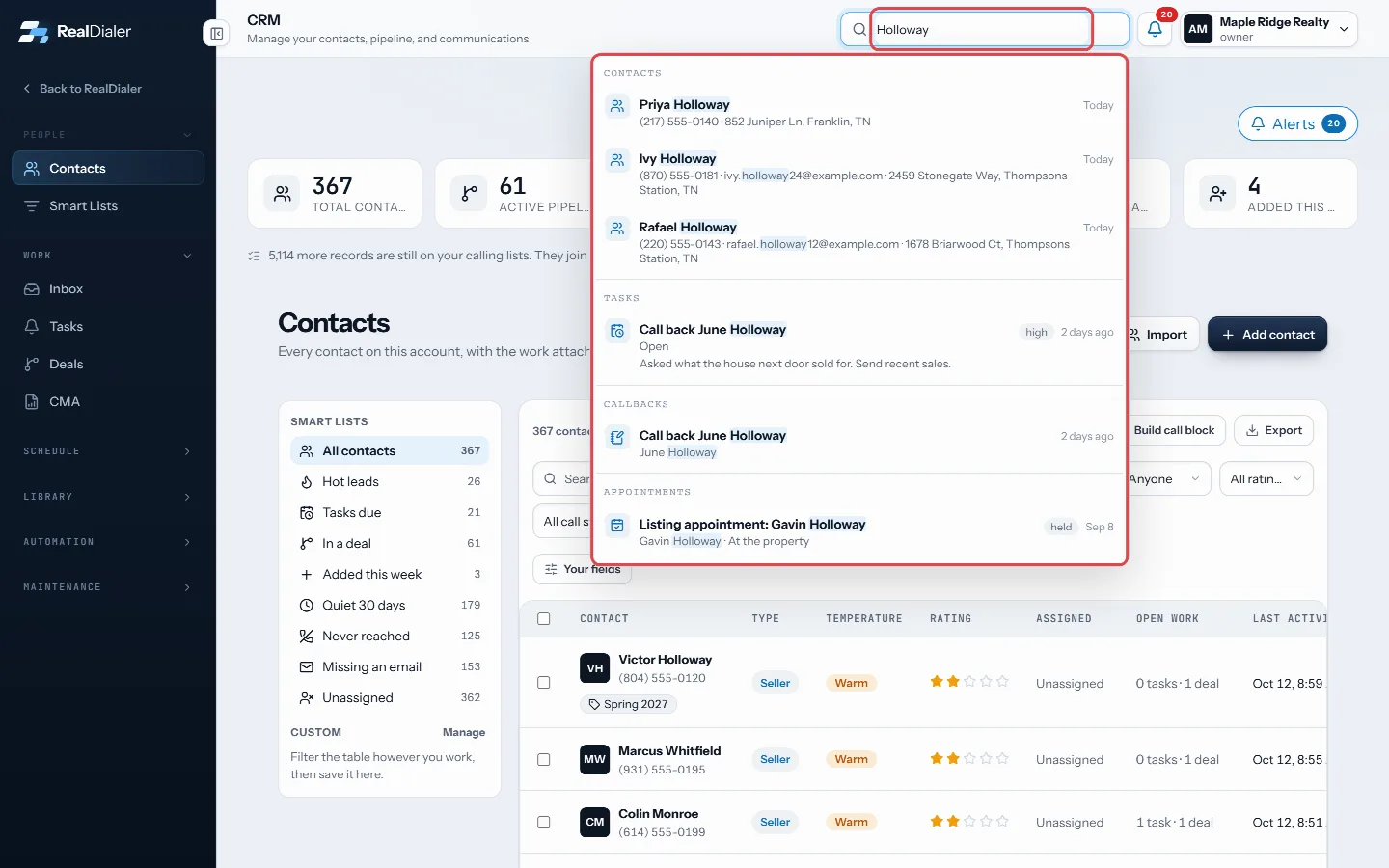
Type two characters or more; the top results drop down - Press Enter with nothing picked, or choose See all results, to open the full results page.
- On the results page, use the chips, or Show all on a group, to show one kind, and Load more to see further matches.
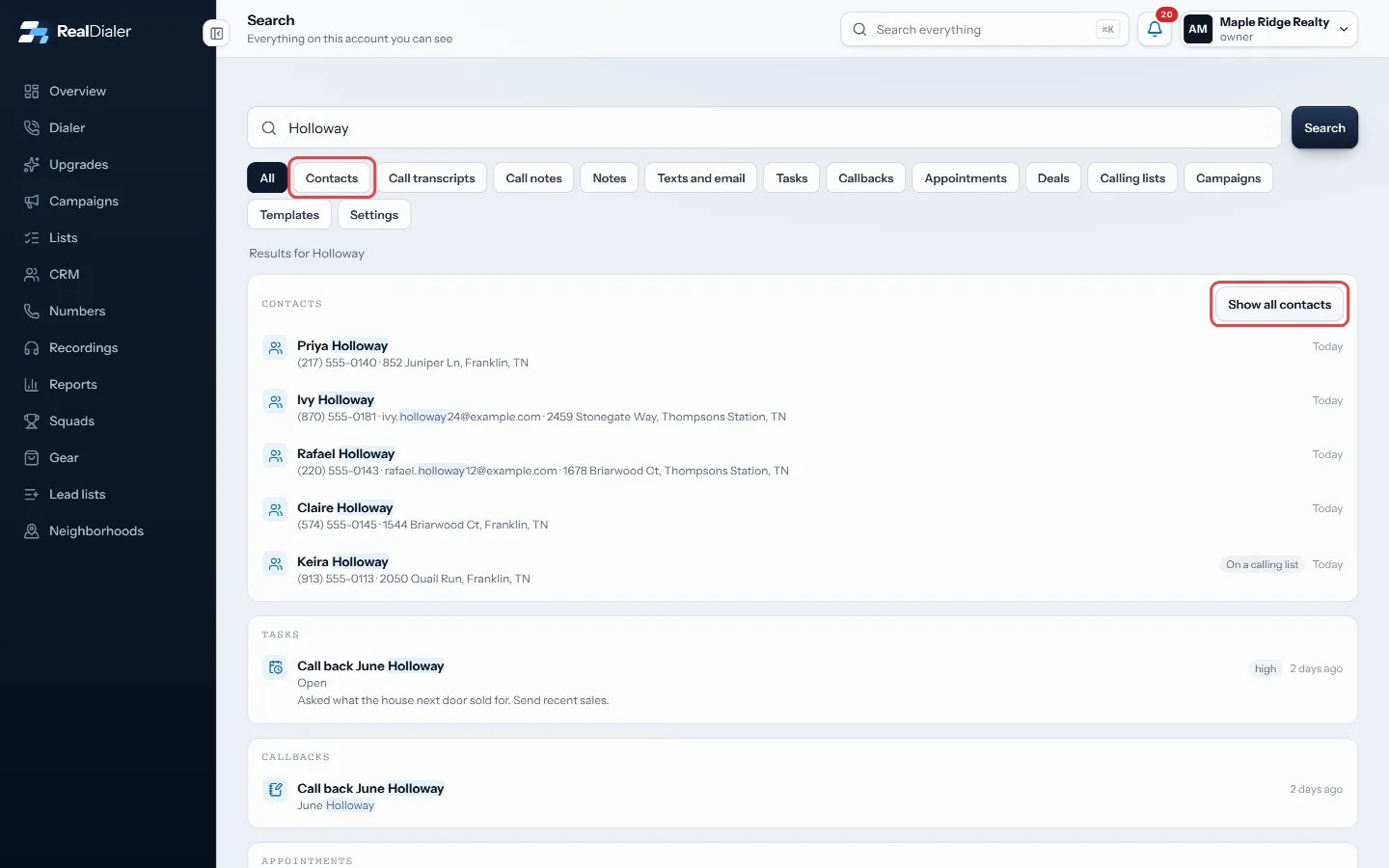
The results page, with chips for each kind
Good to know
- You only see results you are allowed to see. Agents see their own contacts.
- Call transcripts only match calls you placed yourself.
- A contact opens in the same tab. Cmd click or Ctrl click opens a new tab.
- Press Esc to close the dropdown.
- A results page link can be shared with a teammate, who sees only what their own seat may see.
Was this guide helpful?
Thanks. It helps us make these better.
Next in CRM
See a contact’s call and activity historyThe contact record keeps one dated timeline of everything that happened with a person: calls and their results, voicemails they left, texts and emails, notes, fSee and send email to a contactThe Email tab on a contact shows every email your sequences sent to them and any they sent back. To write one email yourself, you send it from your own email apSend a lead to the CRM or CloseDaily from a callSend this lead moves the person you are talking to into your RealDialer CRM, and can also send them to CloseDaily if your account has it connected. When you add
Still stuck? Write to support@realdialer.com, or open Support from inside RealDialer.