What it is
The Property tab shows who owns the home and what is known about it: property and mailing addresses, phone numbers, emails, beds, baths, square feet, year built, estimated value, last sale, tax figures and any listing details from your list.
Pull records runs a skip trace on the property address and brings back the owner of record, the parcel, and every number and address on file.
Where to find it
Open a contact > Property tab. More actions > Property and owner details goes there too.
Steps
- Open the contact and click the Property tab.
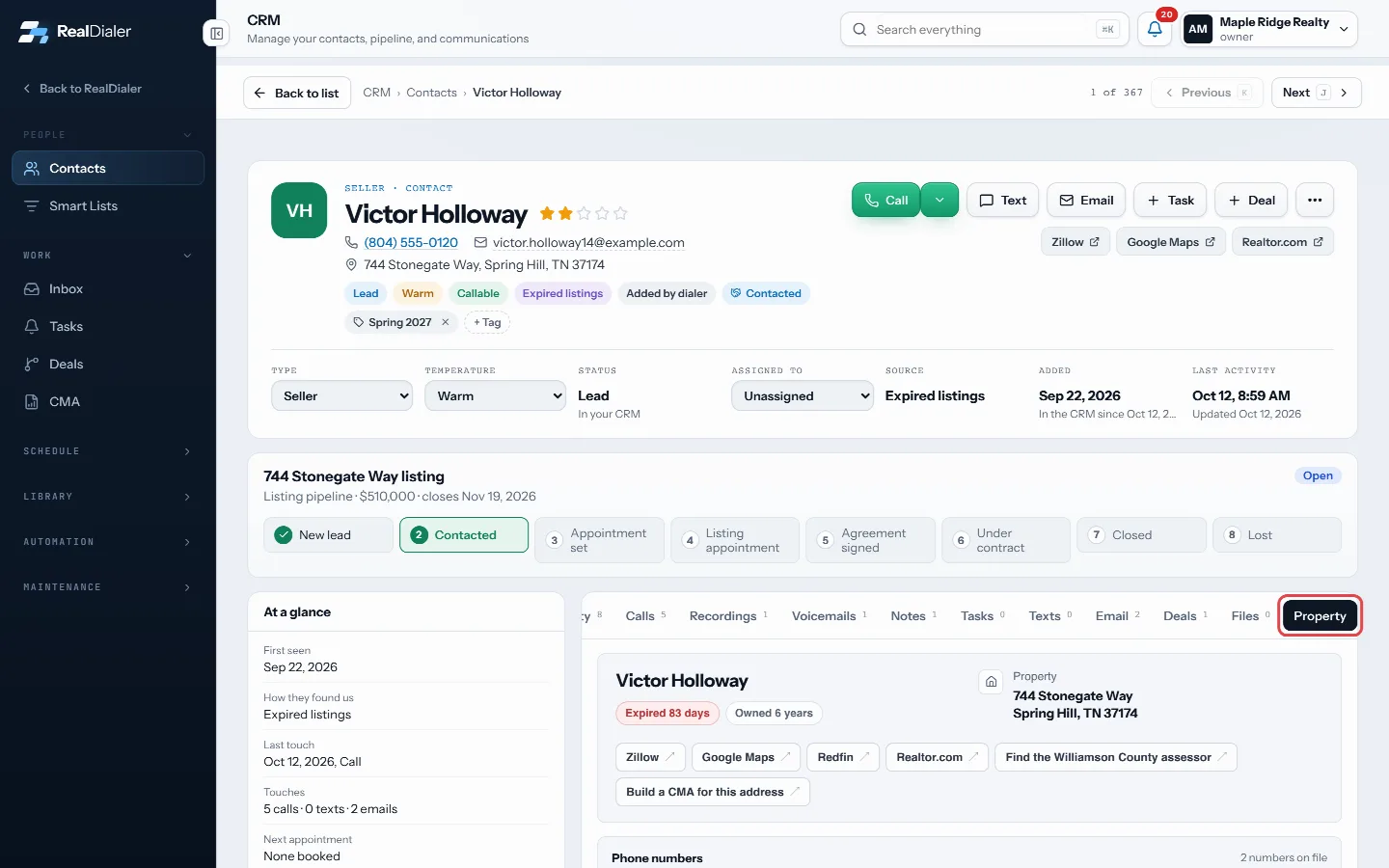
Open the Property tab - Use Add an email or Add an address to add details by hand.
- Use the icons next to a phone number to make it the main number, hide it, mark it do not redial, or add it to do-not-call.
- At the bottom, press Pull records (or Refresh records if they were pulled before).
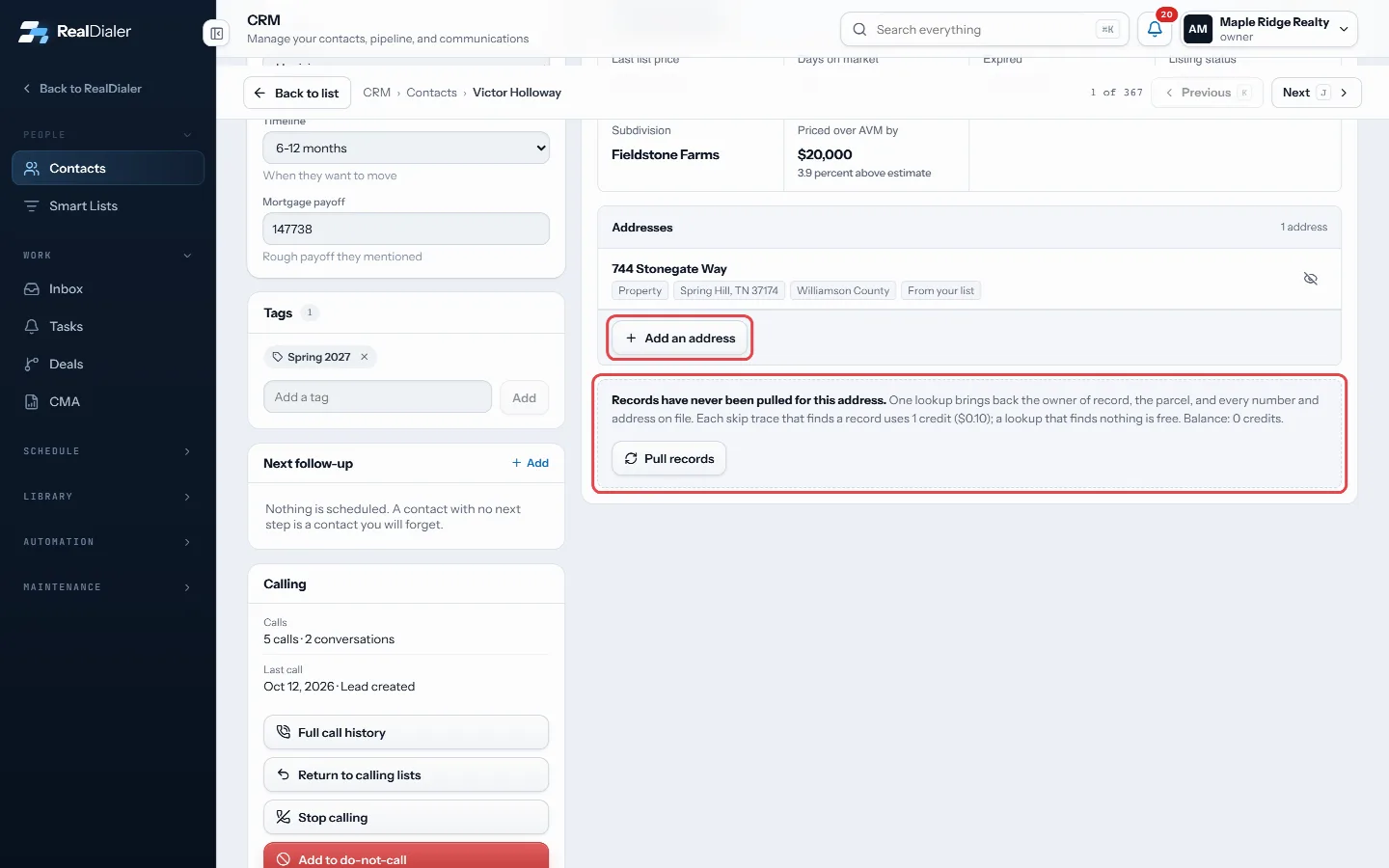
Pull records at the bottom - Read the cost line, then press Skip trace now.
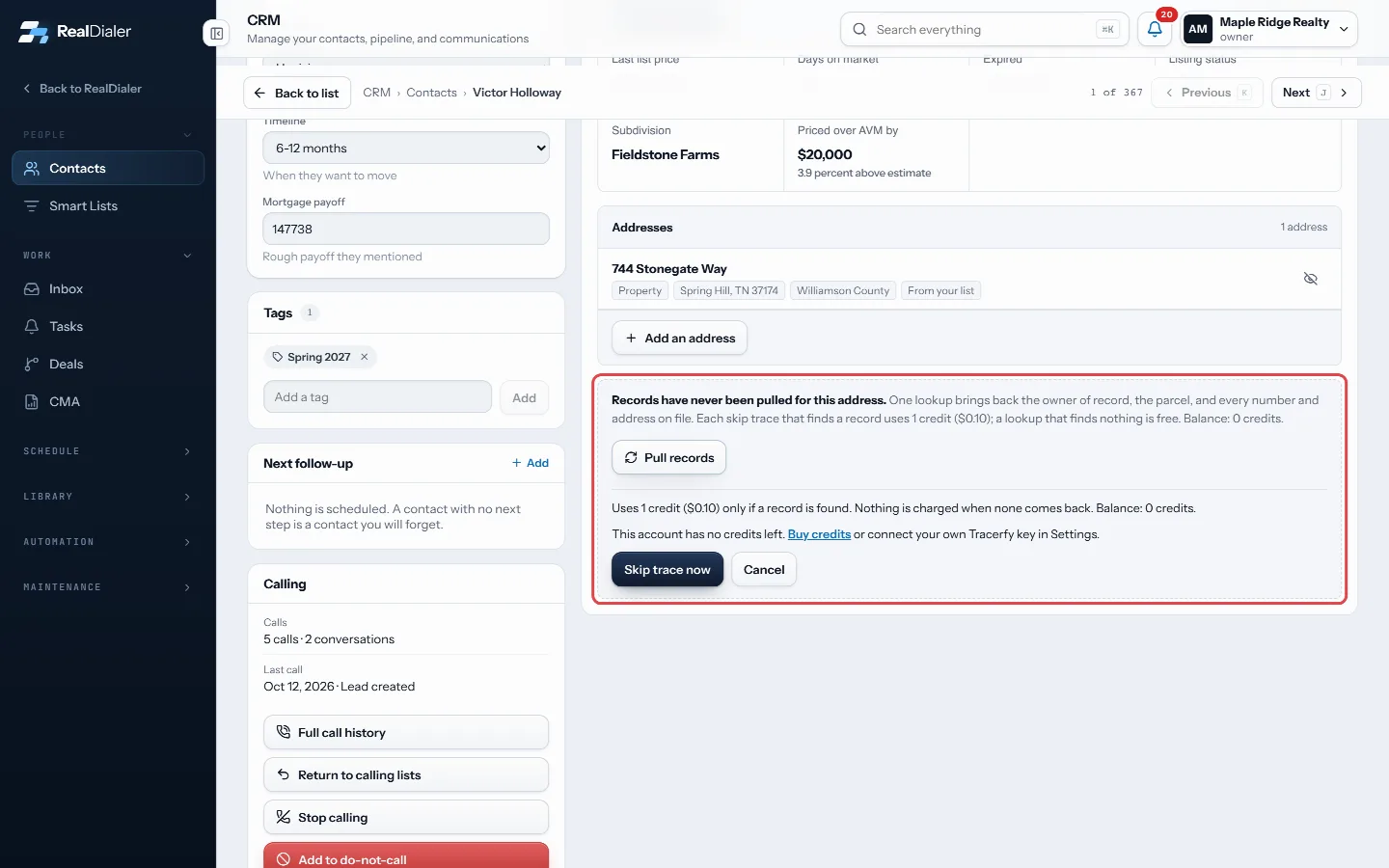
Read the cost line, then press Skip trace now
Good to know
- With RealDialer credits, a lookup that finds a record uses 1 credit. A lookup that finds nothing is free.
- If you connected your own Tracerfy key, lookups run on your key and RealDialer charges nothing.
- No credits left? Use Buy credits in the message.
- No lookup runs for a contact who asked not to be called, or a contact with no property address.
- Build a CMA for this address opens the CMA room with the address filled in.
- Estimated value is a model, not an appraisal.
Was this guide helpful?
Thanks. It helps us make these better.
Next in CRM
Put a lead form on your websiteA ready made lead form you can put on your own website or landing page, or link to straight from an ad. Every lead it takes goes into RealDialer the same way asPut your lead form on WordPress with the pluginA small WordPress plugin that shows your RealDialer lead form on any page with a shortcode or a block. It shows the form you designed in RealDialer, so a changeRead and reply in the InboxThe Inbox holds every text and email written to your account, one conversation per contact, newest first.
Still stuck? Write to support@realdialer.com, or open Support from inside RealDialer.