What it is
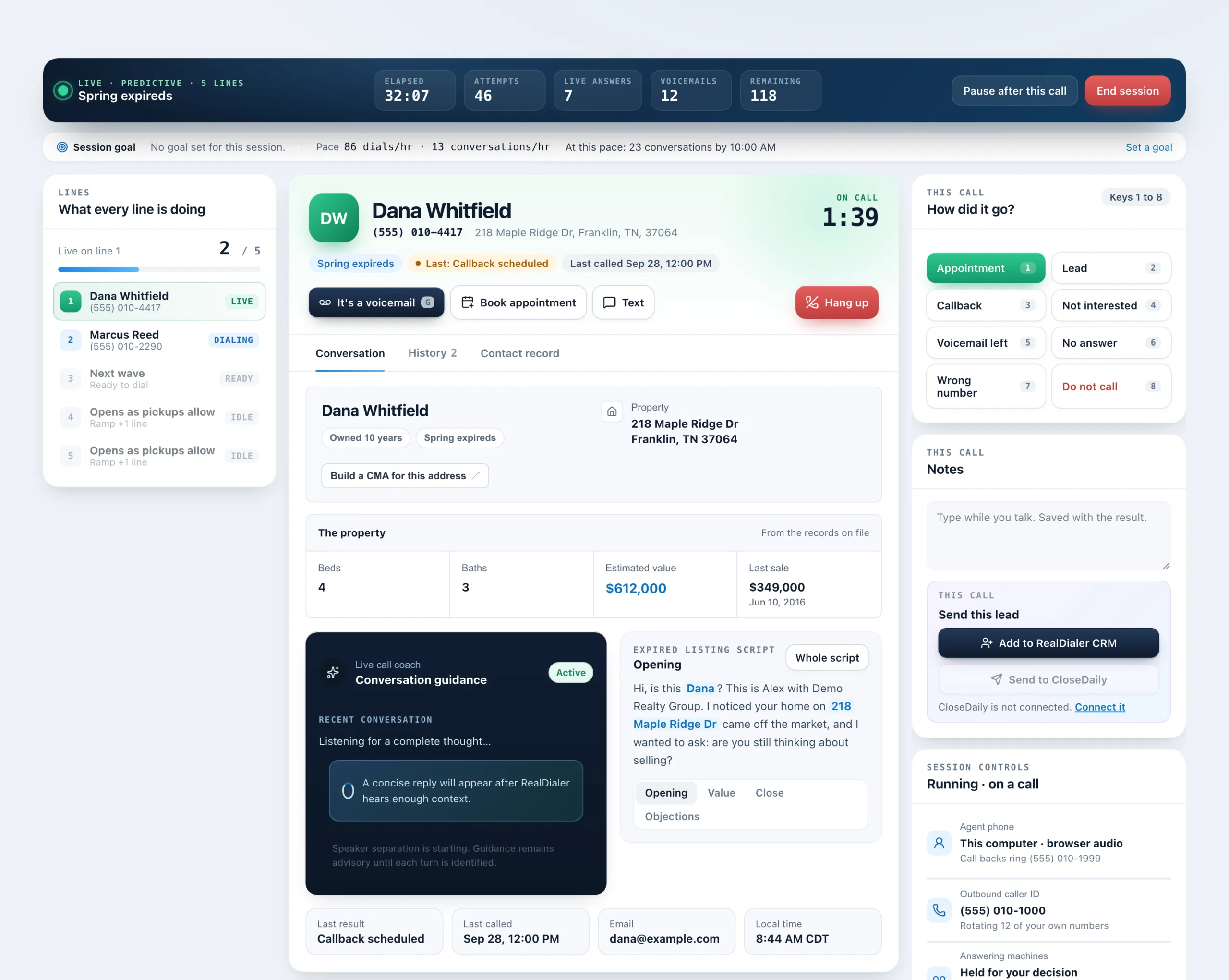
Send this lead moves the person you are talking to into your RealDialer CRM, and can also send them to CloseDaily if your account has it connected. When you add someone to the CRM, RealDialer asks whether to take them off the calling list until you are ready to call them yourself.
Where to find it
Dialer > during a call > Notes card > Send this lead. A contact record also shows a Send to CloseDaily button when CloseDaily is connected.
Steps
- While on a call, find Send this lead under Notes on the right.
- Press Add to RealDialer CRM. It changes to In RealDialer CRM.
- A question asks whether to remove them from the list the call came from. Press Yes, remove from list so the dialer stops calling them there, or No, keep calling.
- If CloseDaily is connected, press Send to CloseDaily.
Good to know
- Removing them keeps them on the list with their full call history. The dialer just skips them on that list, and their other lists are untouched.
- Changed your mind? Press Put back right away, or Call again on the list in their contact record later.
- If the person is already in your CRM, you will see Already in your RealDialer CRM.
- Send to CloseDaily is greyed out with a Connect it link when CloseDaily is not connected. Connect it in Settings, Connections.
- If CloseDaily is paused in Settings, the button shows CloseDaily paused and nothing is sent until you turn it back on.
- Pressing Send again confirms the same lead. It does not create a second one.
Was this guide helpful?
Thanks. It helps us make these better.
Next in CRM
Send Google Ads and Facebook leads to RealDialerIf you run lead form ads, where people fill in the form inside Google or Facebook instead of on your website, those leads can come straight into RealDialer throSend website leads in with a lead intake URLA lead intake URL is a private address you paste into your website form, a portal or anything else that sends you leads. A lead posted to it becomes a contact iSet up automationsAn automation watches for one thing to happen and then does up to 12 things about it, with nobody clicking. For example, tag every new seller, assign whoever co
Still stuck? Write to support@realdialer.com, or open Support from inside RealDialer.